
The favicon plays a significant role from a branding perspective. By default, Clickfunnels has its favicon.
To add your brand’s favicon, you need to replace the ClickFunnels favicon with your favicon.
And, in this guide, I will cover how to change the Favicon in ClickFunnels.
Let’s get into it!
How to Change Favicon in ClickFunnels Step-by-Step?
Changing a favicon is just a matter of a few mouse clicks. The following are the steps that you can follow to change the favicon in ClickFunnels.
Step 1: Log in to your ClickFunnels.
Firstly, go to Clickfunnels and enter your login credentials to get into the ClickFunnels dashboard. Once you’re in, follow the next steps to change the favicon in Clickfunnels.
Step 2: Upload Favicon to ClickFunnels.
Before you change the favicon in Clickfunnels, you need to first upload the new favicon to Clickfunnels. If you have not uploaded a favicon to the Clickfunnels asset library yet, then first upload it by following the steps below.
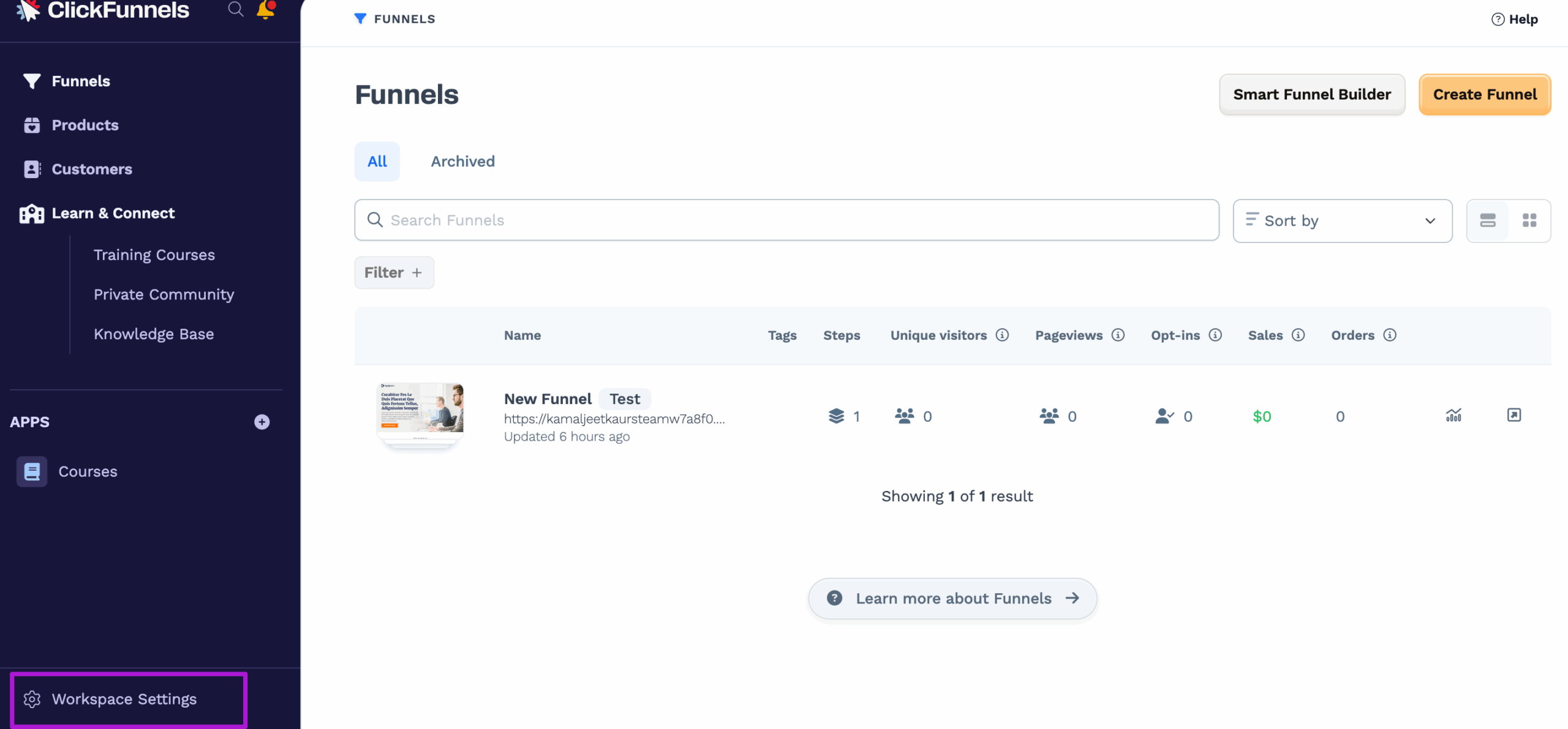
Navigate to the left navigation and click “Workspace Settings.”
Now go to “assets” and click on “Upload image.”
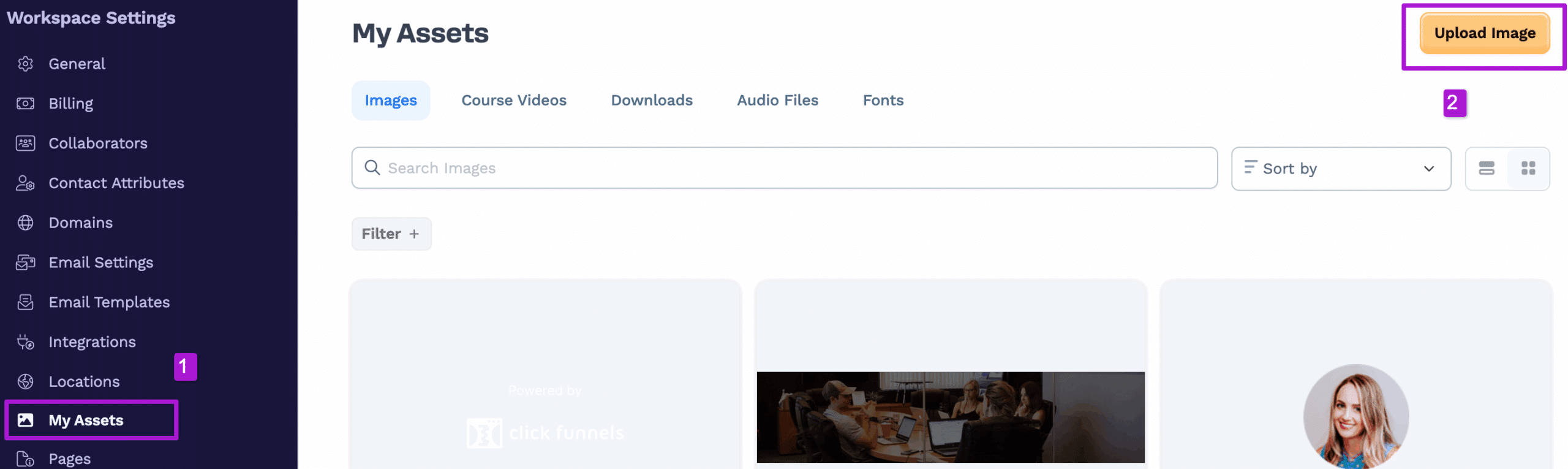
Next, you can upload the favicon image from your system. Make sure that your favicon file size is less than 3 MB. Otherwise, Clickfunnels will not allow you to upload it.
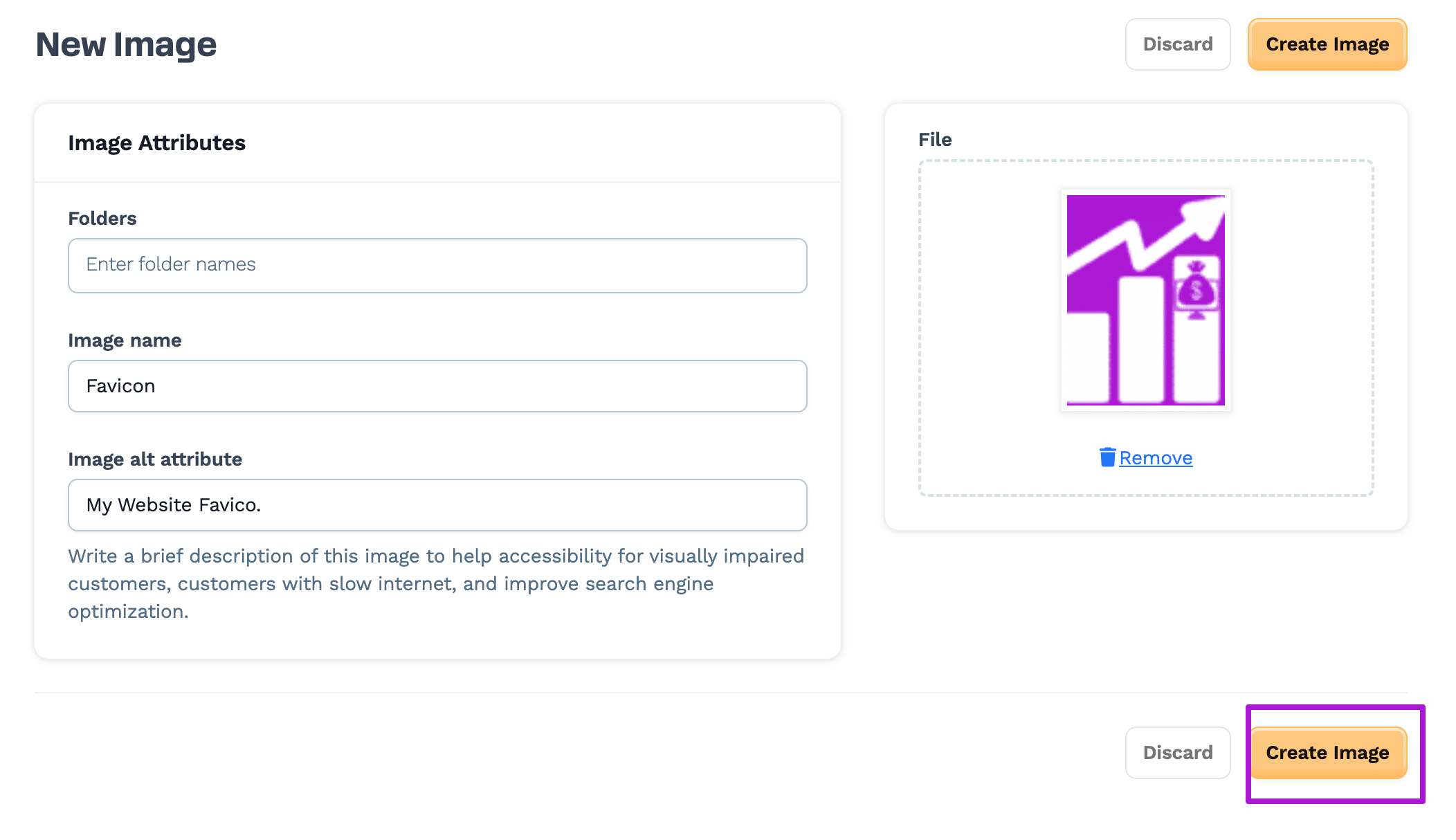
Additionally, you can also give your image a name and an alt tag for SEO. Once done, click “Create Image.”
And, you will see that your favicon image will be added to the asset library. Now, you are just one step away from changing the favicon image. So, let’s do that!
Step 3: Choose Your Favicon
Go to “Funnels” and navigate to the “funnel” to which you want to add a favicon.
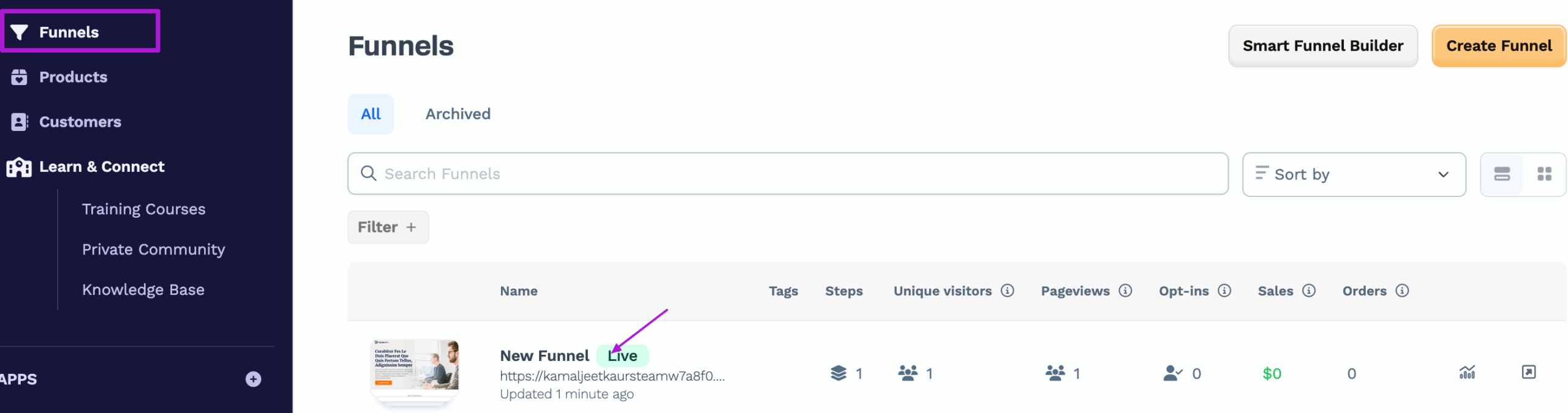
Now, click on the Status of the funnel, which is either “Test or Live”, to directly open the funnel’s main settings.
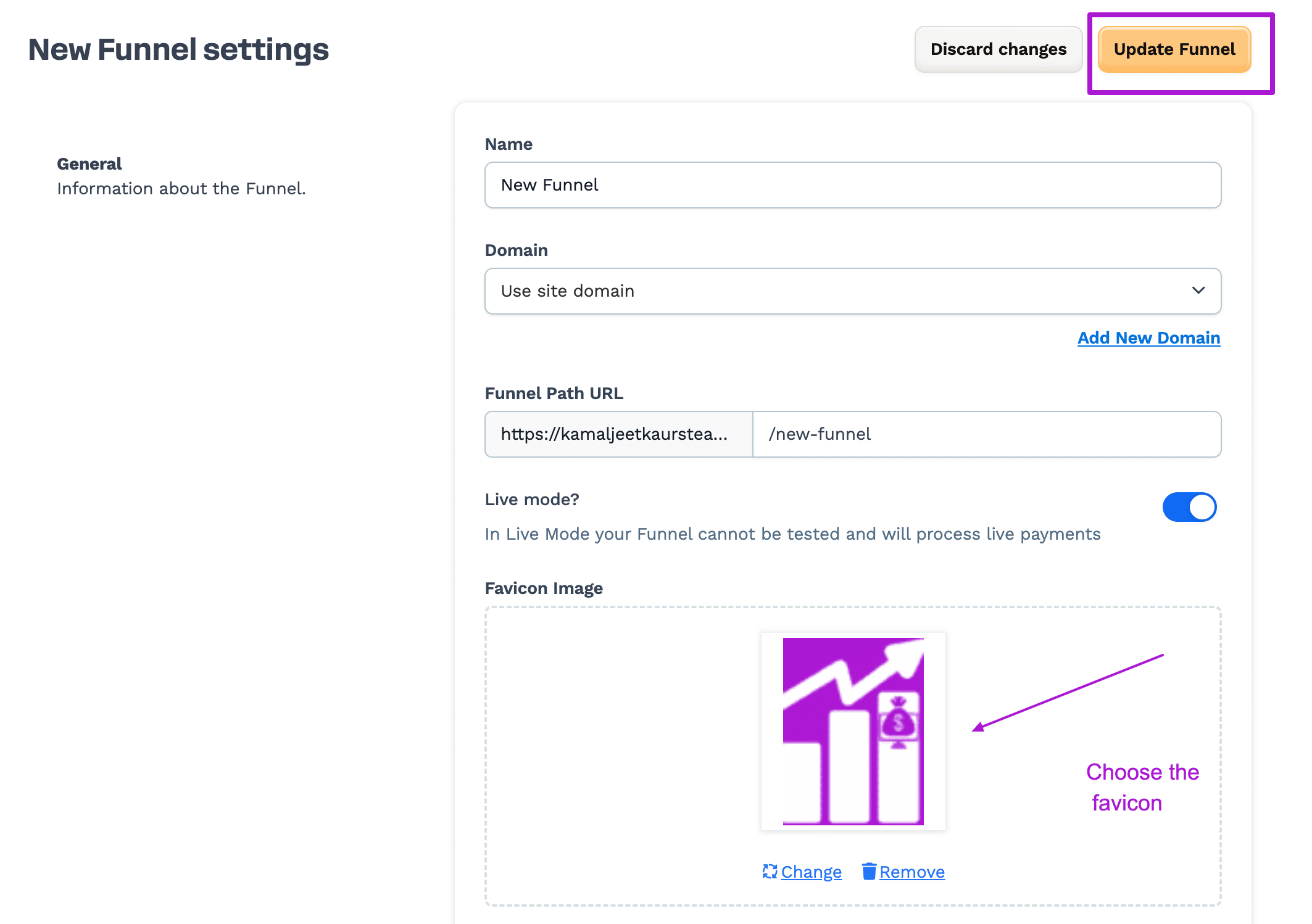
Now, go to the Favicon image, and “select the favicon” that we just added to the asset library.
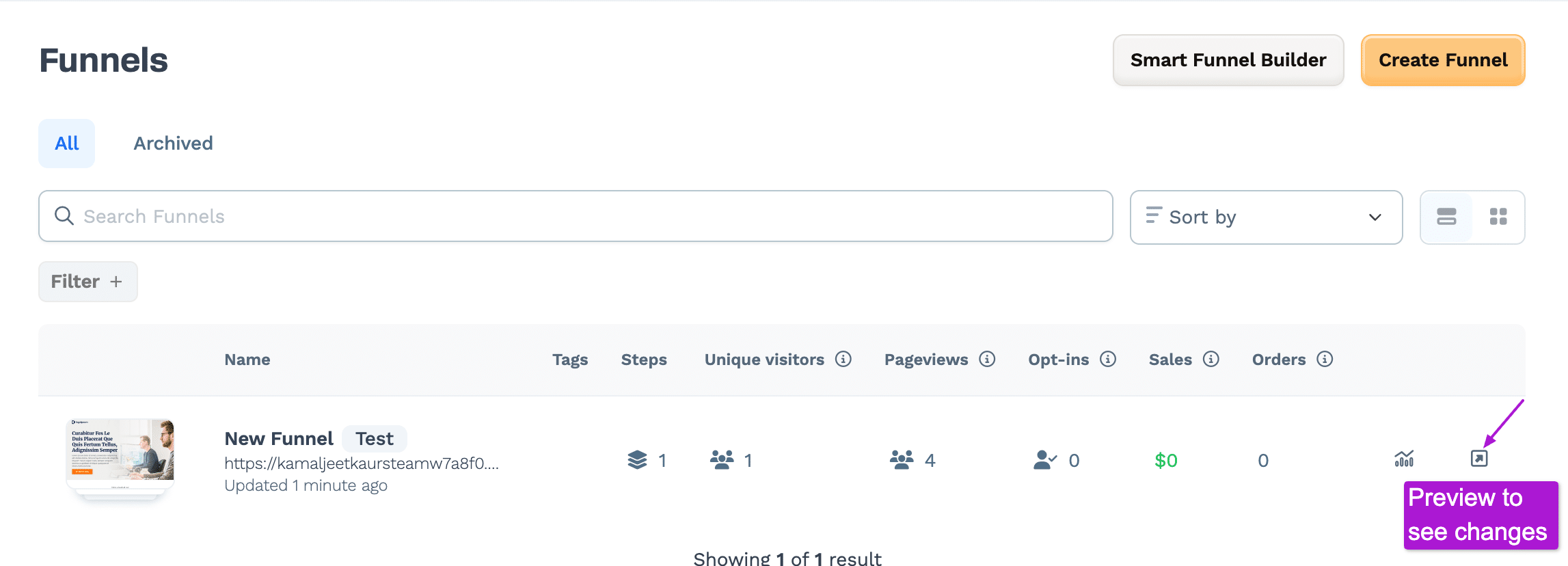
Lastly, you can click on the “Preview” icon to make sure your favicon is changed.
Keep in mind that Favicon can take some time to update. So, try refreshing the Clickfunnels or wait for some time to see the updated changes.
In my case, it took a few minutes to update the favicon in Clickfunnels. So, don’t be worried and wait for some time to see your updated favicon.
Final Thoughts
I hope this straightforward guide will help you to easily change the favicon in Clickfunnels.
If you still have some questions, feel free to leave them in the comments.