Wondering how to duplicate a page or post in WordPress? No worries, because that is what I’m going to cover in this guide.
Recently, I was also looking to duplicate a page in WordPress. But, when I checked the built-in features of WordPress, I have not found any direct feature to duplicate a page.
Because, by default, WordPress does not have a feature for duplicating pages/posts. But that doesn’t mean that you can’t duplicate a page/post in WordPress.
So, after doing some research, I finally found 2 different ways to clone a page/post in WordPress which I’m going to share with you in this guide.
Let’s get into how to duplicate a page/post in WordPress!
How to Duplicate a Page in WordPress?
Here are the 2 most easy methods to duplicate a page/post in WordPress:
- Duplicate a page using a plugin
- Copy and paste content manually.
Let’s discuss each method one by one and learn a step-by-step guide for cloning a page/post in WordPress using these methods.
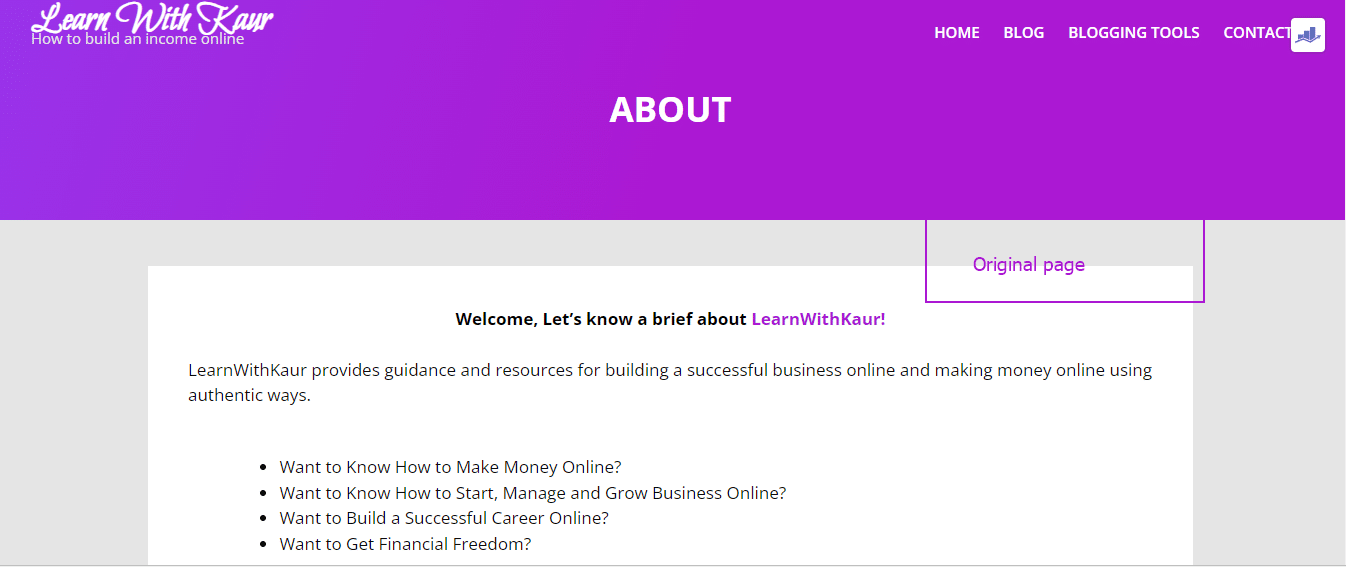
Following is the About page of my website that we’re going to duplicate with each method to learn the exact steps and to see how the final duplicated pages will look.
Method 1: Duplicate a Page in WordPress using a Plugin
As you know in WordPress, there are plugins for almost everything, and by using plugins you can add any additional features and functionalities to your WordPress site.
So, for duplicating a page/post in WordPress, you can use cloning plugins.
The best thing about using the cloning plugin is that it allows you to duplicate a page/post with just a single mouse click. So, if you’re looking for a quick and easy way to duplicate a page in WP, then consider using a cloning plugin.
Another benefit is instead of just duplicating a page’s content, with plugins you can also duplicate page settings, layout, and design.
There are a couple of Free WordPress cloning plugins that you can use for duplicating pages/posts in WordPress, such as:
In this guide, I’m going to use the duplicate page plugin to show you how to clone a page/post in WordPress.
How to Duplicate a Page/Post Using a Duplicate Page Plugin?
1} Install a Plugin
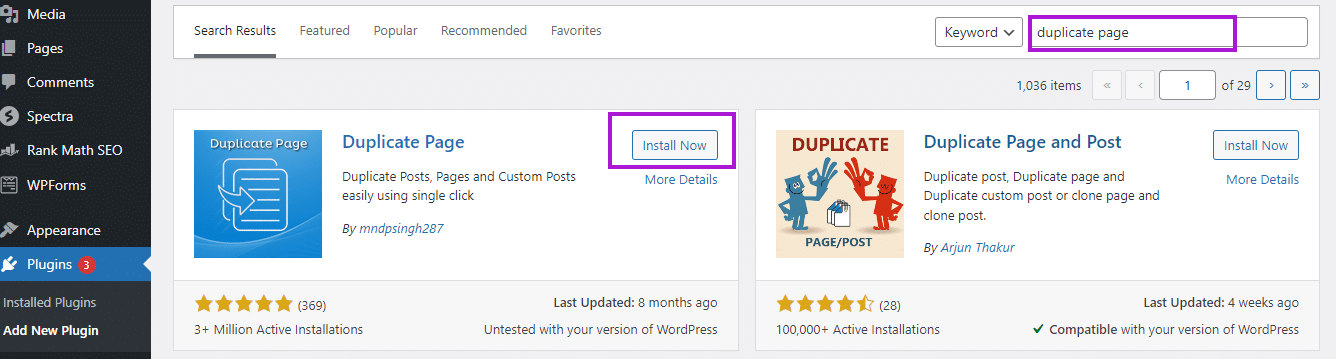
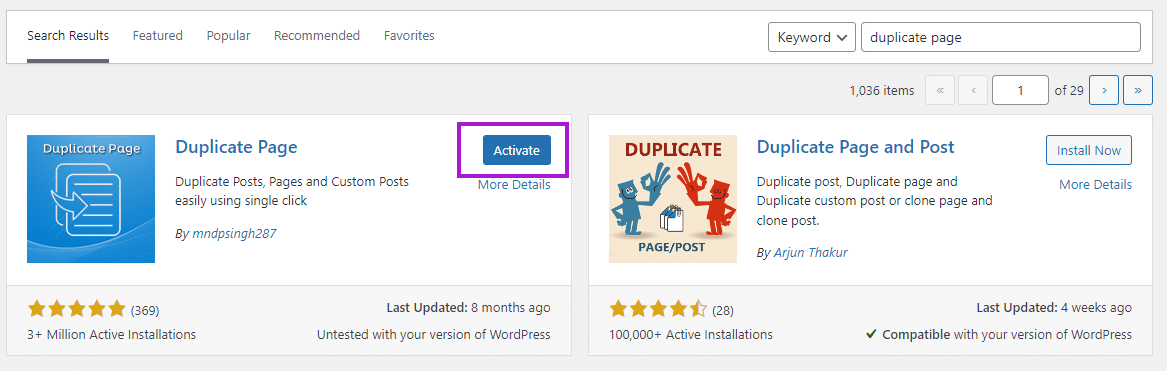
The first thing that you need to do is install a cloning plugin. For this guide, I’m going to use “Duplicate Page Plugin”.
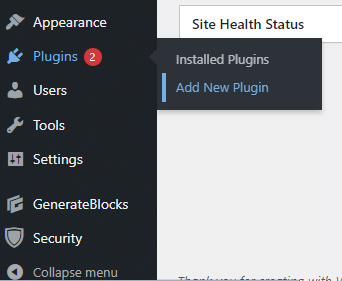
Navigate to Plugins → Add New Plugin
Now search for the “Duplicate Page” and you will see a plugin. Click on “Install Now”
Once installed, click on “Activate“.
2) Configure Plugin Settings
Now navigate to the “Installed Plugins” area from the left navigation bar, look for “Duplicate Page Plugin” and click “Settings”

Next, configure the settings for your newly installed plugin as per your custom needs. So, here are some basic settings that you can customize for your cloning plugin.
Choose Editor: By default, it is set to classic editor, so based on which editor you’re using in WordPress, you can select from here. If you use both editors, make sure to select “All editors”
Duplicate Post Status: Choose the default status for your posts when you make a duplicate. Keeping status to draft is good.
Because, sometimes, we don’t want to publish the duplicated page immediately as we may need to edit that duplicated page/post before publishing.
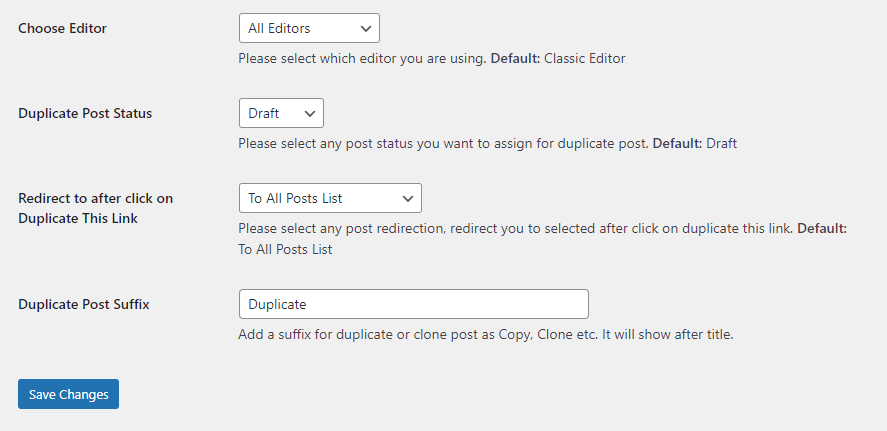
Redirect to after clicking on Duplicate This Link: Define where you want to redirect after clicking on the duplicating option to the All pages posts or edit screen.
Duplicate post suffix: Add any suffix text for duplicated pages/posts to better recognize that this post is a duplicated one. Such as adding a clone or copy keyword.
After configuring the settings for your plugin, make sure to “Save Changes”.
Now you’re all set for duplicating a page.
3) Duplicate a Page/Post in WordPress
Now navigate to the Pages → All Pages to create a duplicate of your existing pages.
And if you want to duplicate a post, navigate to Posts → All Posts.
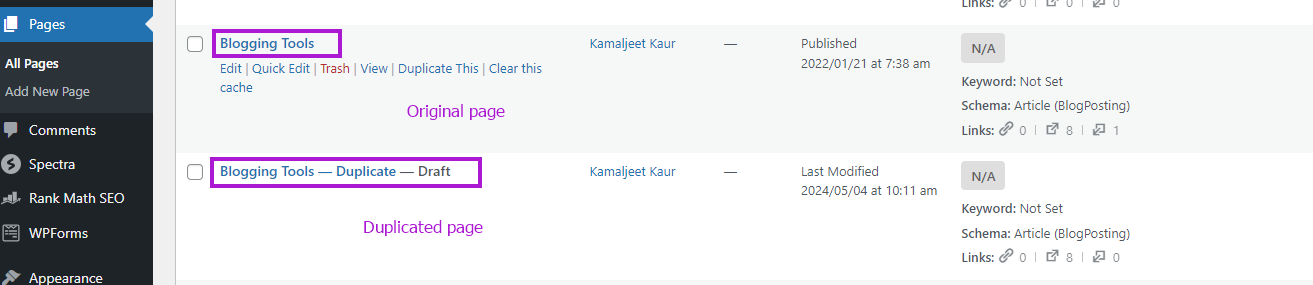
Next, hover over any of your existing pages/posts that you want to duplicate. And you will see a new option “Duplicate this”.
To duplicate that page/post, simply click on the” Duplicate this” option. For example, I’m duplicating my blogging tools page in this tutorial.

Now you will see, a duplicated page/post will be automatically added here which is in draft mode. As you can see, my blogging tools page is now duplicated with a name, Blogging tools – Duplicate.
Further, you can edit the page/post based on your needs. Below is how the duplicated page looks. The page just looks the same as the original one, including content, page settings, layout, and design.
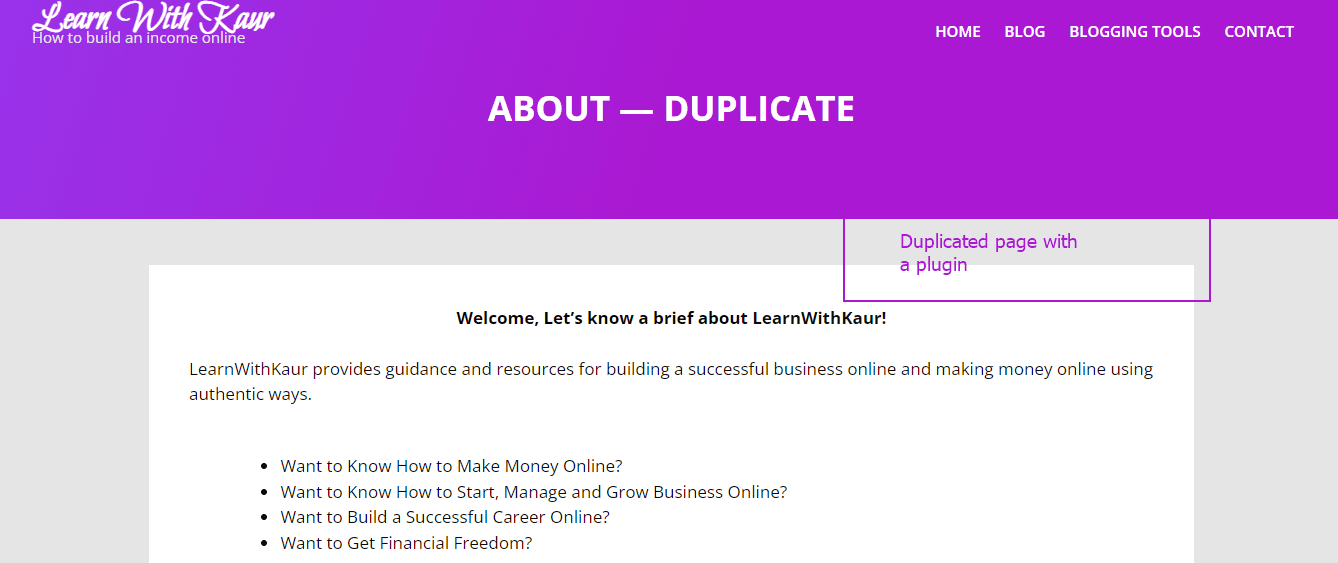
This is how you can easily create a duplicate of any of your existing pages/posts in WordPress using a plugin.
Method 2: Copy and Paste Content Manually.
In case you don’t want to use a plugin for duplicating a page or post in WordPress. Then you can just manually copy and paste the content.
However, with the manual method, you can only copy the content of your page to another page, but you cannot copy the page settings, layout, and design.
Steps for Copy and Pasting Content Manually in WordPress
Go to your WordPress page or post that you want to duplicate and edit it.
Now click on the three dots from the top left corner and scroll to choose “Copy all blocks”.
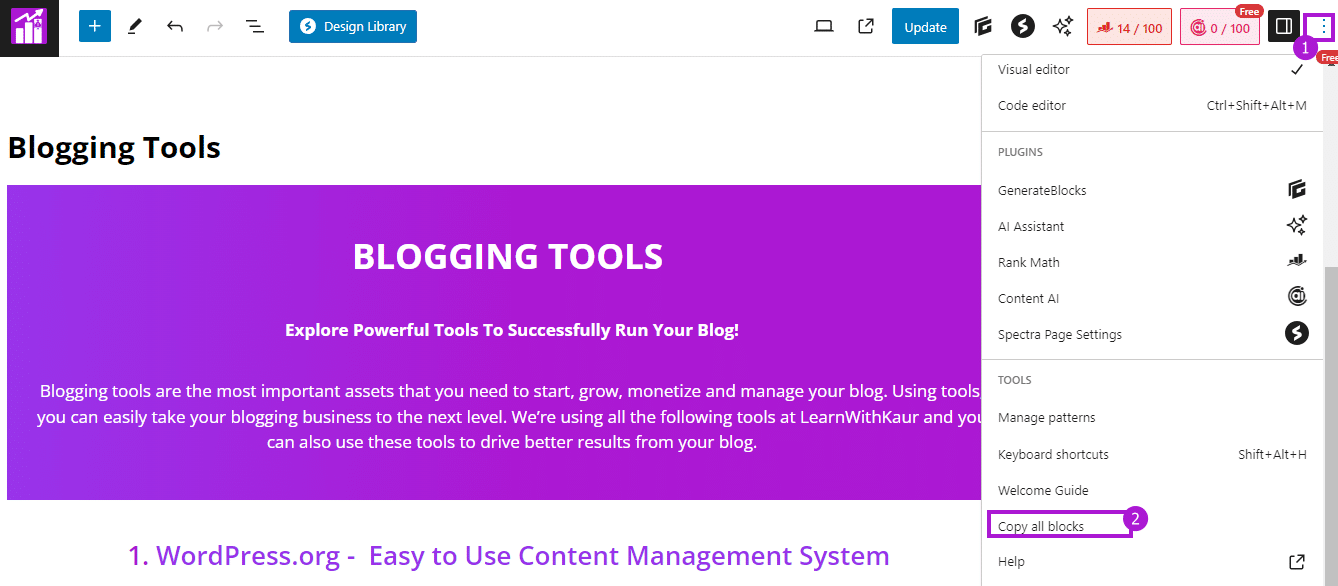
Now Add a New Page/Post. Press “Ctrl + V” to paste the content. And all your content blocks will be posted here.
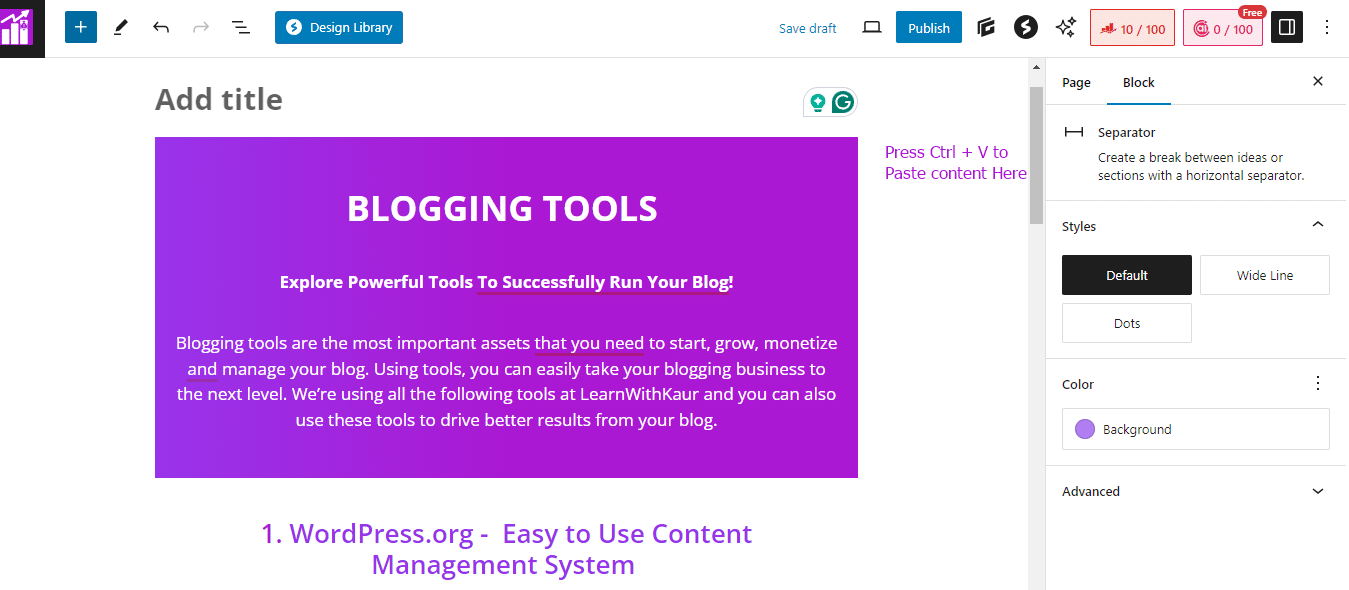
Below is how your duplicated page looks now. As you can see, the content of the page is pasted but the page settings, layout, and design are not duplicated. Because with the manual method, you can only copy content.
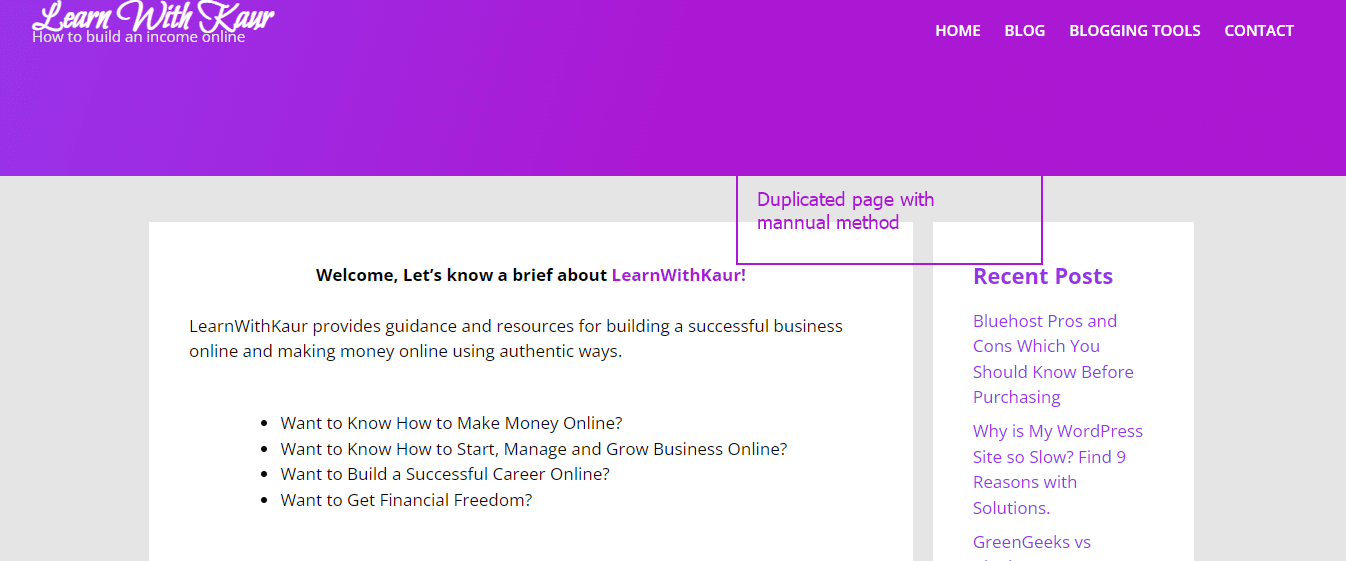
So, if you also want to duplicate a page settings, layout, and design, then using a cloning plugin is a good idea. Because with a plugin, you can duplicate everything with a single mouse click.
Final Thoughts
I hope this guide will answer your question of how to clone a page/post in WordPress.
You can use cloning plugins such as the duplicate page plugin to duplicate pages/posts in WordPress with a single mouse click.
And if you don’t want to use a plugin, then you can use a manual method for copying and pasting the content.
But keep in mind that with the manual method, you can’t copy the page settings, design, and layout. And, if you want to duplicate that, consider using a plugin which is the easiest and most convenient way.