LearnWorlds is a well-known LMS software, but the question is: is it worth it? Or what are its features, pros, and cons?
If you’re looking for a detailed LearnWorlds review, then this can be worth reading for you.
I spent quality time researching and also signed up for its 30-day free trial to personally test LearnWorlds’ features.
In this LearnWorlds review article, I will share my knowledge and experiences with its key features, along with the pros and cons that I analyzed during testing of this platform.
Finally, I will share my thoughts on its pricing and whether it is worth buying LearnWorlds.
Let’s dive into the LearnWorlds review!
- What is LearnWorlds?
- LearnWorlds Review 2025
- Ease of Use
- LearnWorlds Features Review
- Course Creation, Customization, and Management Features
- Organize Your Course Content into Sections and Learning Activities.
- Course Player Customization Settings
- Build, Customize, and Manage Your School Website
- Marketing & Communication Features Review
- Email Marketing
- Affiliate Marketing
- Communication Features.
- E-commerce Features
- Analytics and Reporting Review
- Branded Mobile APP
- Integrations Review
- LearnWorlds Pricing & Plans Review
- LearnWorlds Support Review
- LearnWorlds Pro and Cons
What is LearnWorlds?
LearnWorlds is a Learning Management system that helps you build, manage, market, and sell your courses online.
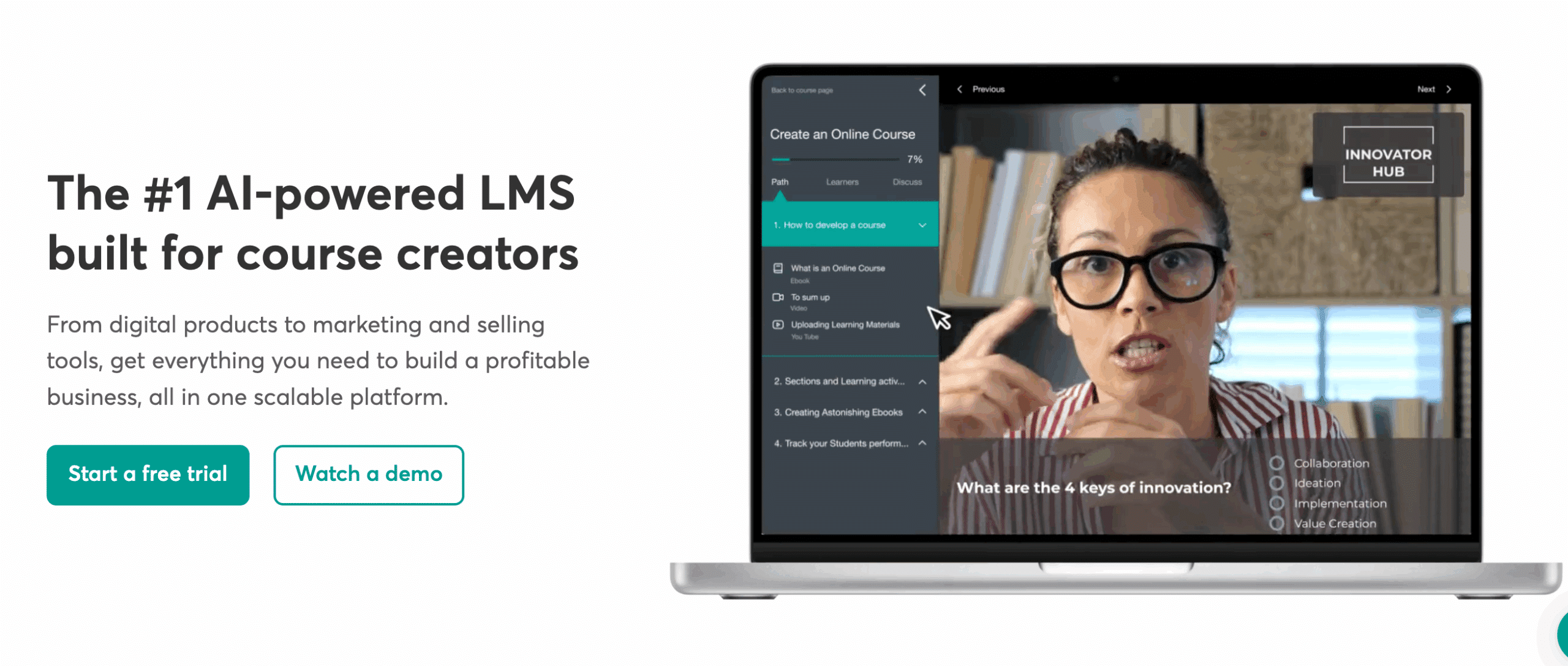
Apart from its course creation features, it also includes built-in tools for creating websites, landing pages, sales funnels, forms, and pop-ups. It also has checkout and payment features to sell your courses online.
This is a quick overview of what LearnWorlds is. Let’s now dive deep to see how well it can do in the real world.
LearnWorlds Review 2025
For picking the best online course creation platform, you should consider factors such as ease of use, key features, support, and pricing. So, in this section, I will share my review of each one.
Ease of Use
The ease of use refers to how easily you can navigate and adapt the user interface. So, let’s break it down into three main areas:
1) Onboarding Setup
The onboarding setup of LearnWorlds is quite easy. It offers step-by-step onboarding guidance.
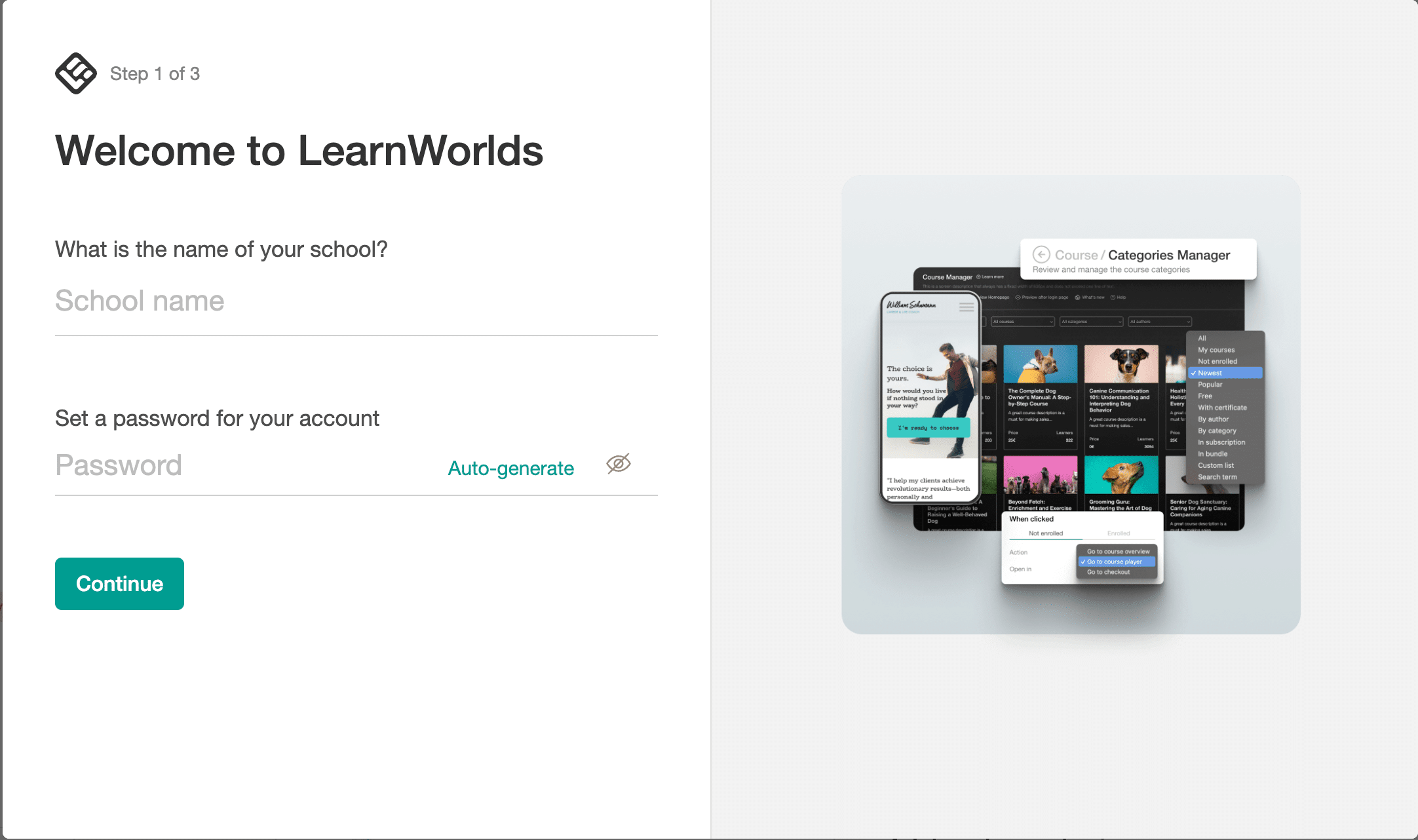
Once you sign up for LearnWorlds, it will immediately walk you through setting up your first school. You can set up a school name, passwords, and choose the pre-made theme templates for your school. You can also change the theme later or customize it.
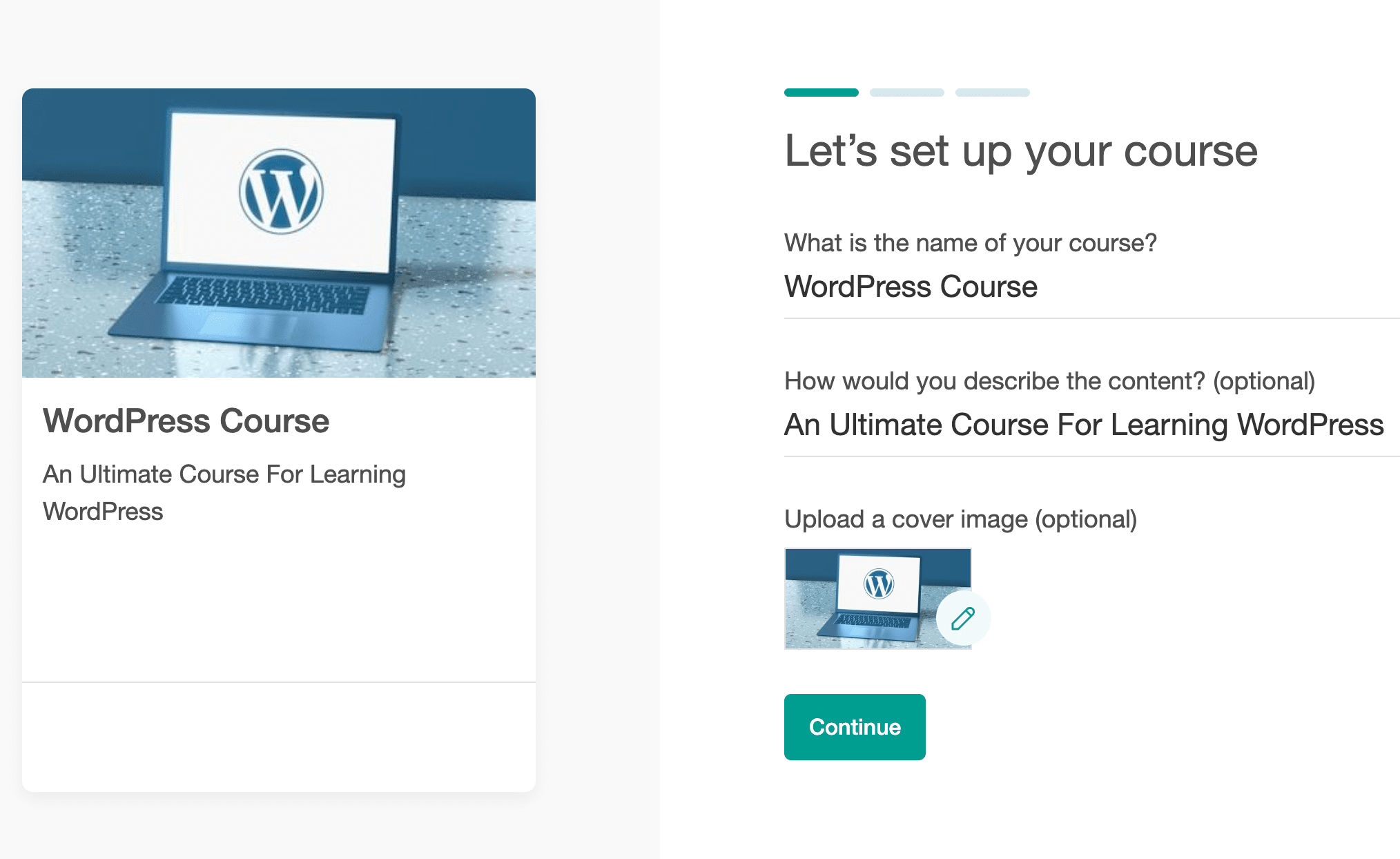
During onboarding, you can also create your first course with step-by-step guidance.
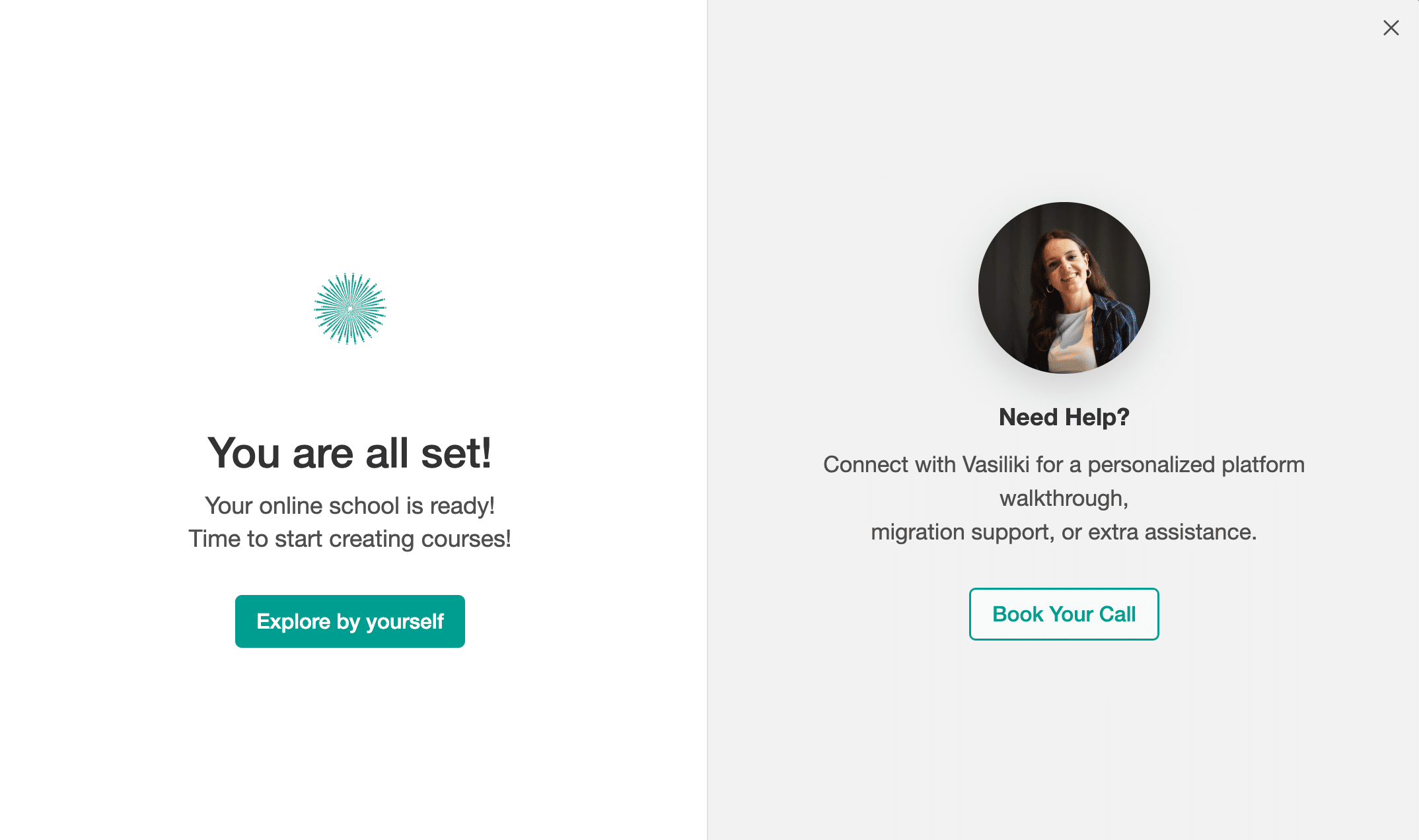
Learnworlds also offers personalized onboarding, which means you can schedule calls with their expert to set things up easily. However, this feature is only available in the learning center or on custom plans.
Note
Within LearnWorlds, you have two things to set up: School and Courses. You first need to set up a school, and within your school, you can create your courses.
2) The Back End User Interface
The backend of LearnWorlds is an admin area, and it is divided into two dashboards:
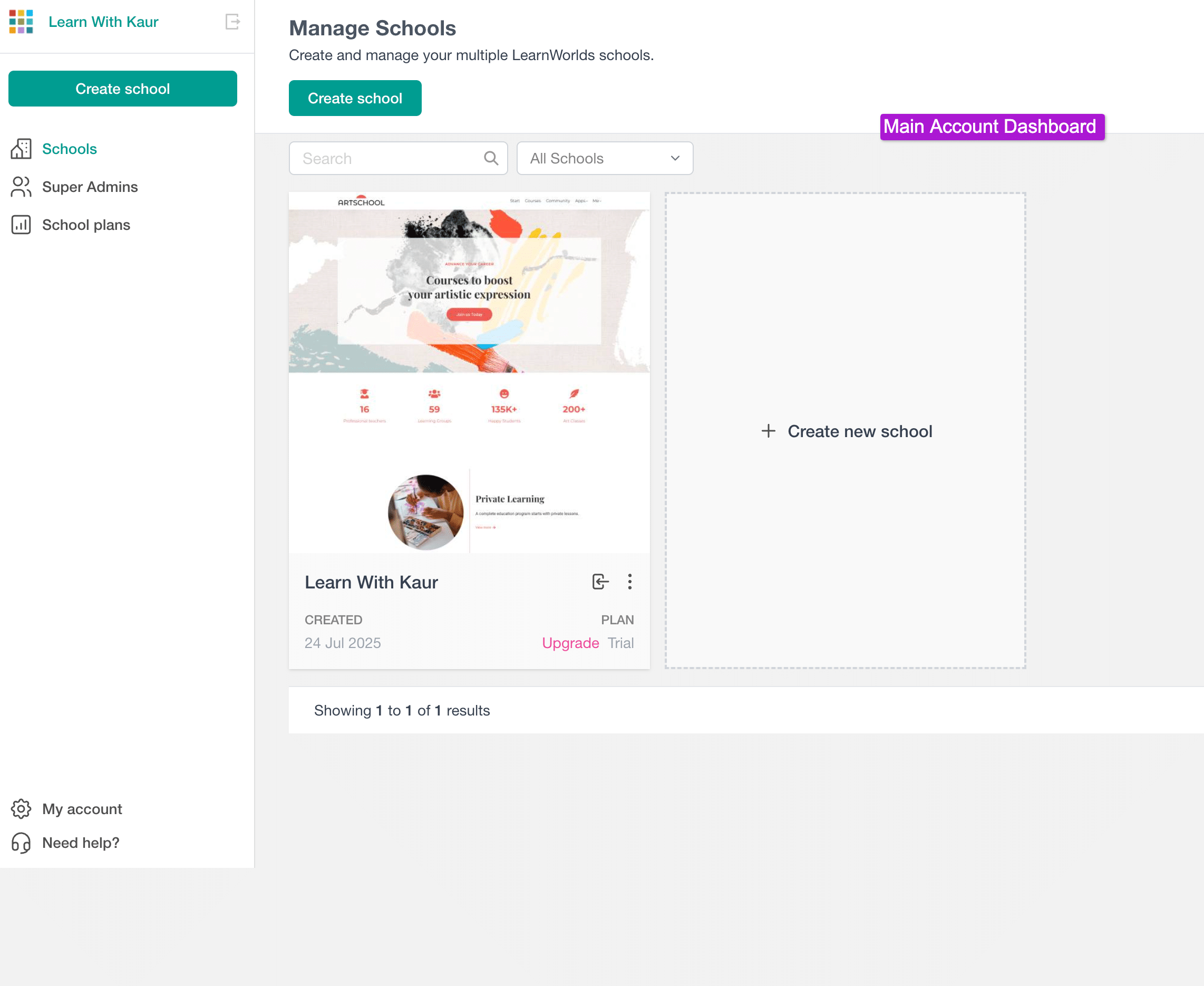
- Account dashboard,
- School dashboard.
The account dashboard is quite easy to use. When you first log in to LearnWorlds, you will land on this main account dashboard. From here, you can access your overall account settings and also see & manage the schools.
The school dashboard is where you can create your courses and access all the features. And, this is where I feel the platform becomes a little hard to navigate for first-time users.
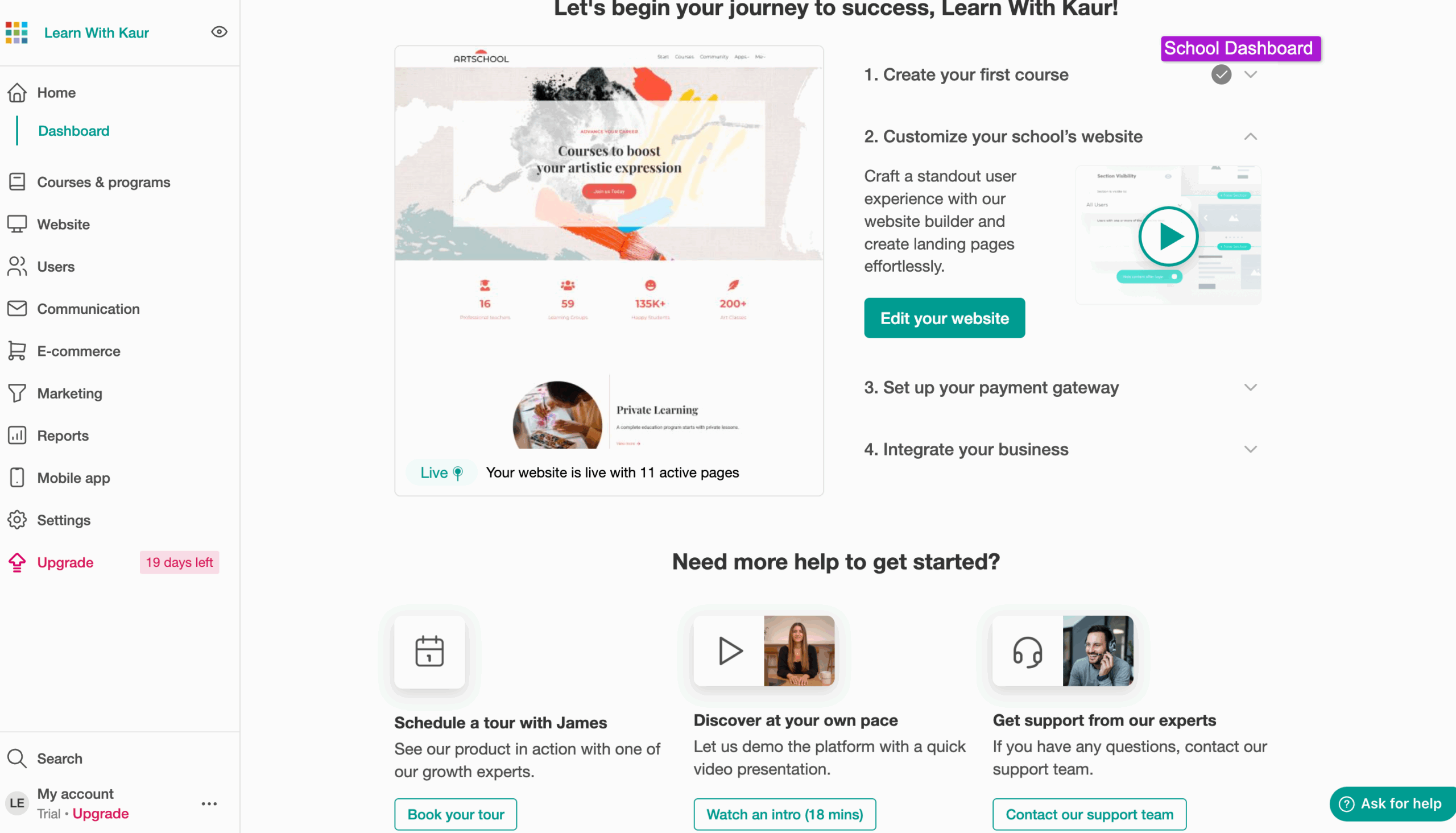
When I first logged into my school dashboard to create a course, I was just confused. You need to spend some time becoming familiar with it.
For example, in the main left navigation, you will not find your website pages directly. To do this, you need to go to the site editor, where you can then choose and edit a page.
In a nutshell, their onboarding and main account user interface are quite easy to use.
But when you switch to the school dashboard, it is not very easy to use, especially for first-time users. And, you need to spend some time to become familiar with its navigation and settings.
3) The Student Interface
The student interface is where the students can log in and watch your course content. The student dashboard is also quite easy to navigate; they can easily sign up for courses and see their enrolled courses in the dashboard.
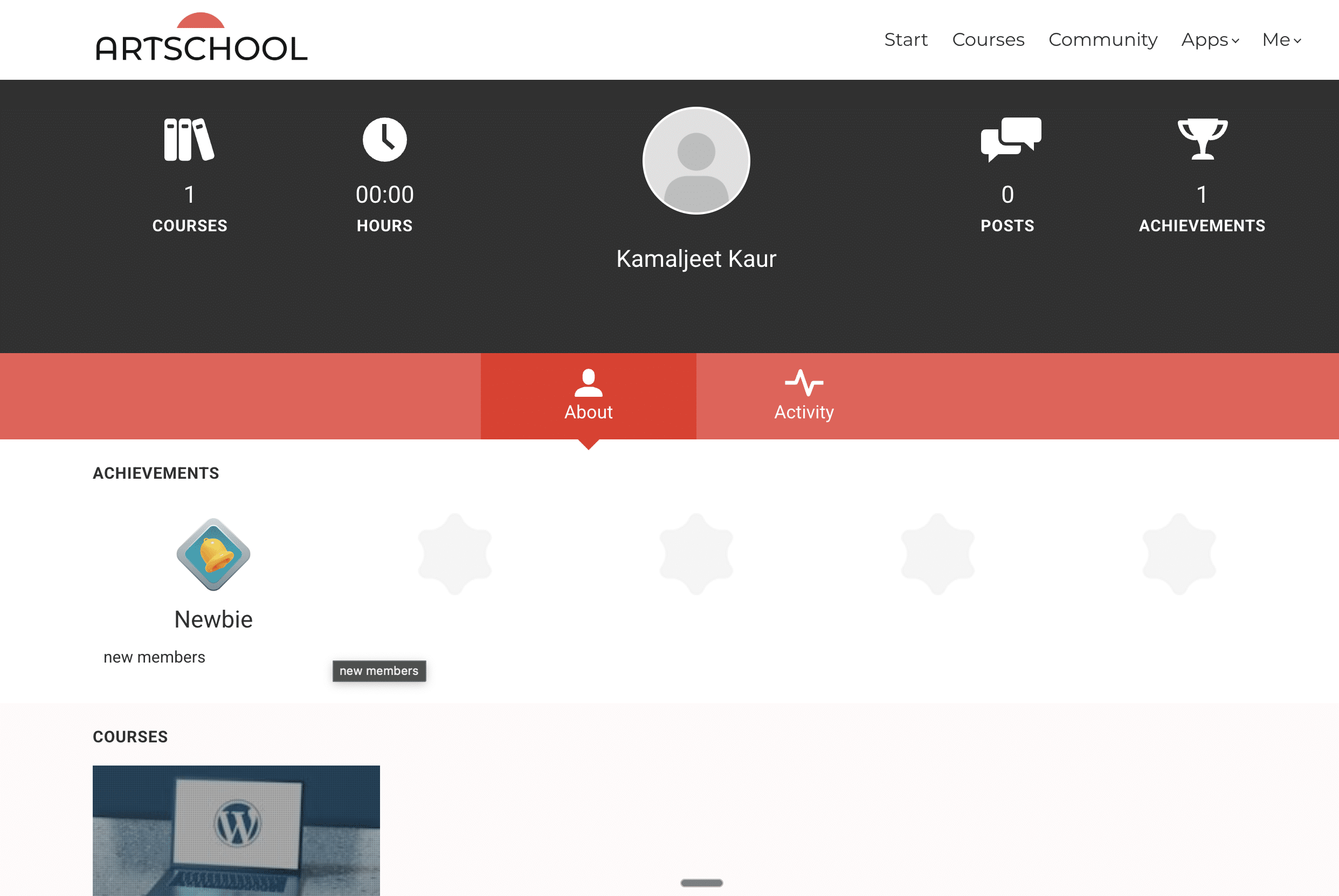
Further, it has a smooth and user-friendly course player dashboard where students can easily consume your content.
LearnWorlds Features Review
LearnWorlds has a lot of features. So, instead of covering all the features, I will discuss its key features that are most useful; otherwise, this Learnworlds review will become too long to read.
Course Creation, Customization, and Management Features
The course manager is the place where you will be spending most of your time creating and managing your courses.
Easily Set Up Your Course
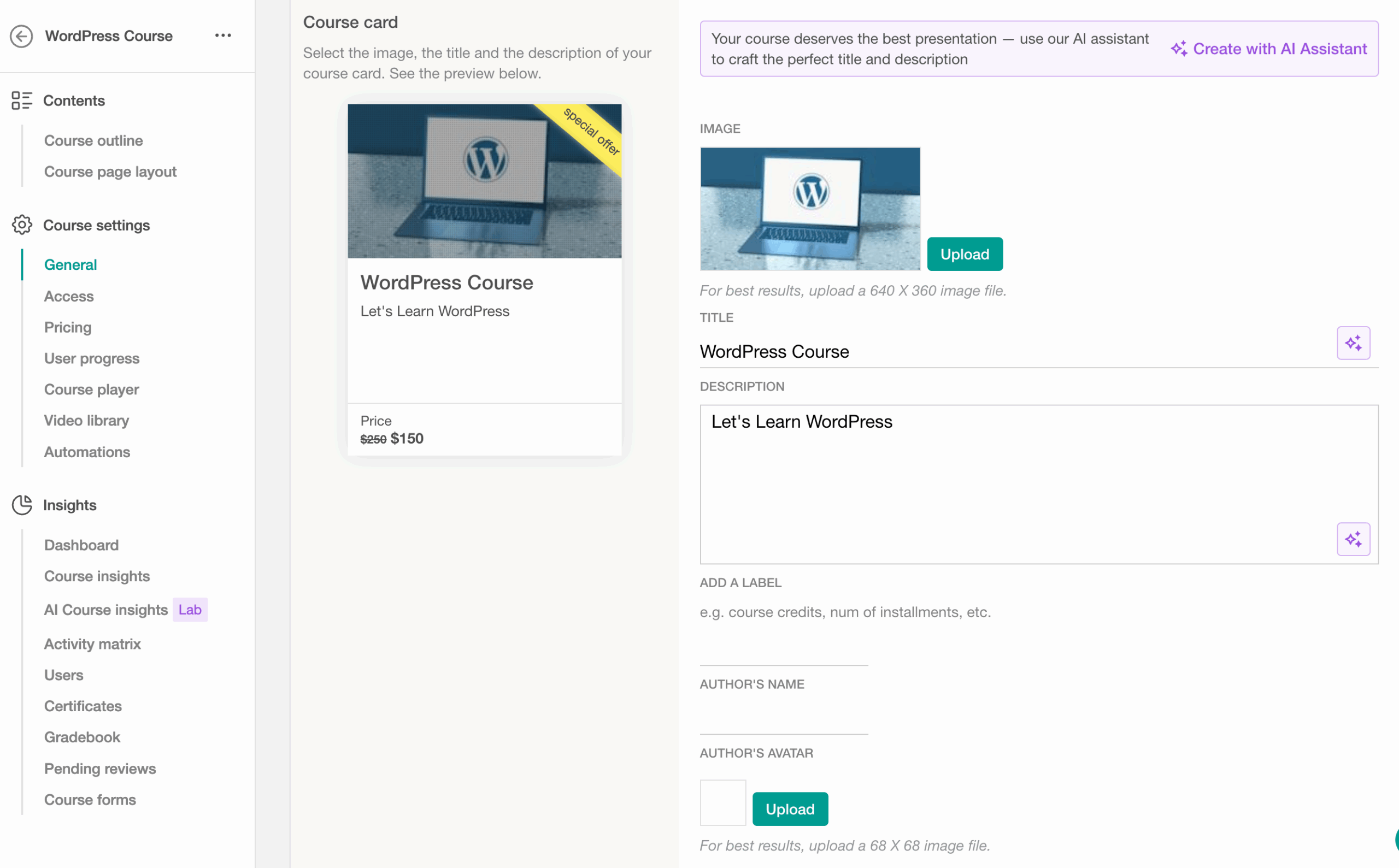
Creating new courses in LearnWorlds is quite easy because you will get step-by-step guidance. You can set up everything for creating a new course, such as the course name, details, cover image, and pricing, using a course setup wizard.
Additionally, you can anytime go to the course manager and customize your course settings.
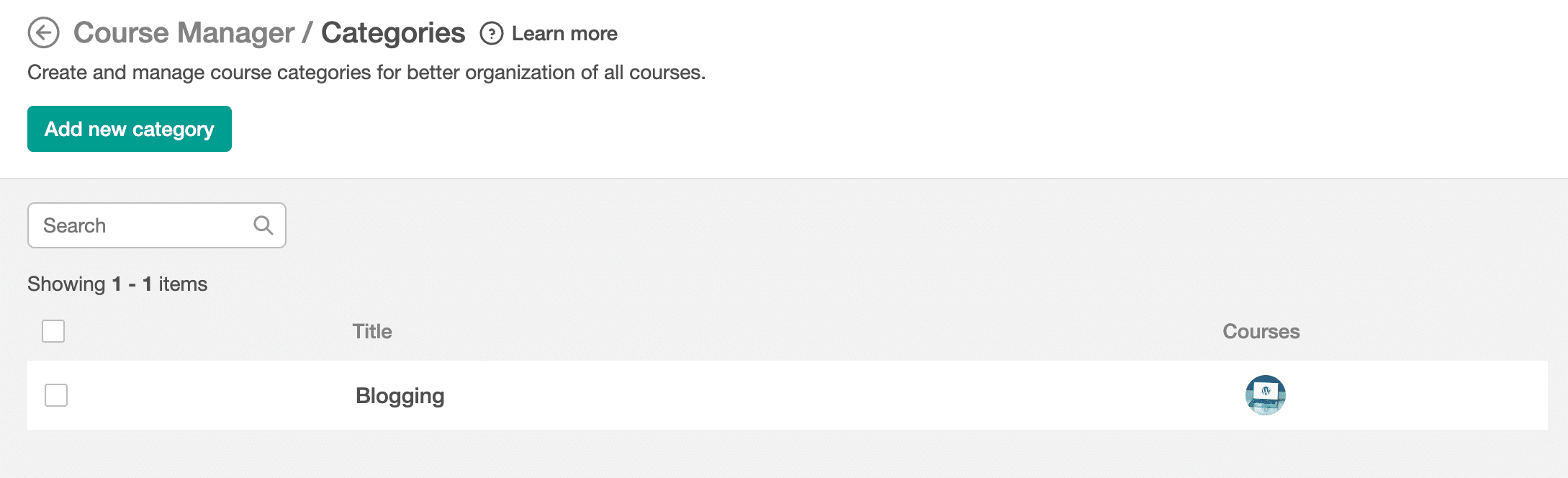
Organize Your Courses Into Categories
This is quite helpful if you have a lot of courses and are building an e-learning platform. Because you can use categories to organize your courses. This will allow users to easily find your course.
Customize Course URL
With Learnworlds, you can easily set up custom URLs for your courses. For each course, the main domain name will remain the same, and you can customize the last URL slug.
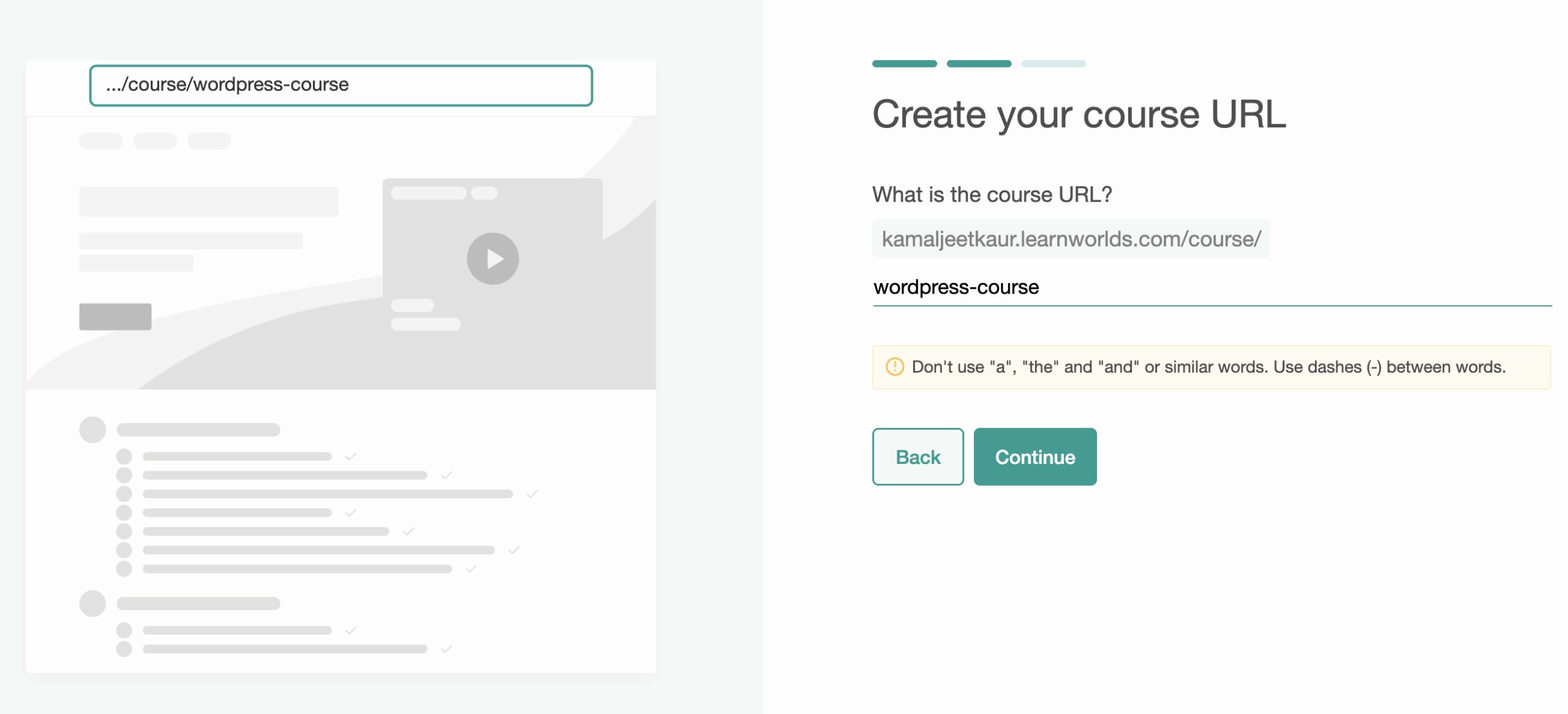
Sometimes platforms create their automatic URLs and include unknown numbers or character strings, which is not ideal for users, and also from an SEO perspective. But in LearnWorlds, you can easily customize your course URLs.
Course Access Options
You can make your courses draft, paid, free, private, or coming soon, which is great. But it depends on your plan, what type of course you can create. E.g., if you’re on the starter plan, you cannot create free or private courses. And with the starter plan, you can only create unlimited paid courses.
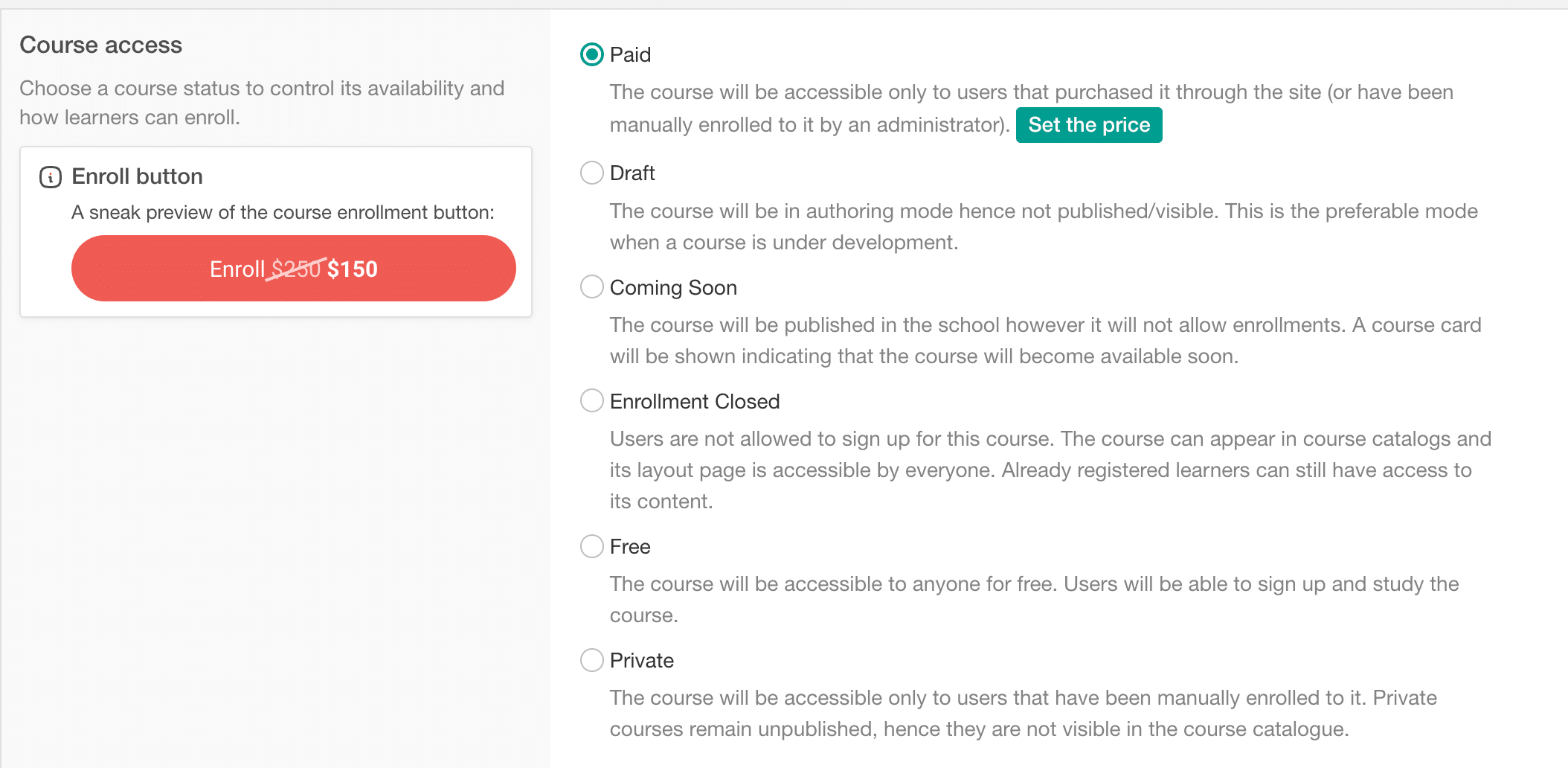
And in case you want to change your course access later, you can easily do that in Learnworlds.
Course Expiration
Usually, the courses do not have an expiry date, because most of the time we offer lifelong access. But in case you’re offering courses based on an expiry date, then with LearnWorlds, you can easily set the expiry date for your courses.

Set Course Pricing
With LearnWorlds, you can anytime customize the pricing of your course. Additionally, it also has a compare-to-price feature. Using this feature, you can add a course value along with the selling price. Most marketers display their pricing this way because users can easily compare the pricing. So, with LearnWorlds, you can easily do this by using this feature.
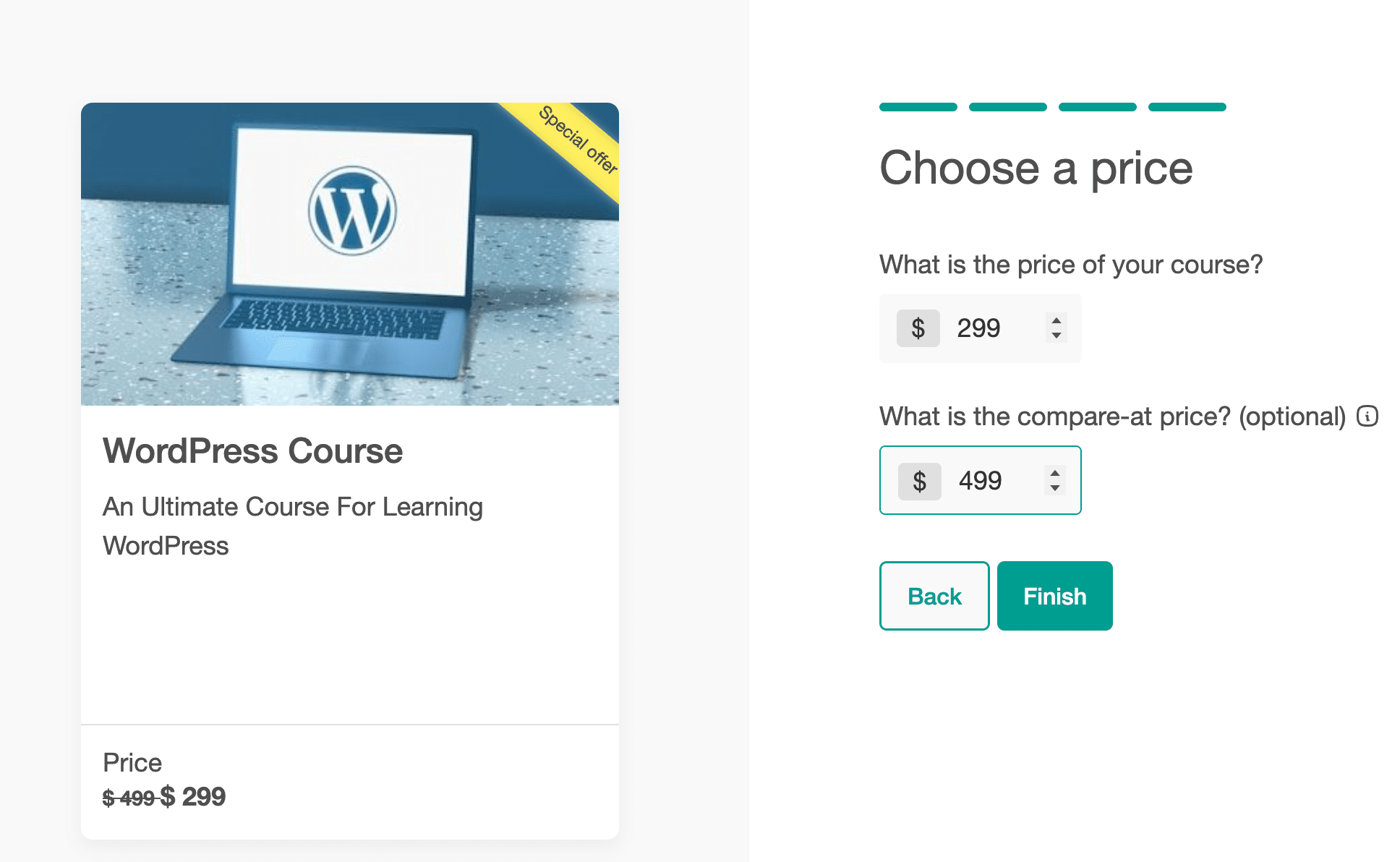
Additionally, you can also set custom discount offers and bundle offers for your courses, which I will cover later in this guide.
Building a Course Outline
Before you start adding content to your course, you first need to create an outline of your course in the LMS software.
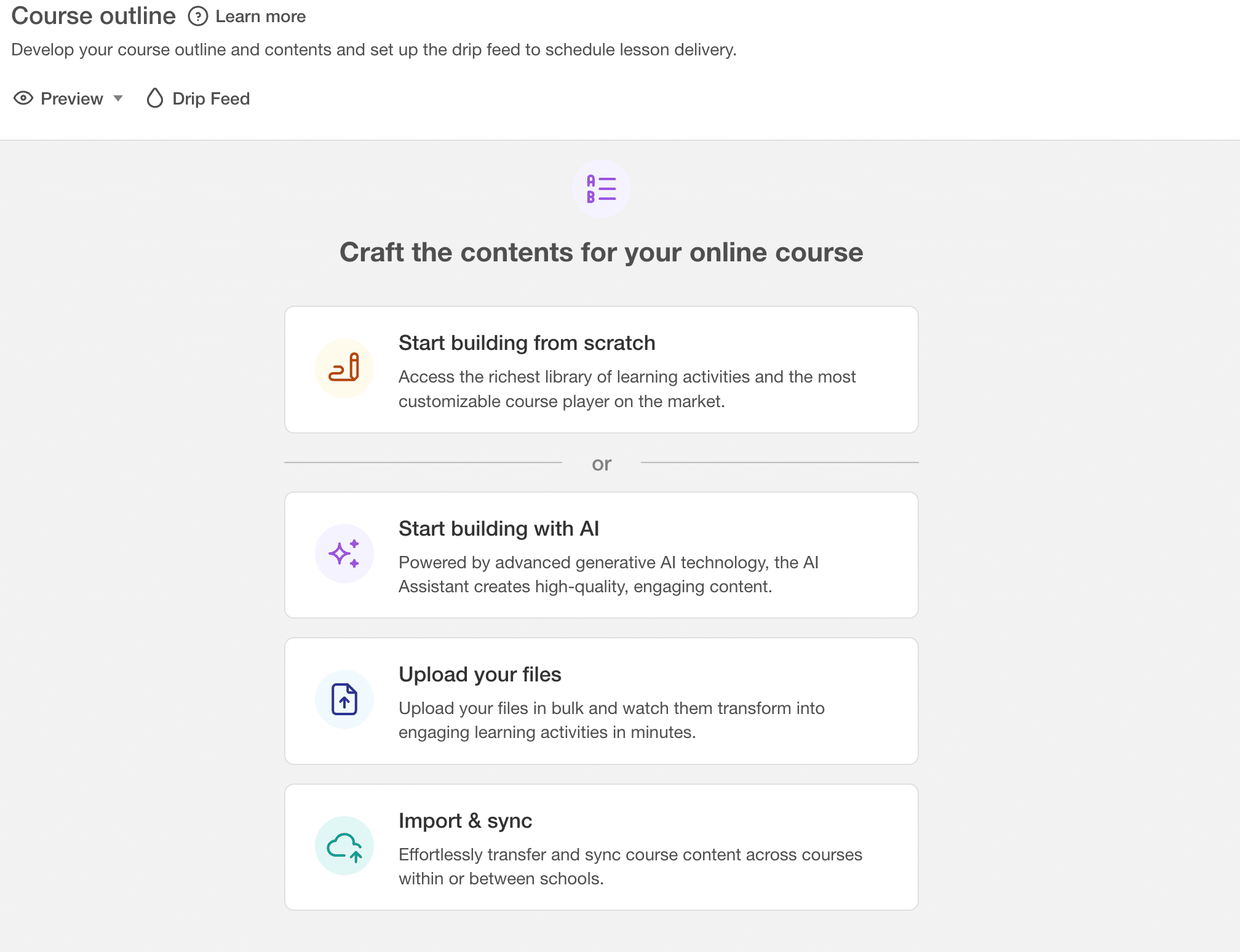
For building a course outline, LearnWorlds gives you different options:
- Build your course outline from scratch, and you have full control over it.
- Give instructions to the AI to draft the outline, and then you can customize it.
- Upload your files in bulk and transform them into engaging learning activities.
- Import it from your other LearnWorlds courses or schools. But this option is only available in the learning center or higher plans, or you need to get a “Content syncing” add-on.
Organize Your Course Content into Sections and Learning Activities.
In LearnWorlds, you can divide your course outline into two main parts for organizing:
- Sections (Aka units)
- Activities (Aka lessons in a course unit).
For example, if I’m creating a course on WordPress. And I can add different units for my course to break down my course content.
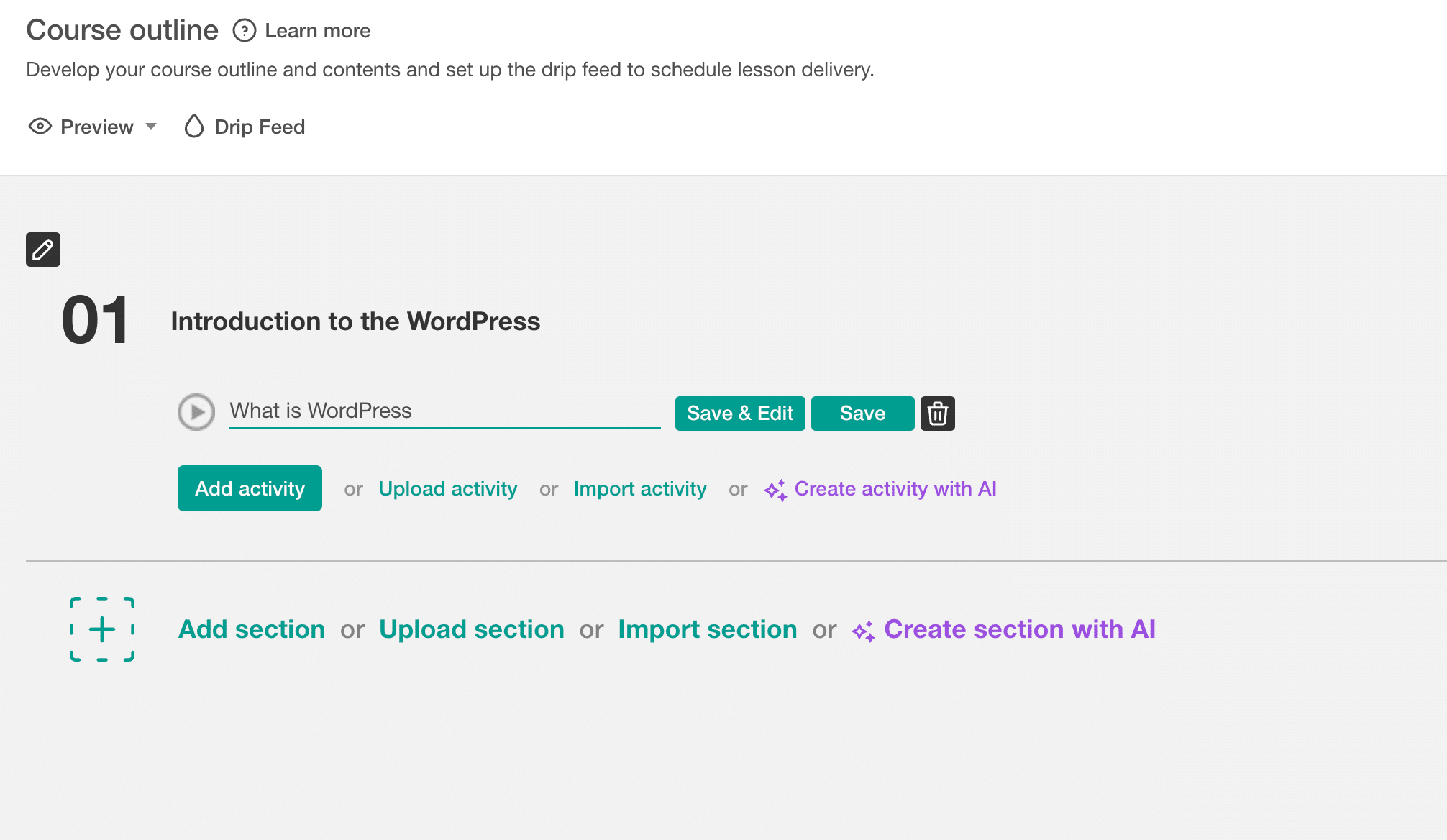
E.g., I can create the first unit as “Introduction to WordPress,” and within that unit, I can add multiple lessons such as:
- What is WordPress?
- The difference between WordPress.com and WordPress.org.
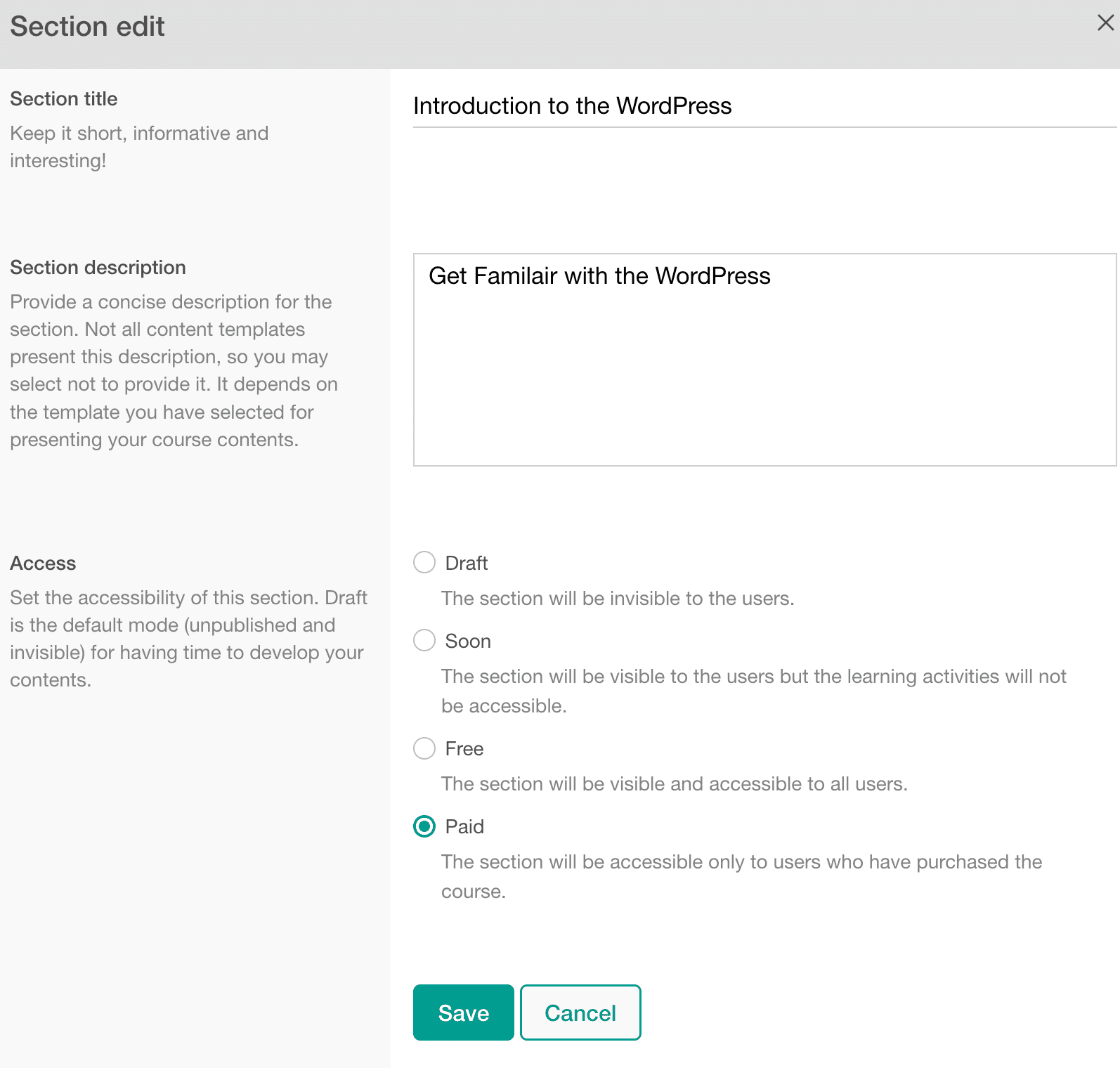
Further, you can customize the section settings, and you can also control access for each section, such as making it draft, soon, free, or paid. The option is quite useful if all your course sections are not fully prepared yet. You can set the access option to “soon” for the pending section; learners will be notified that the section will be released soon.
Various Options for Media Files
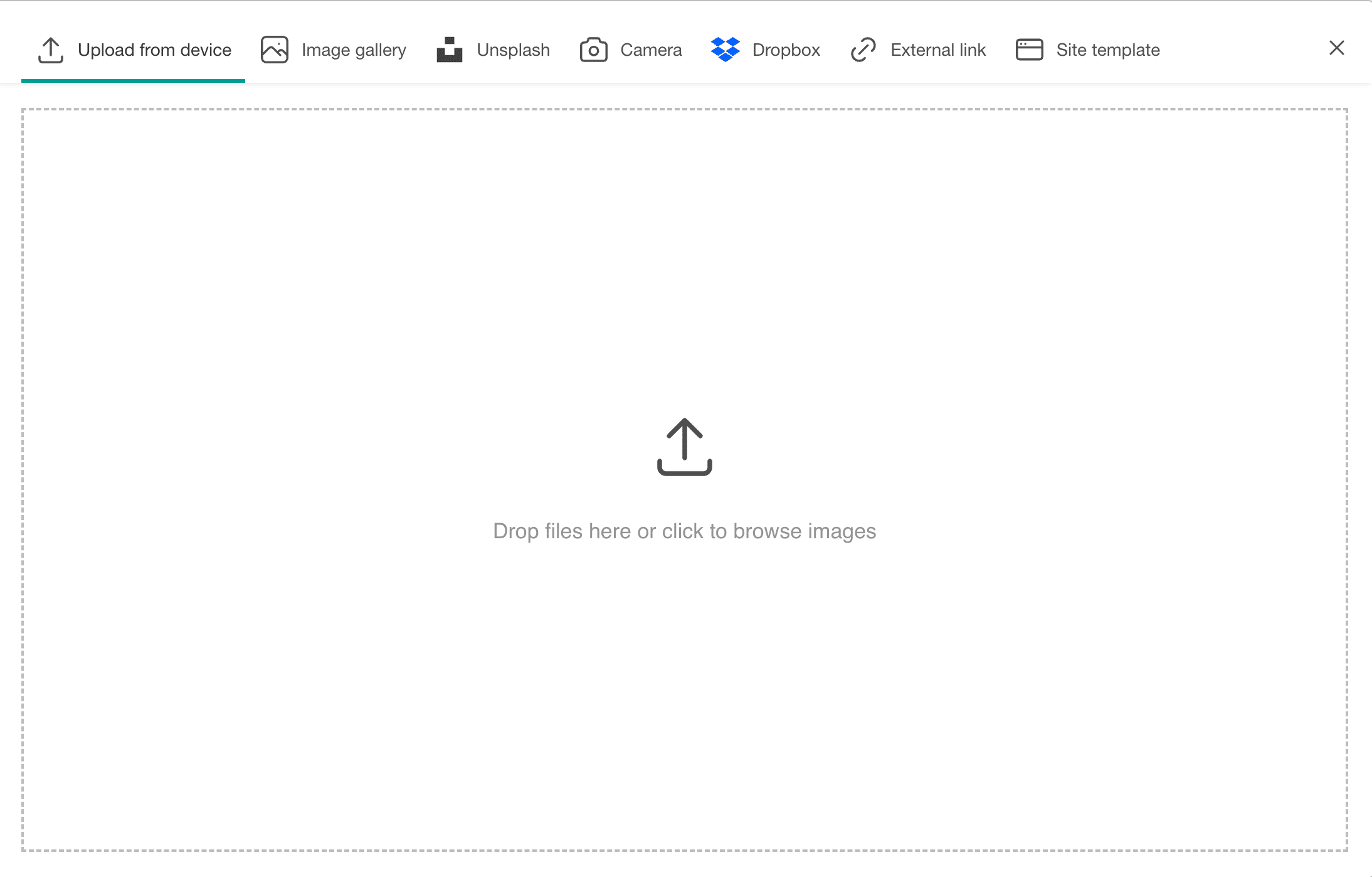
For adding images to your course, Learnworlds gives you multiple options: you can upload images, use image galleries, or use Unsplash for inserting stock images. You can also,
- Directly take a picture with the camera,
- Use an external link to import a file.
- Add images from the LearnWorlds pre-built template gallery.
The good thing is that all these options are available even in the base plan.
Learning Activities(Aka Course Lessons)
In LearnWorlds, you don’t have the “lesson” word. It treats lessons as an activity. For each section, you can create activities (which are course lessons). With LearnWorlds, you have multiple options for building learning activities.
You can build the learning activities manually or use AI if you like. Additionally, you can also directly upload content from Google Drive or Dropbox. There is one more option, which is importing content from other LearnWorlds courses or schools. But the importing option is only available in the learning center or higher plans.
The Lesson builder of LearnWorlds is quite different from other LMS platforms. There is no doubt that the lesson builders have a lot of customization features, but initially, I felt it was a little hard and had a learning curve for beginners to get familiar with it.
Usually, in other platforms like Samcart, we have a standard lesson builder in which you can add the course lesson content, including images, videos, text, buttons, or other elements.
But in Learnworlds, you have to create individual activities for each element, whether a video, text, or a link, and you can’t combine all of them in one activity.
Learning Activities Options
For building course lessons, there is a wide range of learning elements that you can add to your courses. LearnWorlds learning activities are divided into the following categories:
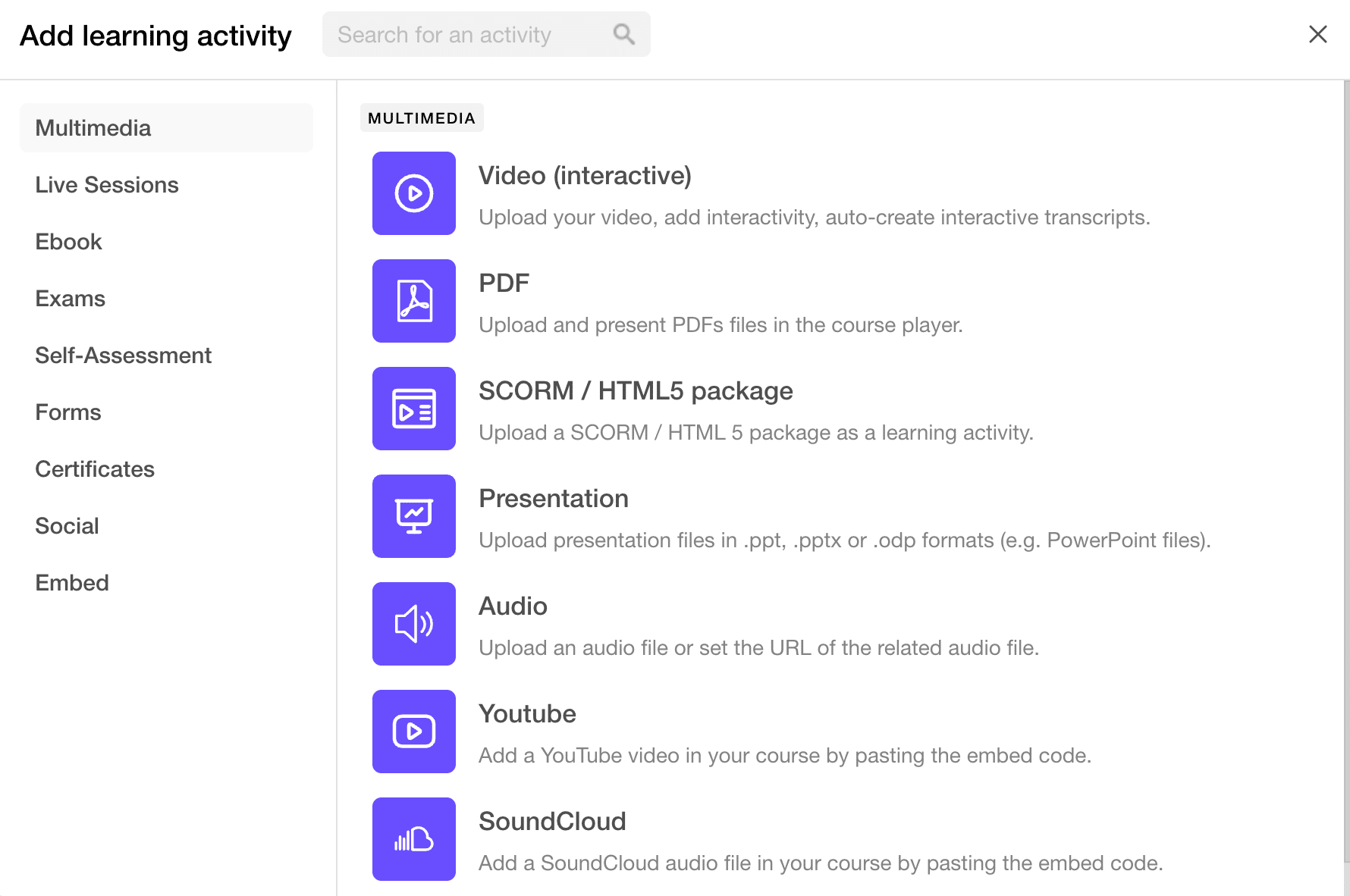
MutilMedia Learning Activities
Video Interactive
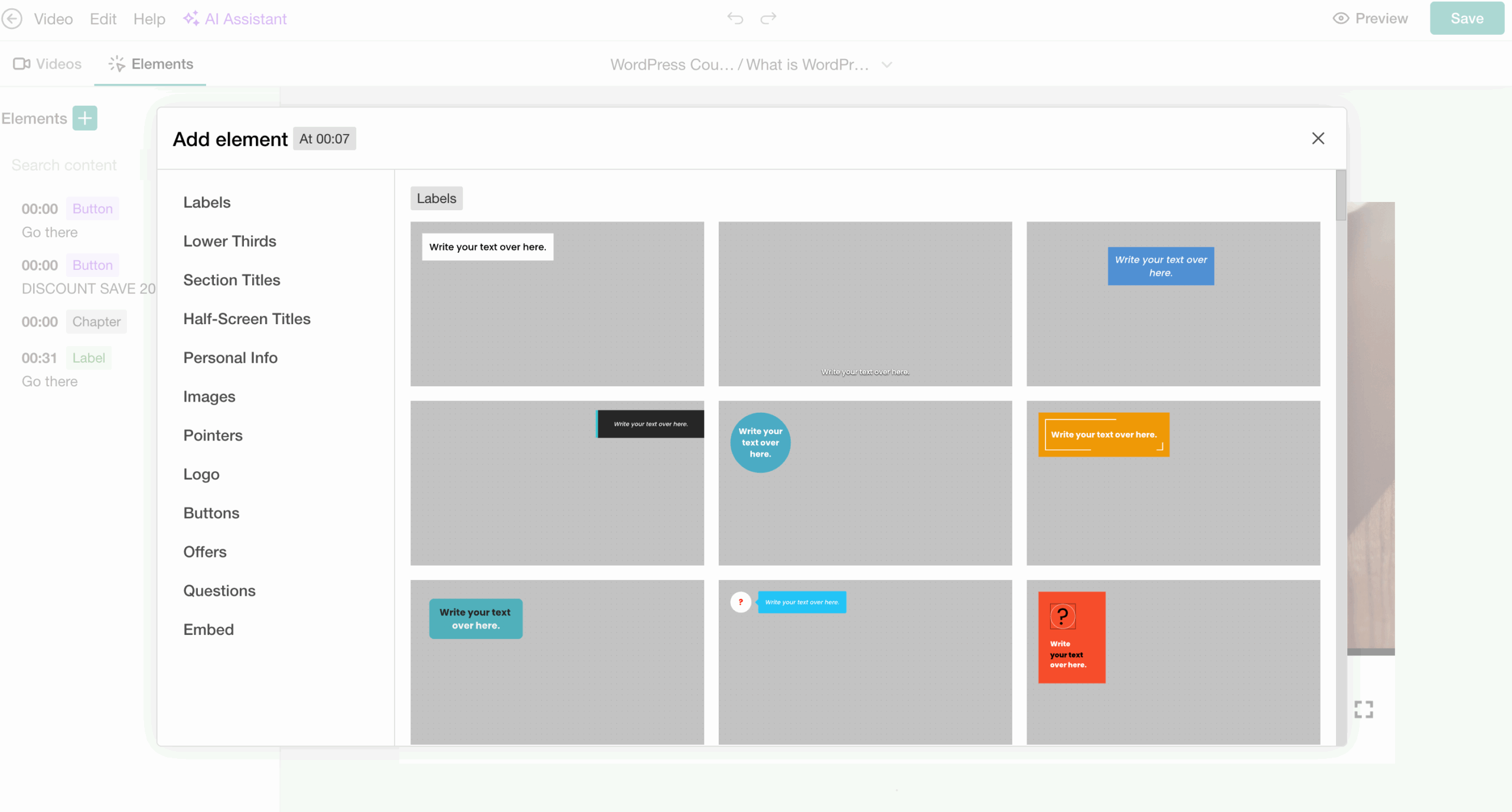
For example, for a video learning activity, you can add interactive elements to your videos. This is a great option, and instead of using an external video editing tool, you can just natively add the following interactive video element to your course videos:
- Text labels are used to show some on-screen text.
- Section titles show the name of a section.
- Half-screen titles for showing different subtopic names.
- Add personal information.
- Add images, pointers, or a logo to your videos.
- Add CTA buttons and offers.
- Add questions to engage learners.
- Use the embed code to show additional things on your video screen.
PDF: You can create a PDF learning activity to give supporting materials to your students, and it can be downloaded.
SCORM / HTML 5 Packages: You can also add SCORM/HTML packages to your course, but this option is only available in the pro trainer plan or higher.
YouTube: If you have a YouTube channel and want to add your YouTube video to your courses, you can easily do that in LearnWorlds.
Audio: It allows you to add audio files to your course.
Soundcloud: Allows you to include Soundcloud tracks in your course lessons.
Live Sessions Learning Activities
If you are providing coaching sessions or consultation learning programs, then this option can be quite useful. You can add the following:
- 1:1 session
- Group sessions
- Live Google Meet Meetings
- Live Microsoft Teams Meetings
- Zoom live meetings and webinars(Available in pro trainer plan or higher)
- Live Webex meetings(Available in pro trainer plan or higher)
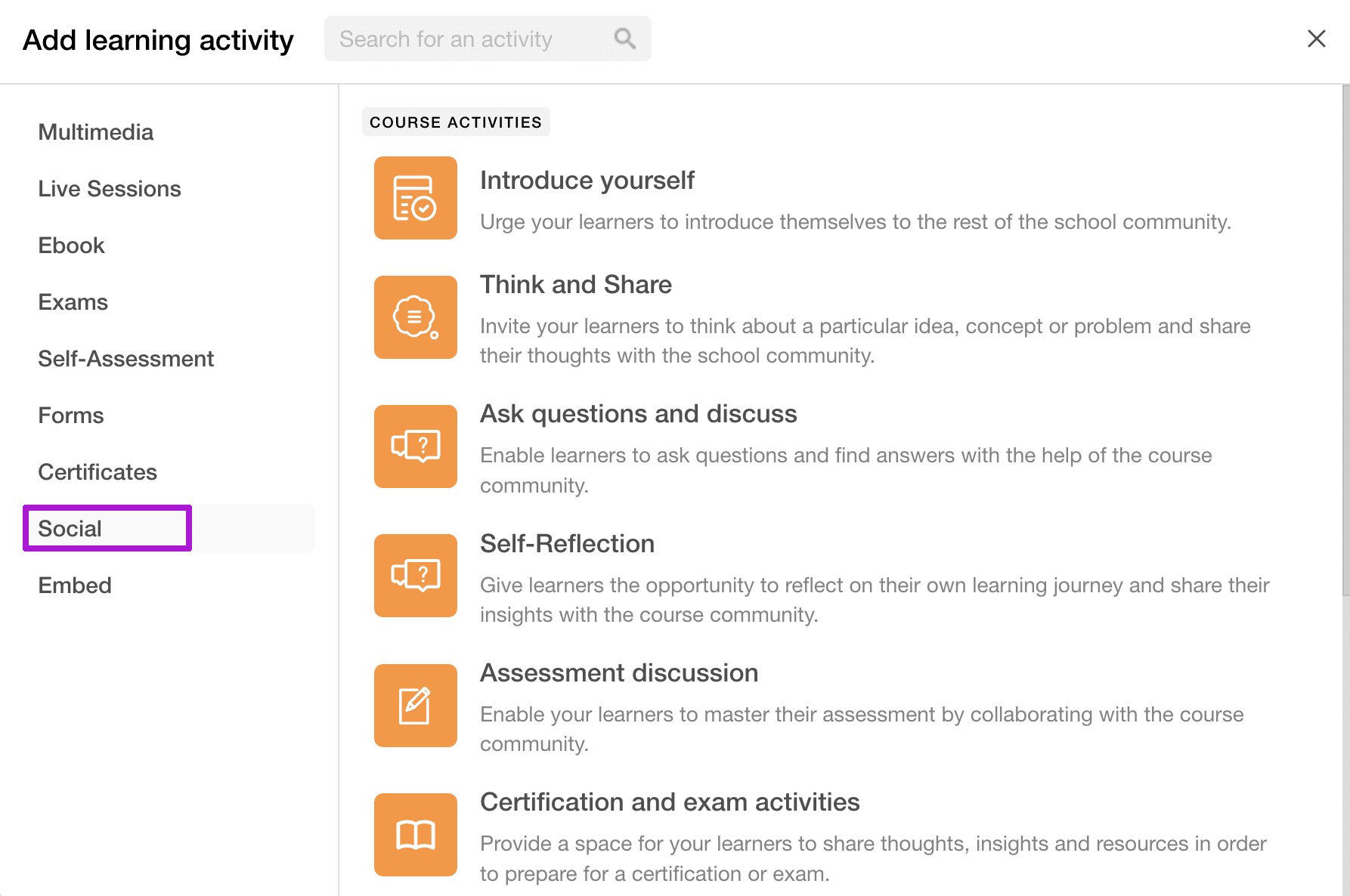
Social Learning Activities
This allows you to create a course or community space where your students can communicate with peers, ask queries, exchange ideas, and participate in discussions.
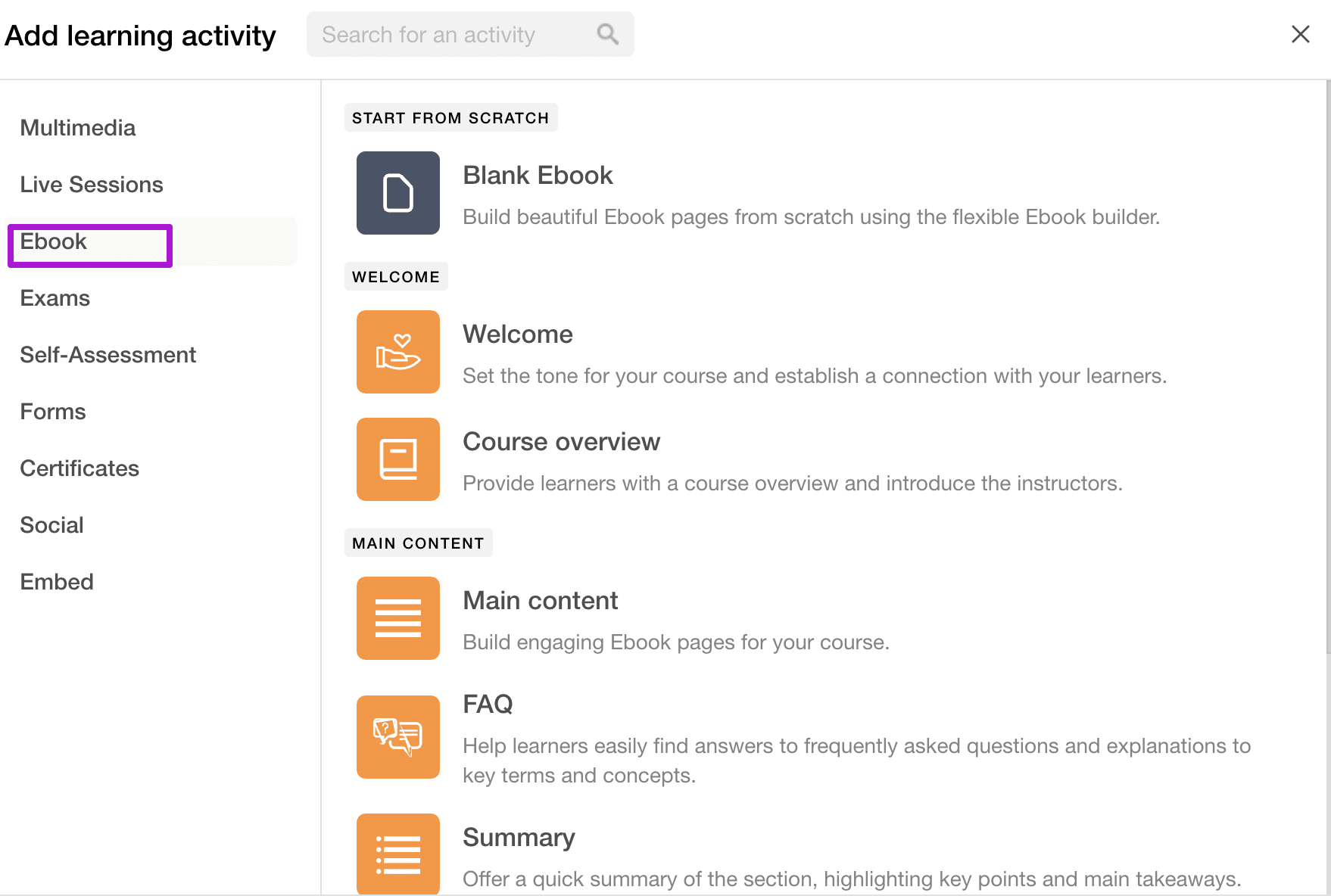
E-Book Learning Activity
This gives you an e-book builder within LearnWorlds, and using it, you can easily create e-books as well.
Exams Learning Activity
This gives you an assessment builder where you can create grade-based exam tests for your courses. You can add various assignment types, such as text, file, video, or audio, to make your exams more interactive.
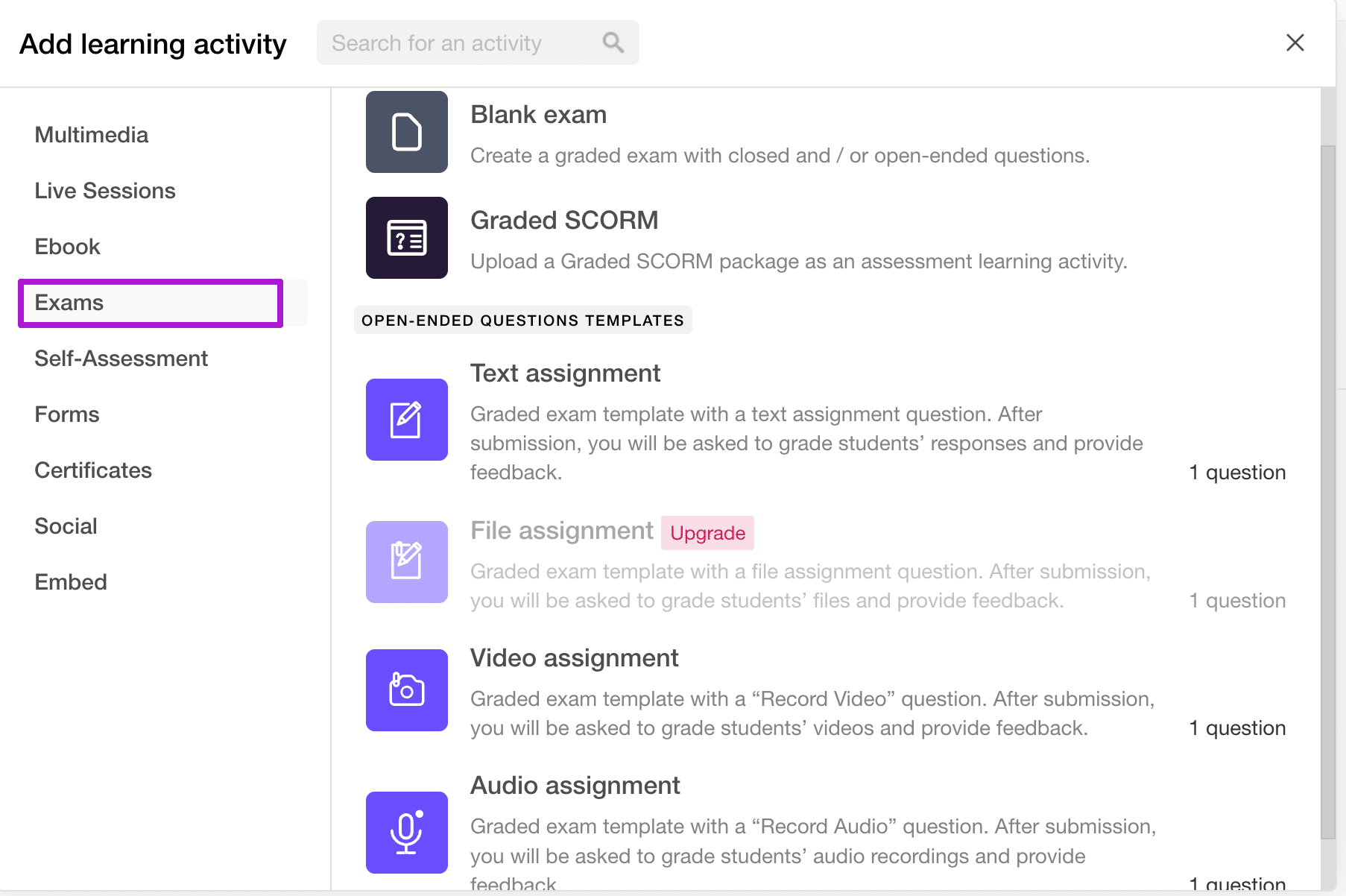
Additionally, you also have a graded SCORM package learning activity, which is only available in the Pro Trainer plan or higher, and this helps you to integrate the score and results from SCORM into the gradebook.
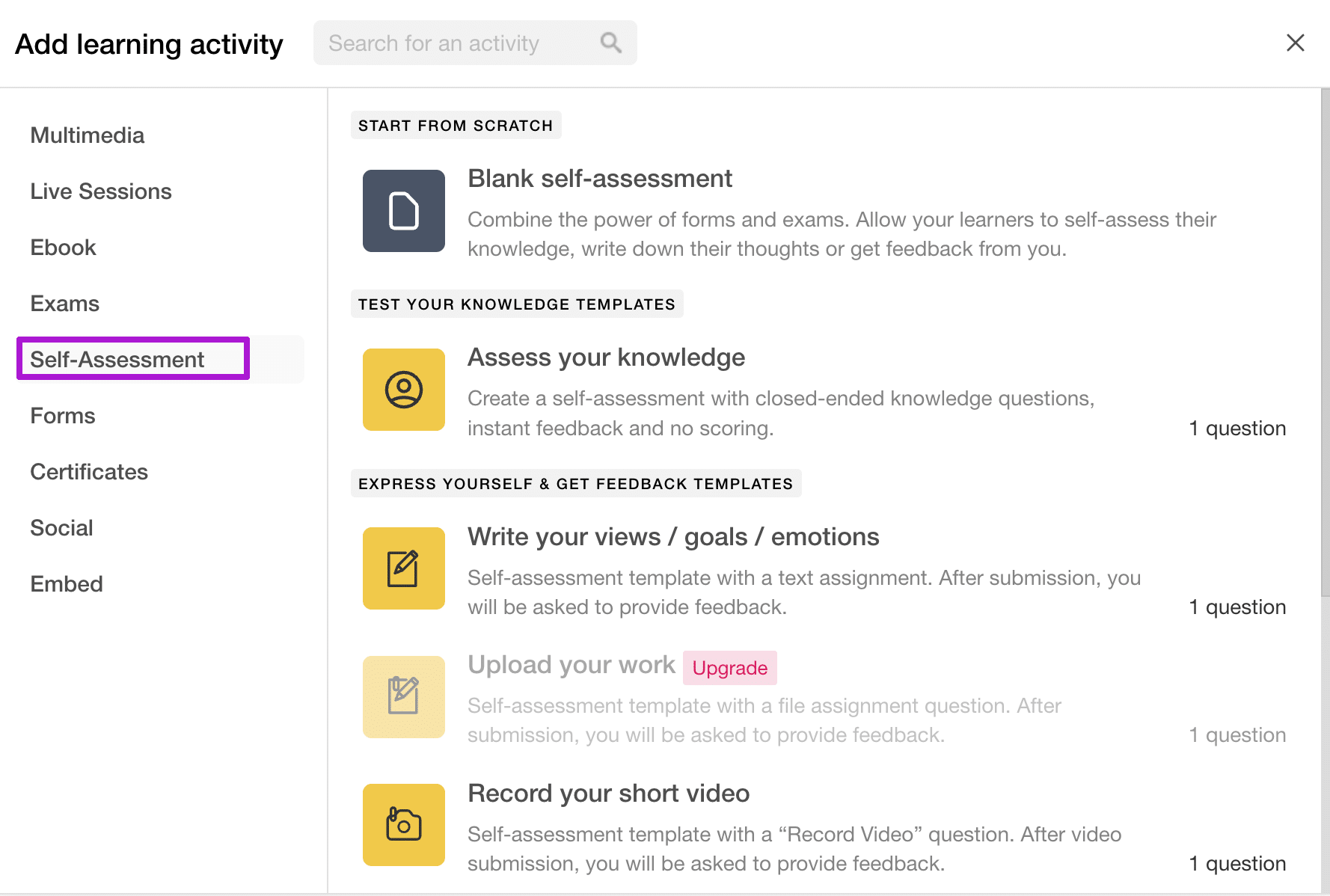
Self-Assessment Learning Activity
Next, there is a self-assessment learning activity, which is a non-graded assessment, and you can use it for revision purposes or gathering feedback. With this learning activity, you can ask different questions, such as:
- Text assignment for knowing views/goals/emotions.
- File assignment allows students to upload their work.
- Allow students to record video or audio.
- Diary and reflection journal.
Forms Learning Activity
It allows you to create survey-based forms for your courses to receive feedback from your students. But this learning activity is only available in the Pro Trainer plan or higher.
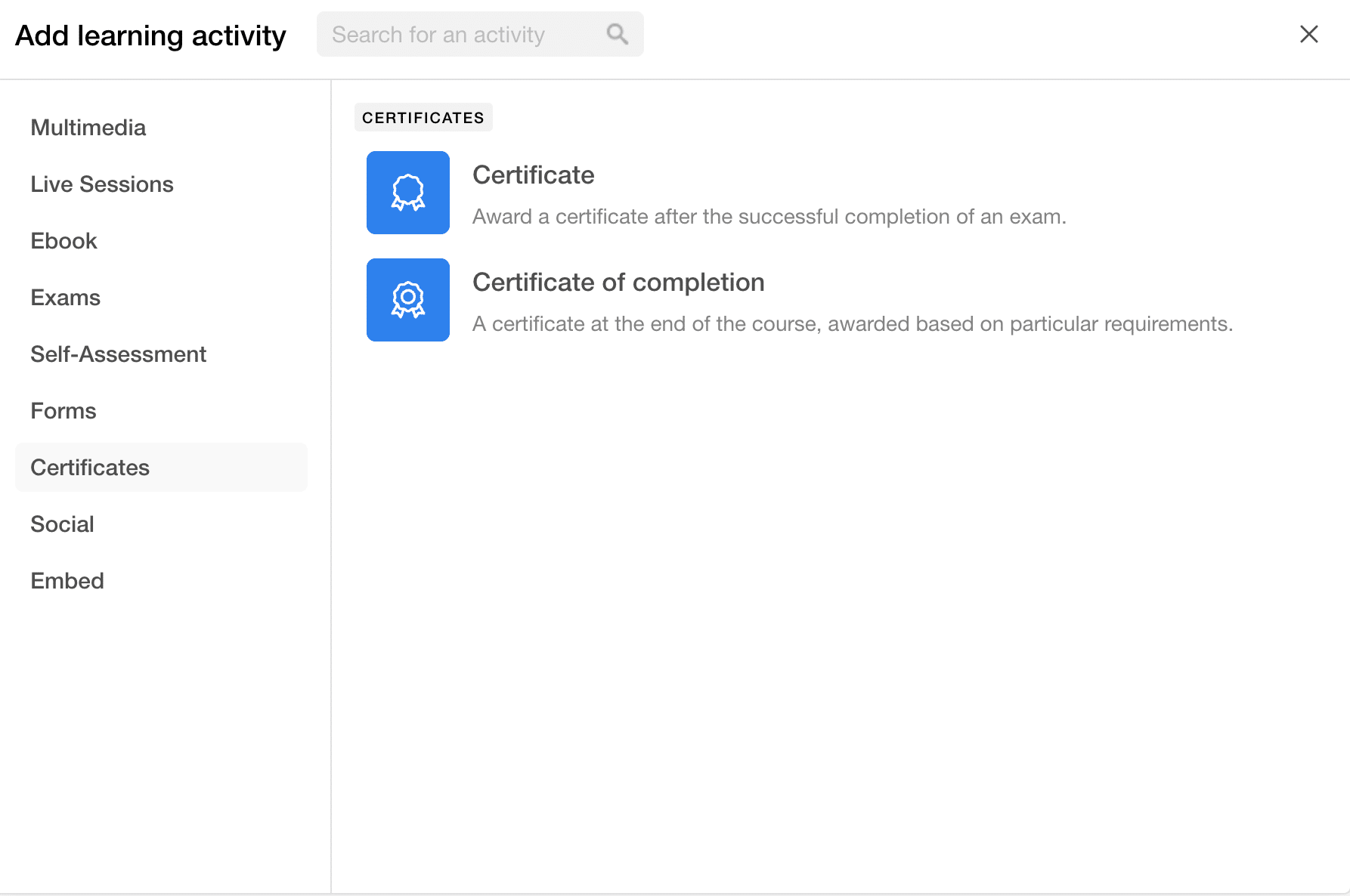
Certifications Learning Activity
With LearnWorlds, you can also create certifications for your courses. It allows you to create a certification of knowledge and a certification of completion.
Embed Learning Activity
It allows you to embed various web content pieces, Slideshare, or external links.
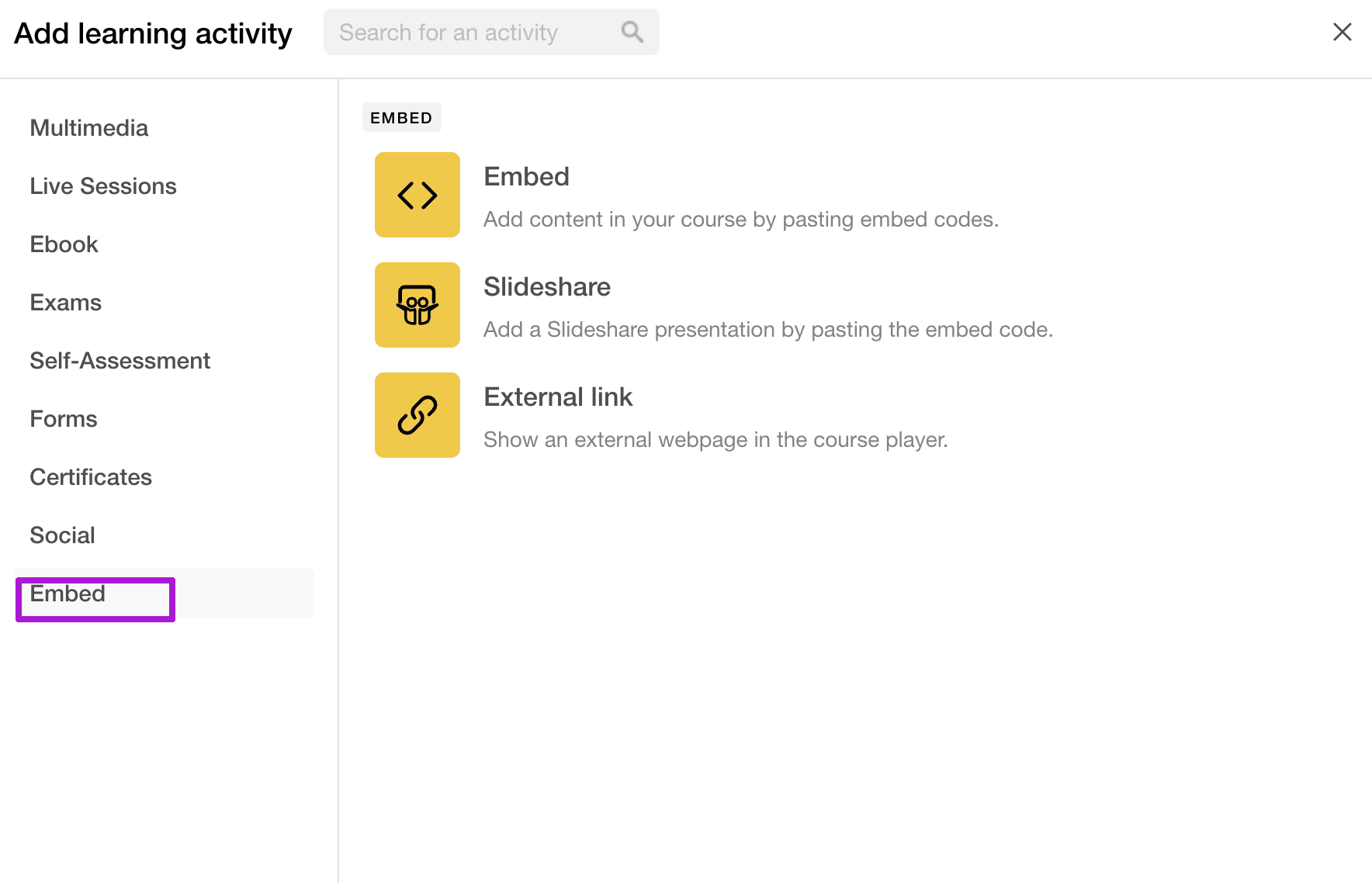
Hence, there is a wide range of learning element options that you can use to build solid course lessons.
Every time you add an activity to your course, you first need to choose the type of learning activity, such as video, live, external link, quiz, or anything else. Then, you can give it a name and click “Save and edit” to further build your lesson.
Unlimited Video Hosting
With LearnWorlds, you don’t need to pay for a separate video hosting platform. It has a built-in video library where you can directly upload and host unlimited videos on the LearnWorlds platform, even in the base version. You can also embed videos from your YouTube channel or Vimeo by just entering the link.
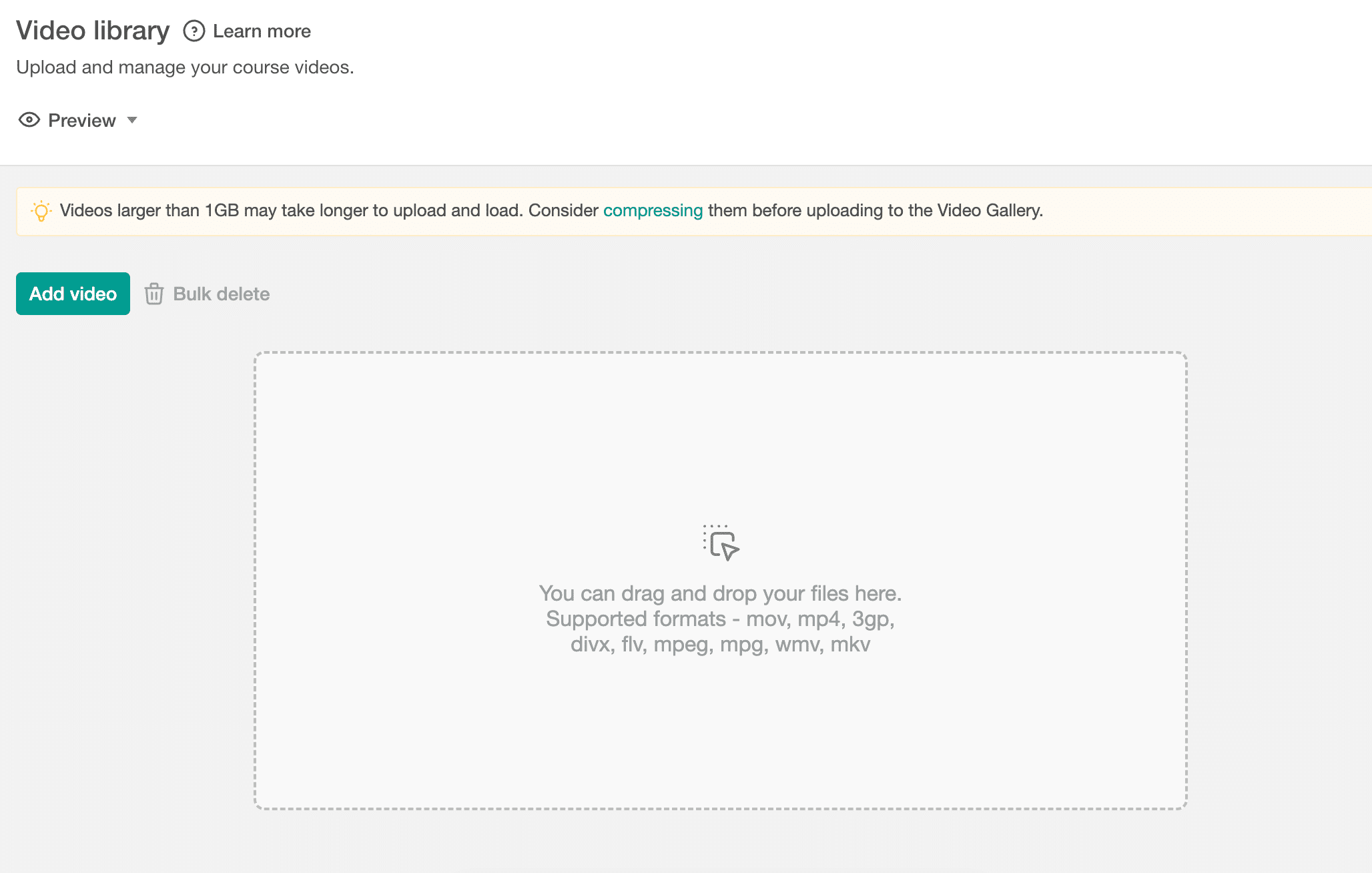
Plus, there are no video sizes; usually, course creation platforms only allow up to a 5MB video file if we directly upload it. But that is not the case with LearnWorlds.
Here are the Key Video Features:
Add Chapter and Table of Contents: You can also add chapters and a table of contents to your video lessons in LearnWorlds. It’s great for users to have a better learning experience if they want to switch to a particular part of the learning process.
Adding Thumbnails to Your Course Videos: You can either add original thumbnails or custom thumbnails to your video lessons.
Adding Subtitles and Transcription
In LearnWorlds, you can auto-generate subtitles using AI, and if you want, you can also edit them before making them public. Once the subtitles are generated, you will also get the option to enable the transcription feature for your video.
After that, the transcription will auto-appear below the video; this is a great feature for course creators who want to include a video transcription underneath their video.
But keep in mind that you can’t manually add a transcription to your video; this can only be auto-added if you choose the generated subtitles and turn the transcription feature ON for your video.
Lesson Builder or Editor
In LearnWorlds, you can only add specific content based on the type of activity that you have chosen for that particular course lesson. You cannot add anything. For example, if I added a video lesson, then I would get a dedicated lesson builder that would only allow me to add video content. Additionally, there is no other way to add other elements, such as text blocks or other components.
Some course platforms have the option for adding buttons or additional text at the bottom of the video. But in LearnWords, it doesn’t work like that. So, for this, you have to either add the buttons or a CTA directly on your video using interactive elements, or you have to add another activity where you can add an external link.
Customize Your Learning Activities
With LearnWorlds, you don’t need to worry about customization at all, because it offers a wide range of customization options for learning activities.
For each activity, you will have two types of customization settings: one is the standard customization settings. For example, you can format the text, change the font or background color, add spacing, transparency, or effects to ensure your element looks visually appealing on the screen.
In addition to that, you will also have specific customization options based on the type of learning activity that you have selected.
For e.g. For each interactive element, on the right sidebar, you will have the customization options that you can use to customize the timing, actions, and activities for that particular element.
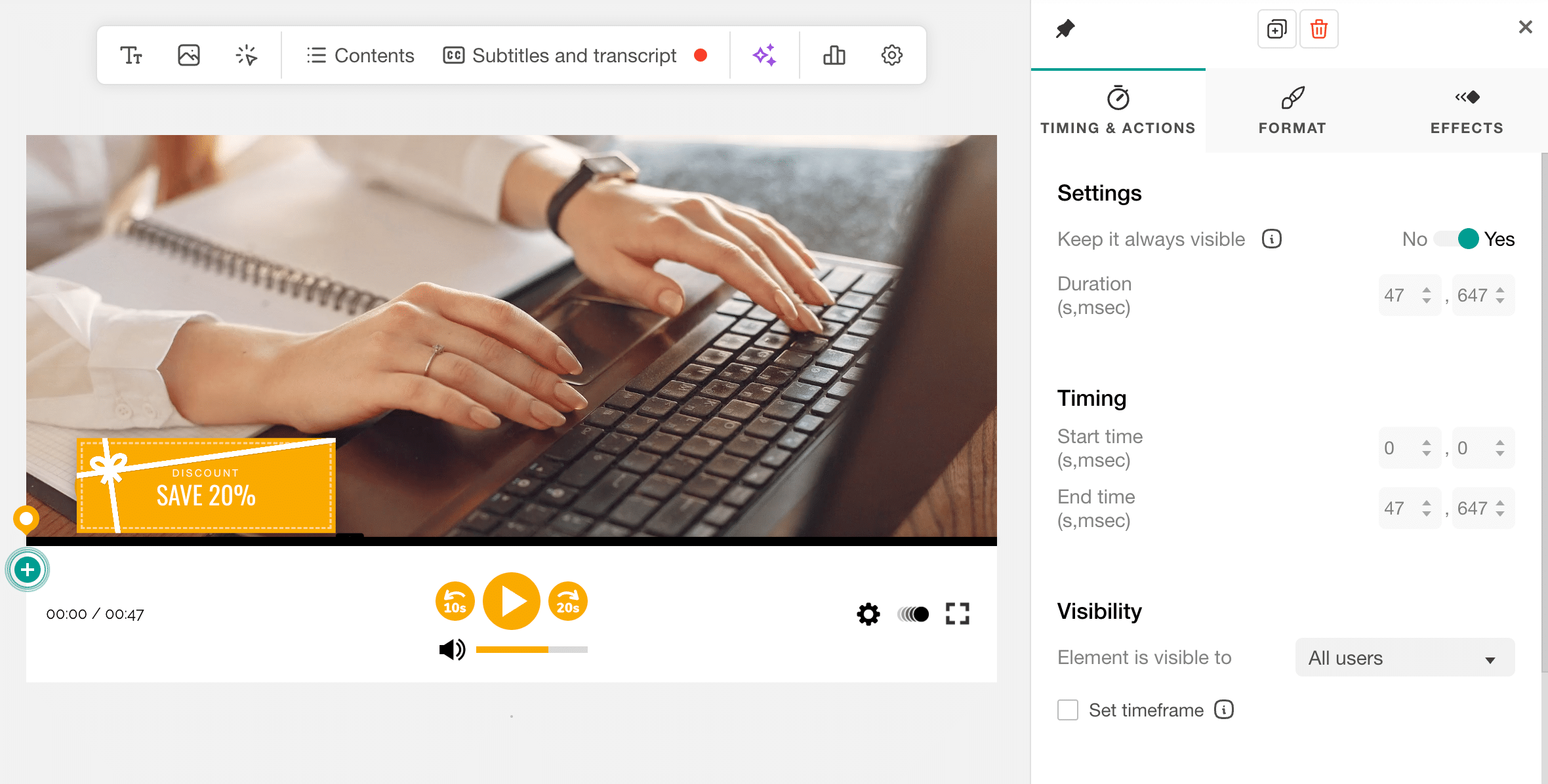
For example, if you just added a discount code button, then you can just keep it visible throughout all the videos, or just set the duration to show that particular discount code for a particular timestamp.
Then, you can also choose the visibility – whether you want to show this particular element to all the users, or you just want to tag some users.
Additionally, you can also choose how your video should behave once that particular interactive element is shown on the screen, such as you can either choose to pause your video or play a sound bell.
Next, you can set up actions for your interactive elements. For example, if you’re talking about any affiliate link or an external resource, then you can insert that link. You can choose the option whether you want to open that in a new window or the current window.
You can also choose to show a message and further customize the settings for message appearance. In LearnWorlds, you also have the option to redirect users to a particular video point.
Control Access by Learning Activities.
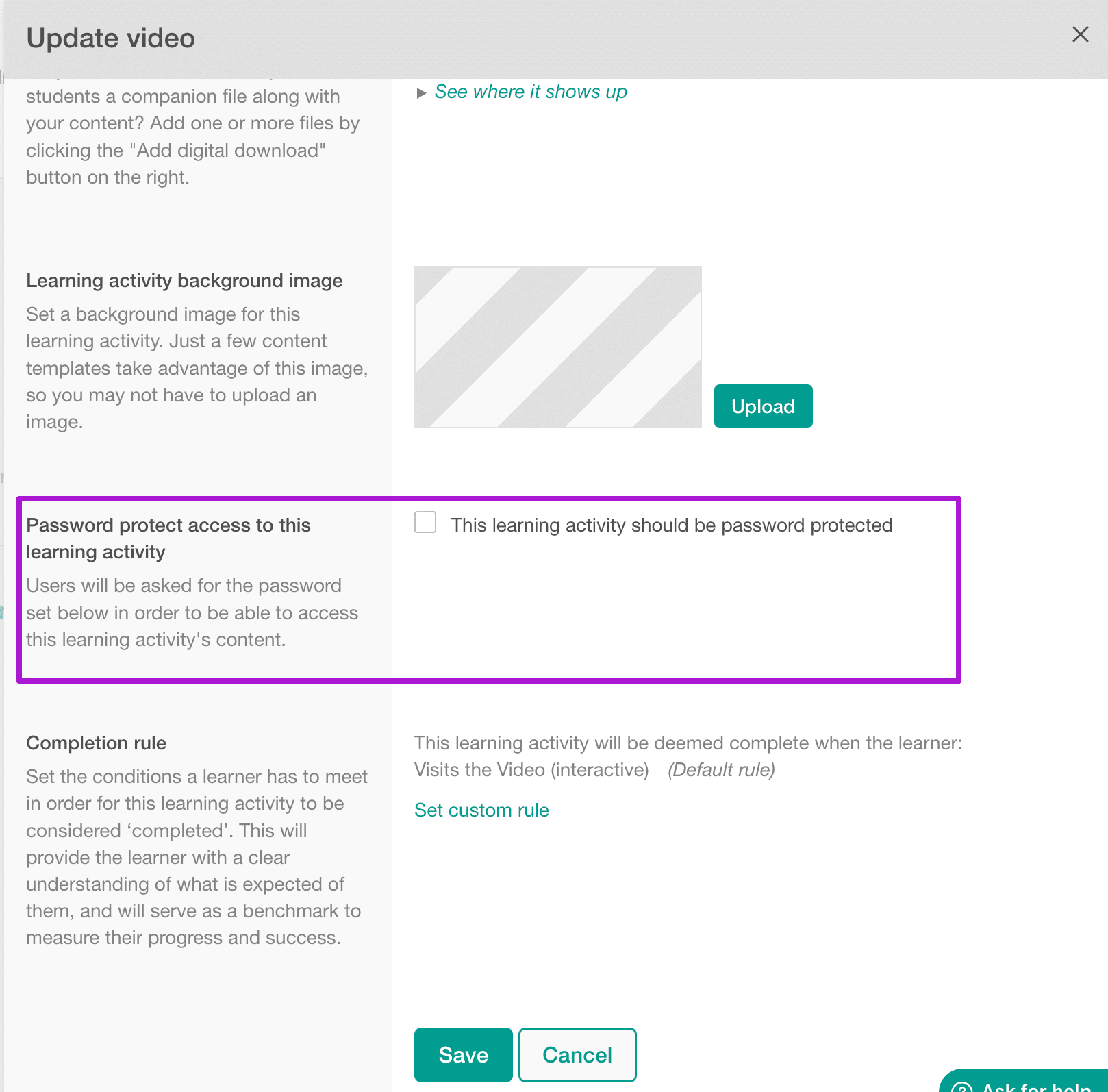
The unique thing that I have seen in LearnWorlds is that it not only allows you to control access by section, but you can also control it for each learning activity. E.g., if you want some activities to be private, then you can use the password protection option and make them private.
Customize After Course Purchase Navigation
Once the students have purchased your course, they need to be redirected somewhere for the next steps. For example, after purchase, most of the students are redirected to a login page to set up their account to log into their course learning dashboard.
With Learnworlds, you can easily customize your students’ journey after purchase, such as redirecting them to a thank-you page, after-login page, or anything else, as shown in the screenshot below.
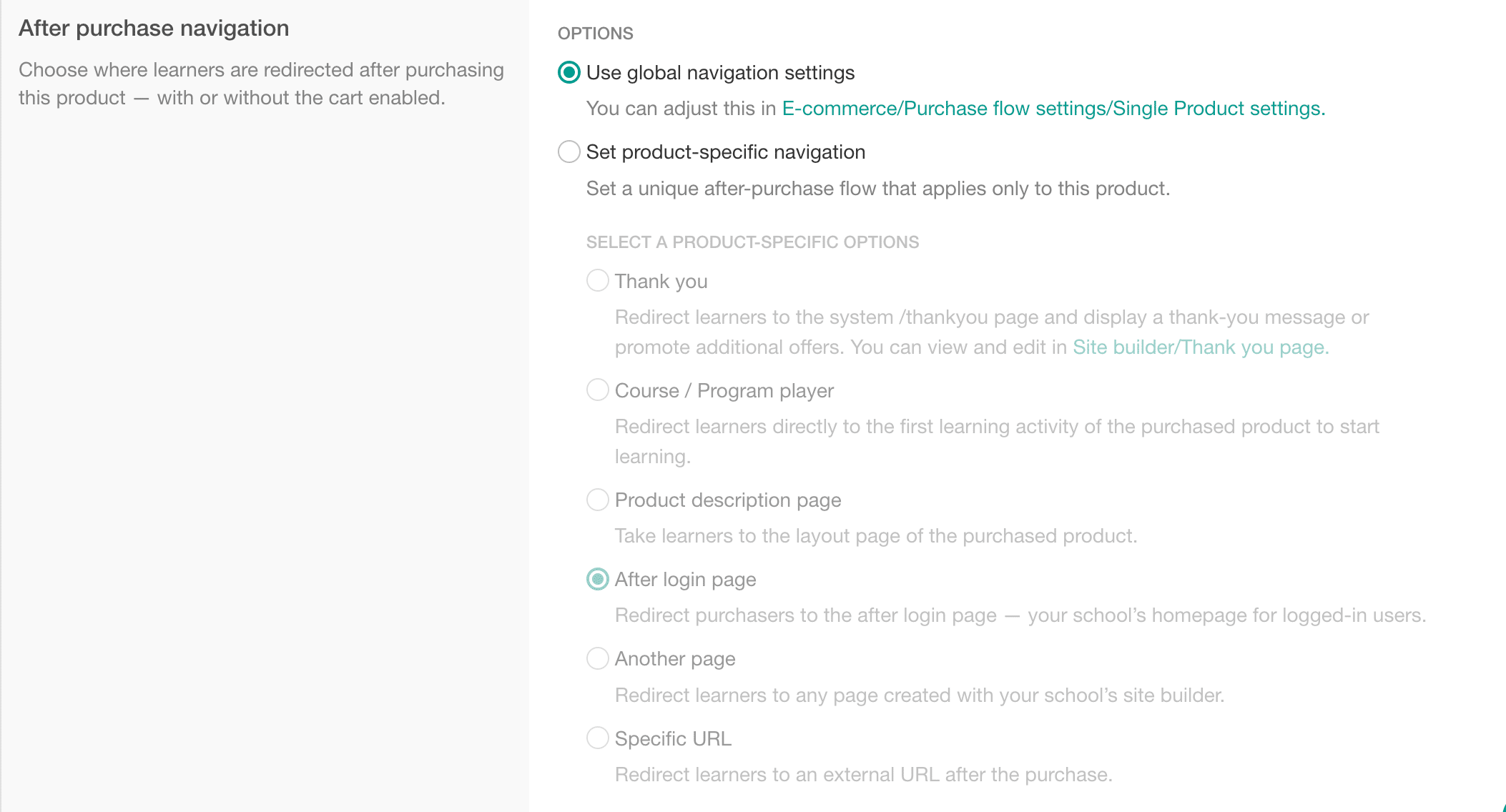
You can either set up these settings at the school level or for a particular course.
Set Completion Rules For Learning Activities and Courses
With LearnWorlds, you have full control over the customization. For each learning activity, you can set competition rules. You can also do this while you are creating an outline and adding learning activities to your course outline.
But, in course management settings, you will have a dedicated area where you can see and manage the learning activity competition rules, as shown in the screenshot below.
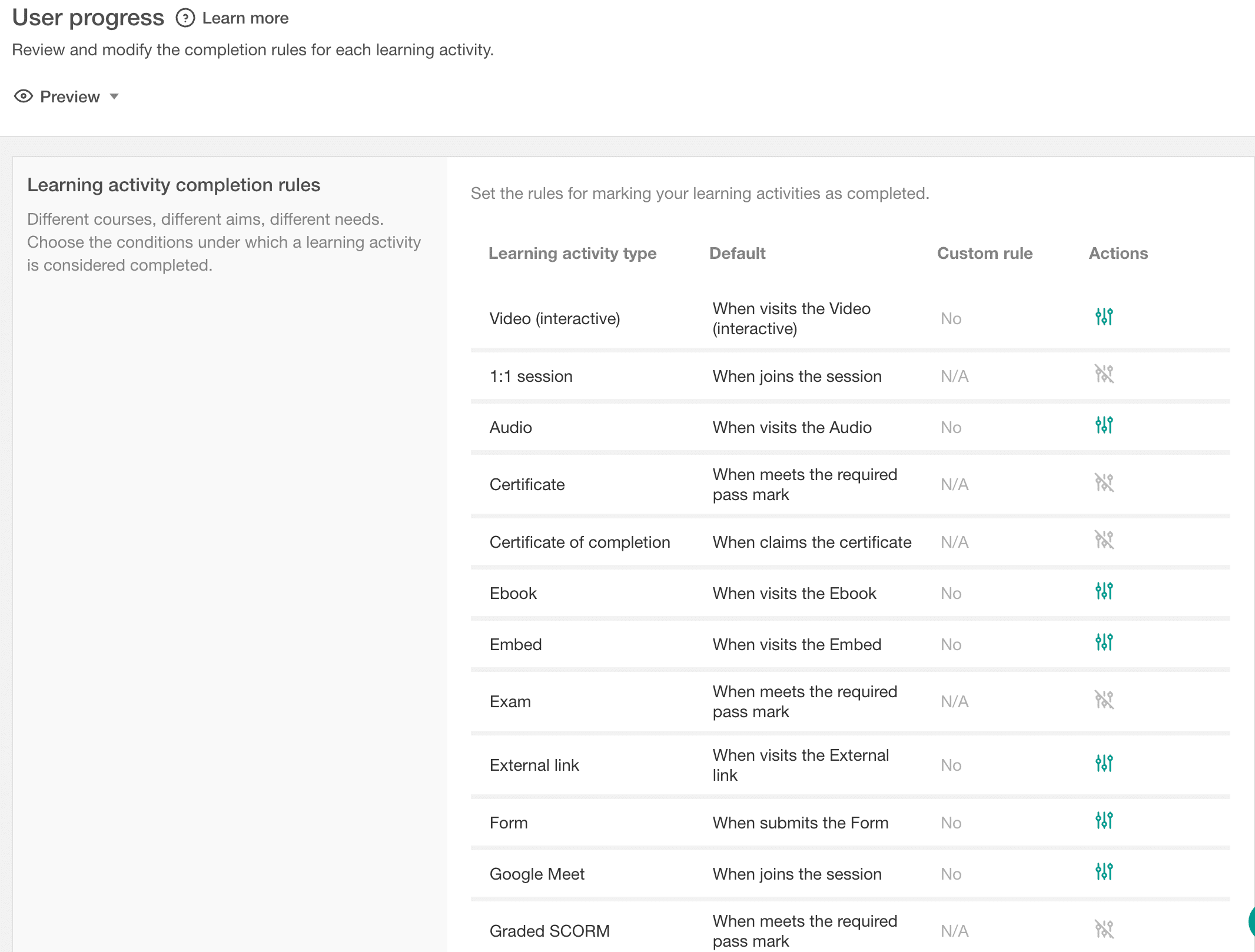
Apart from learning activities, you can also set the rules for a course and tell when you want to mark this course as completed.
Course Player Customization Settings
When your students log into your courses, they will see a course player dashboard, where they can start learning. With LearnWorlds, you can easily manage and customize the look and feel of your course players to provide a better user experience to your students.
Choose Course Player Skin
LearnWorlds provides a 5-course player-style option, and you can choose a perfect fit for your course.
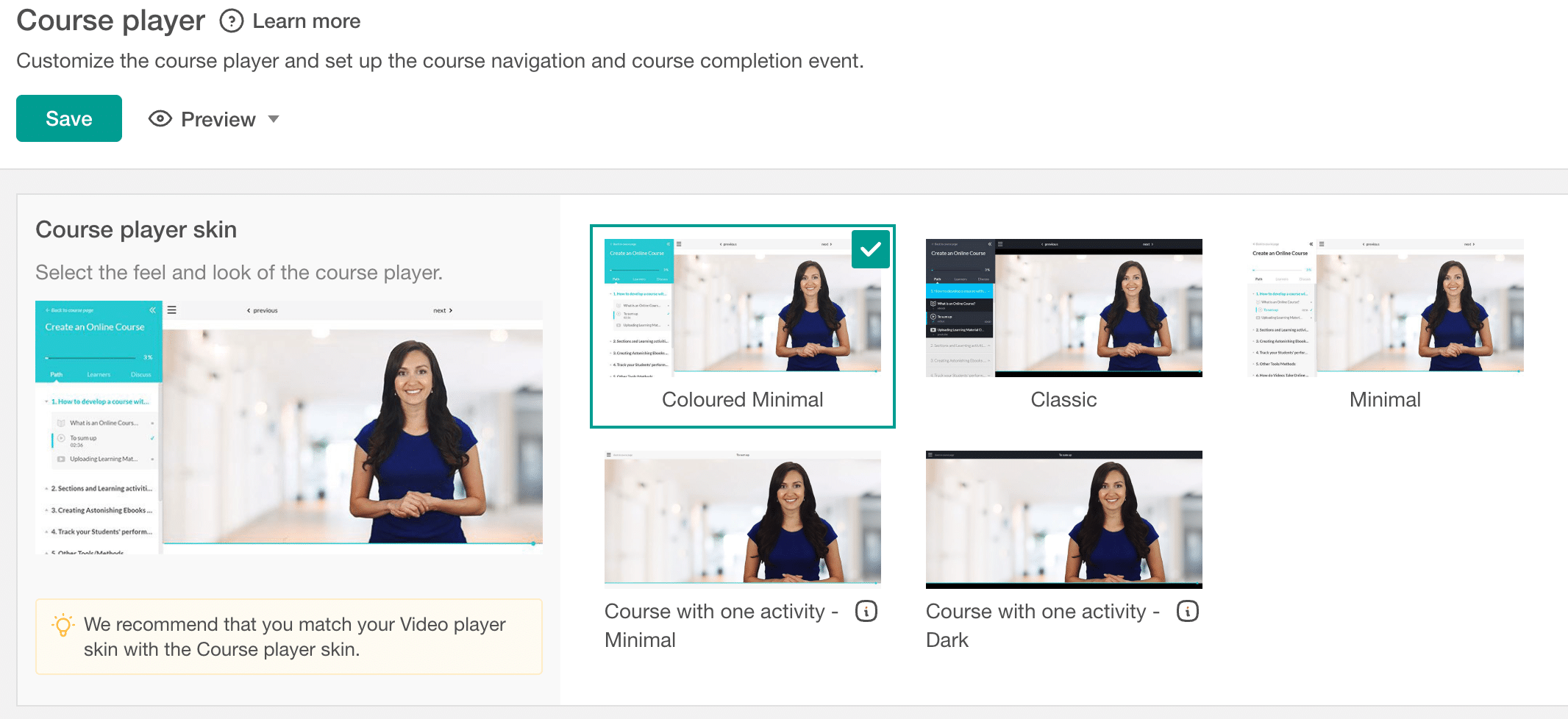
You can set a standard course player button setting at the school level, and these settings will be applied to all of your course lessons under that school. And this way, you save a lot of time.
If you want to change it for any individual video, you can also do that from the customization settings.
Choose Navigation Bar:
Choose whether you want to put the navigation bar at the top, bottom, or just want to remove the navigation bar from the course player. Additionally, you can also give custom names to the next and previous button text.
Apply the Course Player Settings to All Courses:
This is a pretty quick and time-saving feature. With a single check, you can apply the current course player settings to all other courses. So, this is really a time-saving feature if you have a lot of courses and you want the same settings for each of the course players. You can simply use this feature to do this work in seconds.
Build, Customize, and Manage Your School Website
With LearnWorlds, you will get a lot of customization options to change the look and feel of your school.
Customize the Basic School Info
You can customize your school name and descriptions for your students. You can also add the company name, set the time zone, select the type of date, and then add the contact emails for your school.
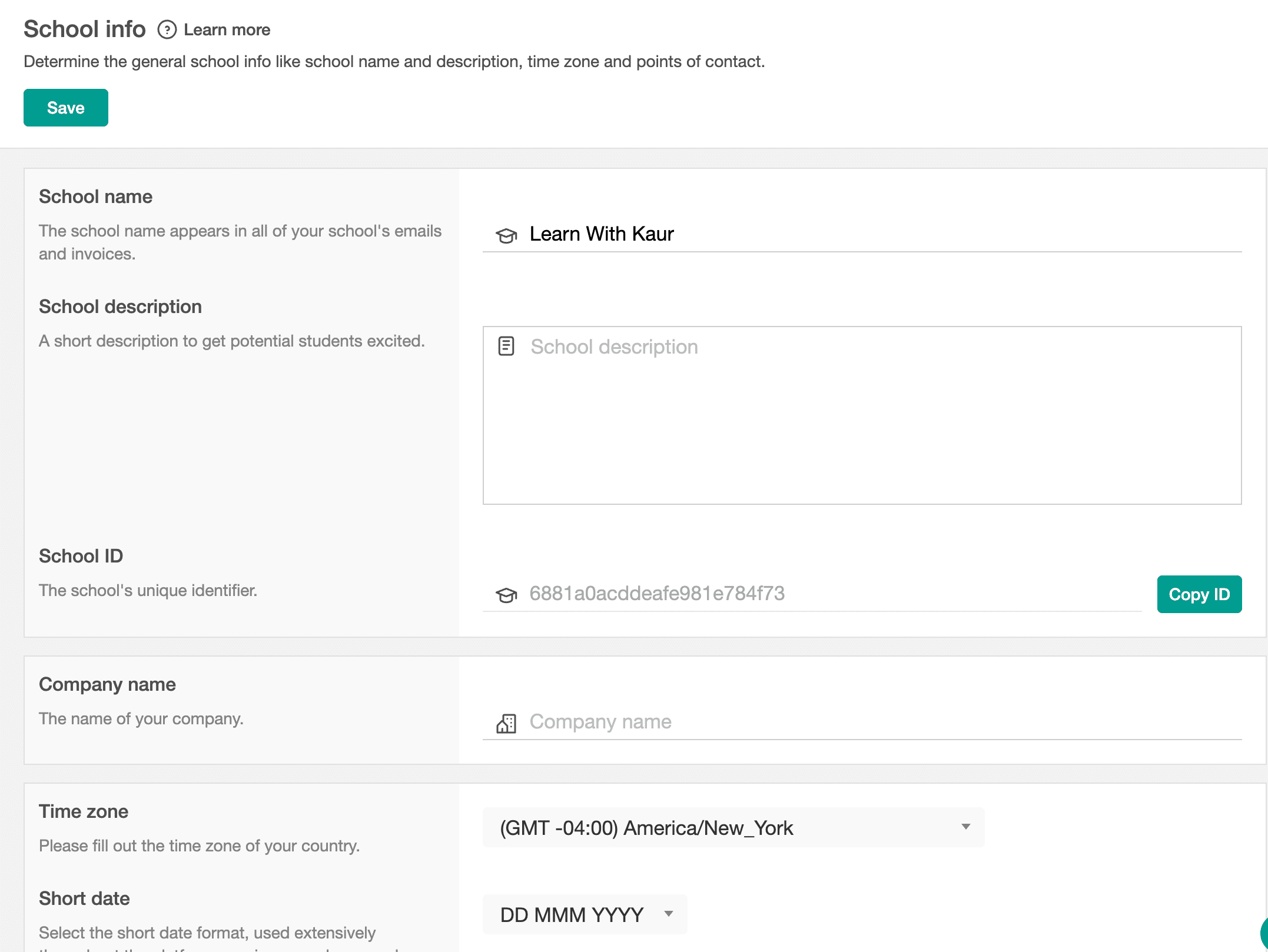
Additionally, with LearnWorlds, you can also add phone numbers, addresses, LinkedIn, or social profiles as well.
Add a branding touch to your website.
You can add the logo and a favicon (a small icon shown in the browser tab).
Set up the domain and email.
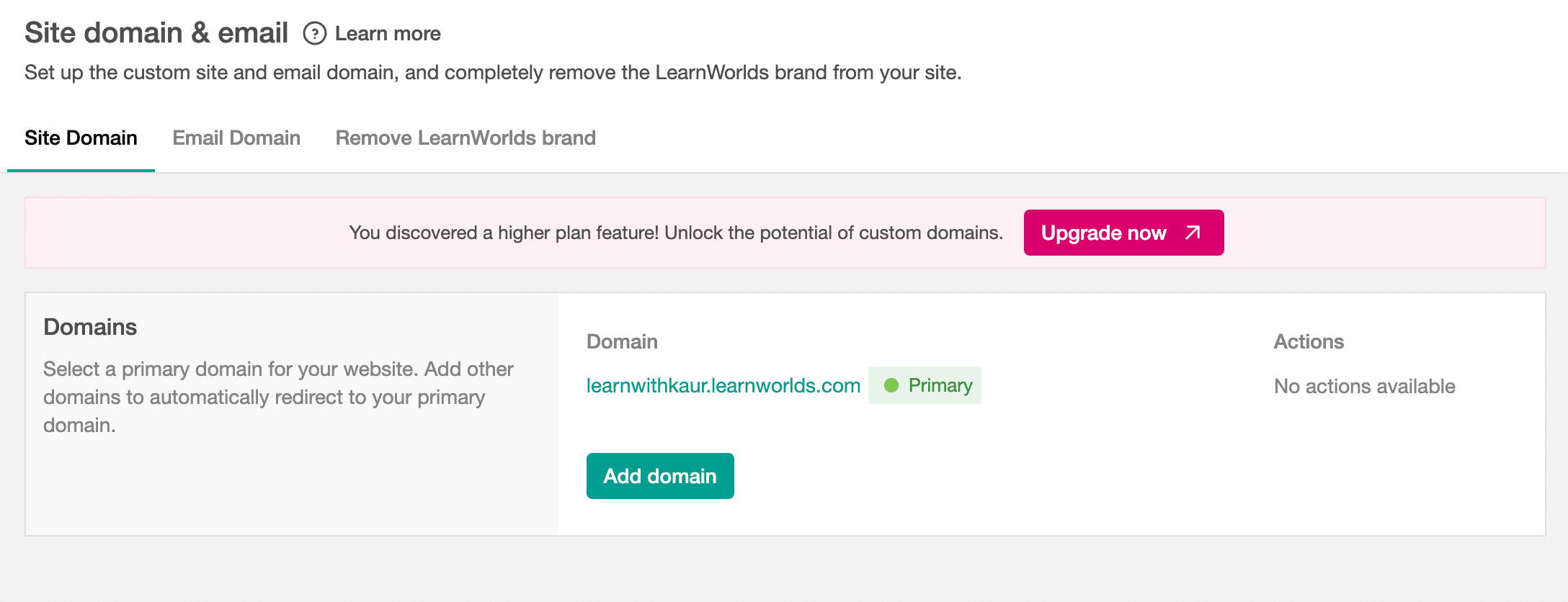
By default, your Learnworlds school and courses url ends with the learnworlds.com domain, and you can only customize the starting url.
In the same way, by default, when you send an automatic email to your students from LearnWorlds, it will be sent out from the default LearnWorlds domain.
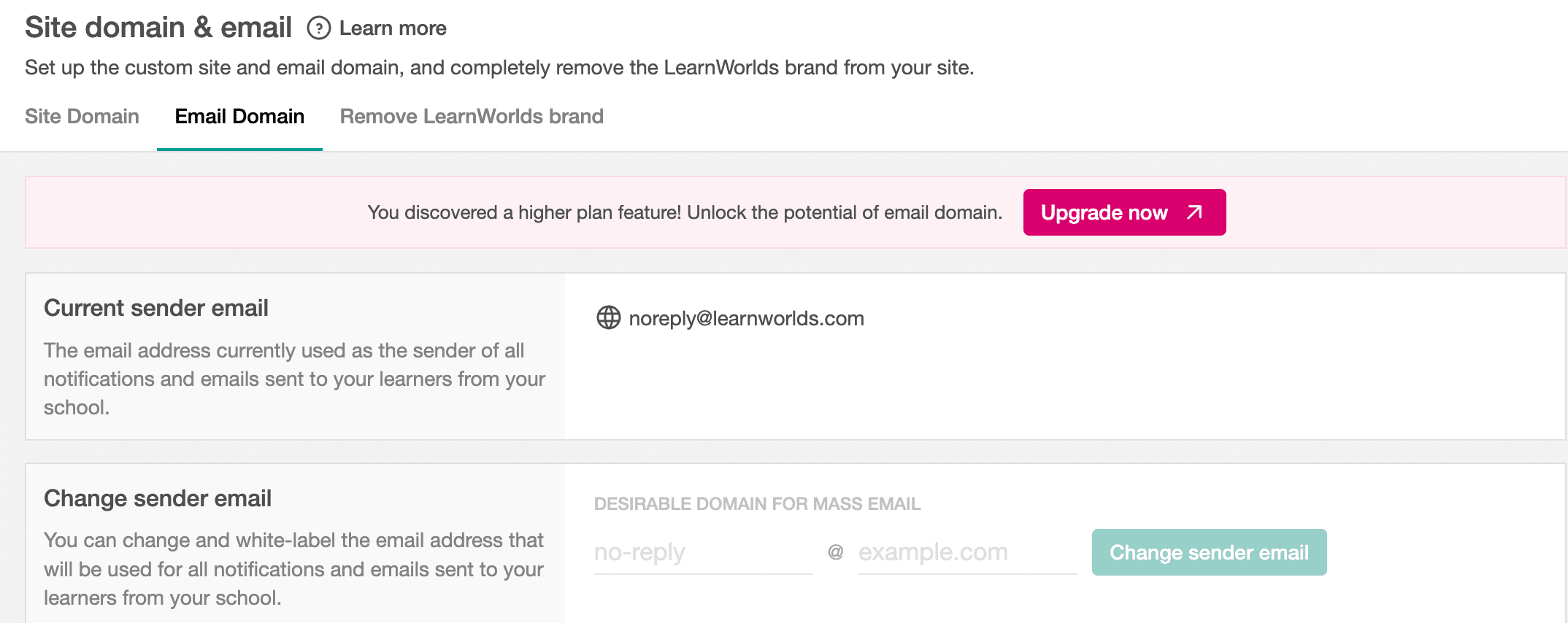
So, if you want to remove LearnWorlds branding from the domain or email, you can easily remove it by adding your custom domain name for both your school website and email.
Drag-and-Drop Website Builder
To start marketing and selling your courses online, you need a website where you can build an online home for your courses and drive traffic to sell your courses online.
With LearnWorlds, you will also get a website builder, and you don’t need to get an additional CMS or page builder for building a website. Because you can just build your site within LearnWorlds.
But the question is, can it replace the self-hosted CMS platform like WordPress?
I think the LearnWorlds website builder is a great option if you’re just starting or don’t have a website yet. Because you can just use LearnWorlds for creating your website and don’t need to pay additional for hosting.
No doubt, LearnWorlds can build a great website for your courses because it comes with a lot of features and customization options.
But it cannot fully replace a CMS platform like WordPress. Because WordPress gives you full control over the website, you can also use plugins to add as many functionalities to your website.
Learnworlds has a great website builder with a lot of customization options, but you do not have full control, and you can’t add more features as we can in WordPress.
But initially, LearnWorlds can be a great starting point, as you can save the money for paying an external hosting provider; if that is the case, you can simply use it to build your website.
Pre-Made Website Theme Templates
LearnWorlds comes with pre-made theme templates that can give a professional layout and structure for your website. So, you can use these pre-made templates to save time and effort. I installed one of their pre-made templates, and without any edits, below is how it looks.
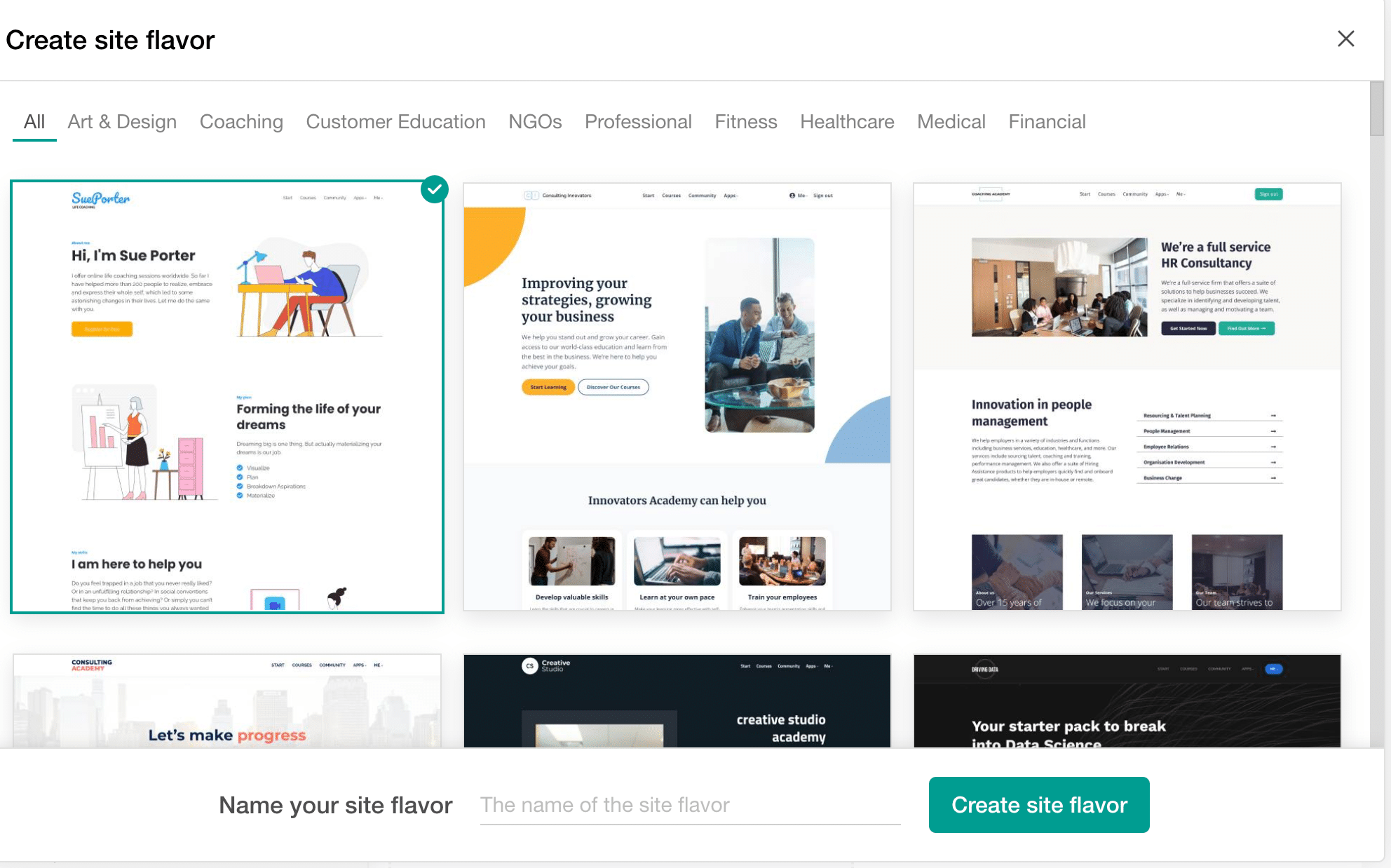
It looks good. Furthermore, you can customize your theme to change the look and feel of your website.
The one thing that I analyzed with LearnWorlds themes is that there is no direct option to preview them in a full window. First, you need to choose and add a theme, and only then can you preview it. And if you like it, you can activate that theme.
Customize Your Theme
The thing I like most about LearnWorlds is that it provides you with great control over customization. First, you can customize the global theme settings, such as adding your brand colors, changing the typography and font sizes, customizing buttons, and selecting a layout for your website sections.
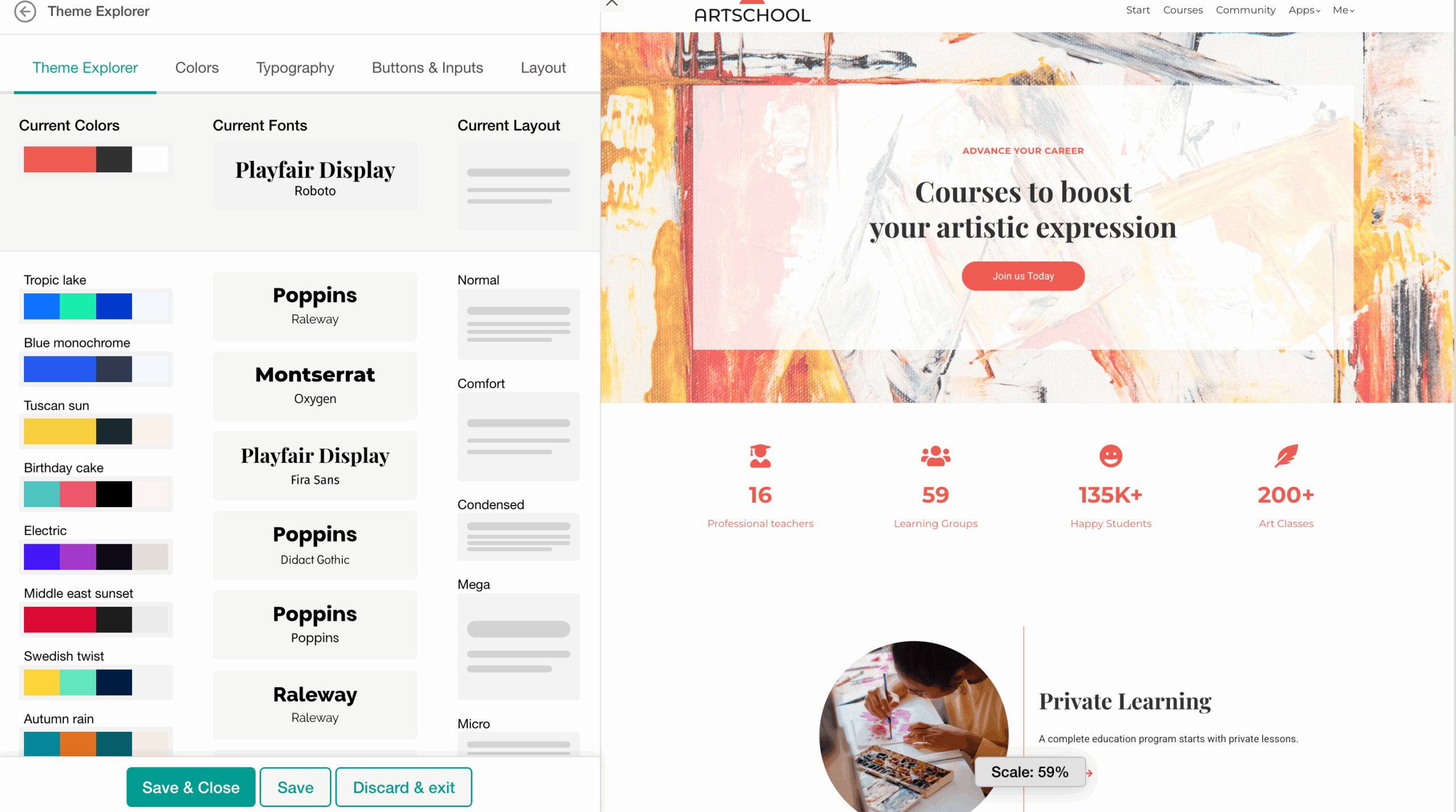
These global settings will be applied to your whole site. That means you don’t need to customize these for every page, which is quite time-saving.
Build and Customize Pages for your website.
If you’re on a starter plan, then you cannot create unlimited pages for your website. But rest assured, all other plans allow you to create unlimited pages.
The LearnWorlds website builder is not like a standard website builder. To add new pages or edit, or even see your website pages, you have to first open your website in editor mode, and from there, you will be able to see your website pages. There is no straightforward option available to access your website pages in the main left navigation bar.
Due to this, I struggled to find my website pages for the first time. So, there is a learning curve to get familiar with its dashboard.
Just like WordPress, LearnWorlds also comes with widgets, using which you can easily build your learning pages.
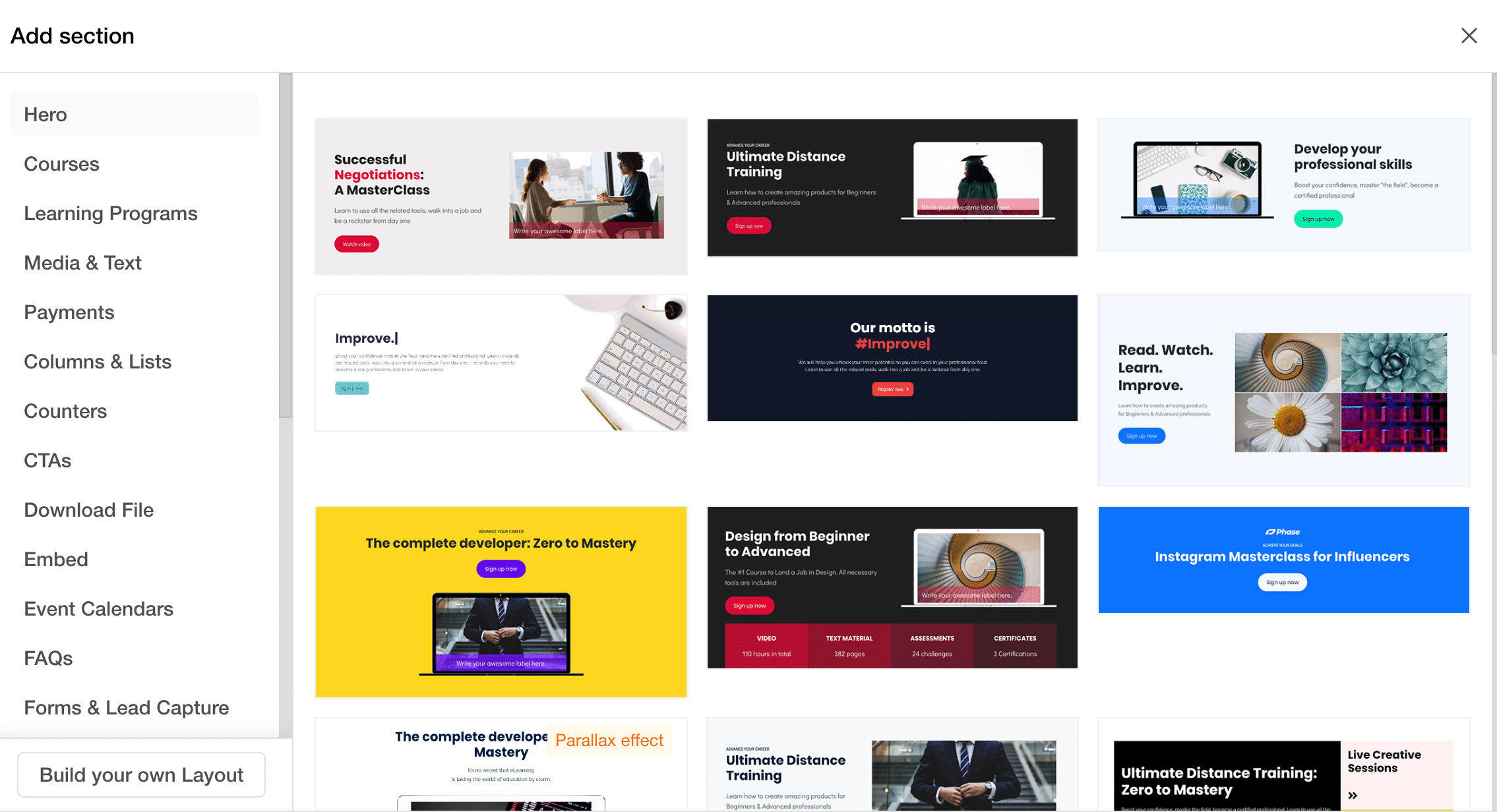
For example, if you want to add a button. You can just use the button Wizard and then edit it. You don’t need to build it from scratch.
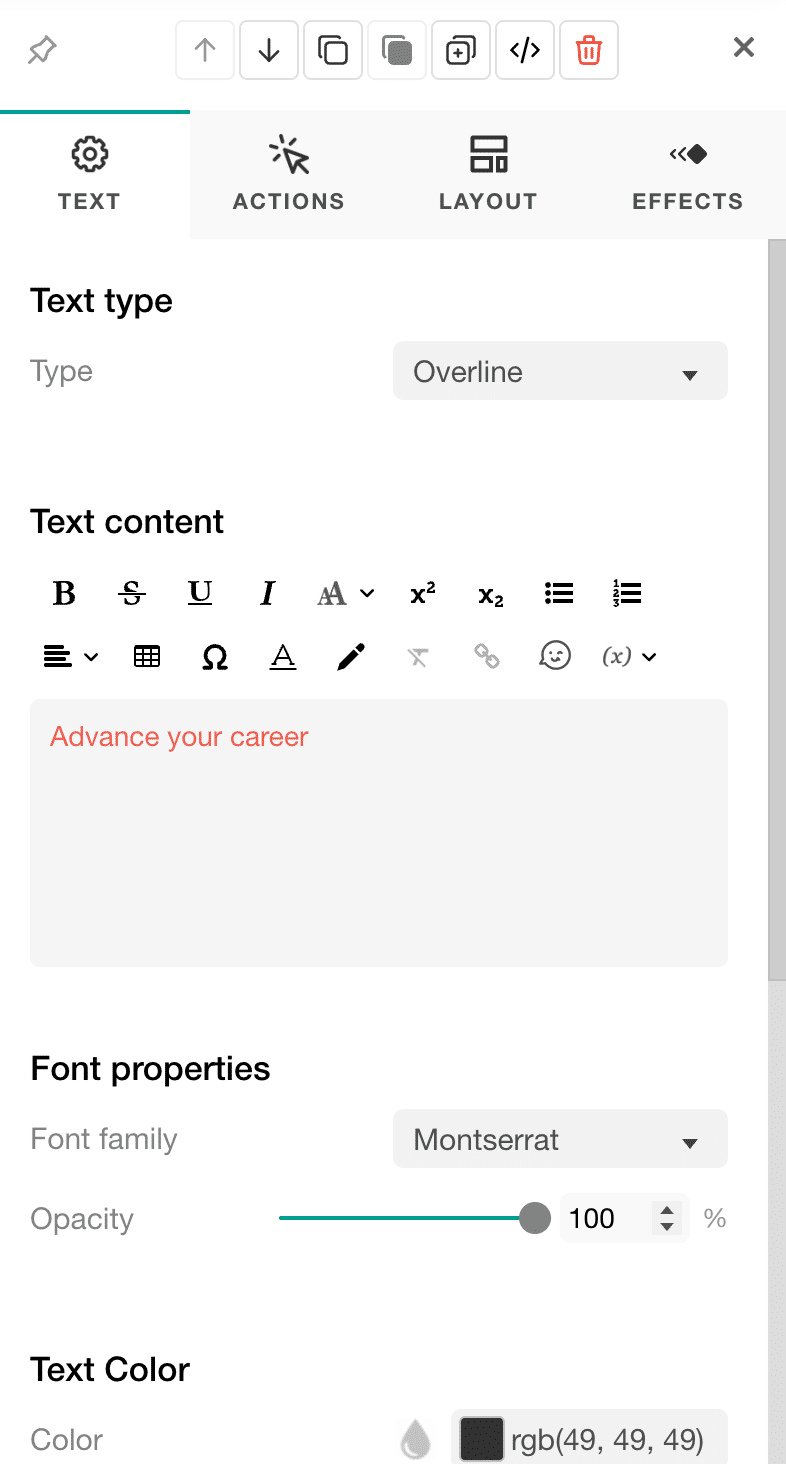
I think it’s a good page builder because there are plenty of options that you can use to build a professional-looking page.
Customize Page Settings.
You can give a custom name and url to your website pages. You can make your pages draft or public, or add groups to your pages. The unique thing that I liked, and which is not even available in most of the website builders, is adding an expiration date to your pages.
This may not be a useful option for every page. But if you are launching a page for only a particular period for targeting a specific audience, maybe running some holiday promotion, or discount code options, then you can use the expiry feature to make sure your page will be only live for the desired timeframe.
We are living in the digital world, and your target audience may access your site from different devices. Usually, most of the website builders only allow you to preview your site for mobile, tablet, or desktop.
But within LearnWorlds, you can check your site for 5 different screens to see how it looks on different devices to optimize your pages accordingly.
Website Security Features
You can also add authentication or security features to your website, such as
- Sign-in authentication
- Activate email verification
- Set up the things for the course logout
- Log out automatically after inactivity.
- Allow vertical sessions (but that is not recommended)
You can also add the captcha to make it appear as if you have already visited two more websites.
Marketing & Communication Features Review
SEO Optimization
SEO is the best way to generate free, consistent organic traffic to your course landing pages. And, within LearnWorlds, you will also get the SEO optimization features.
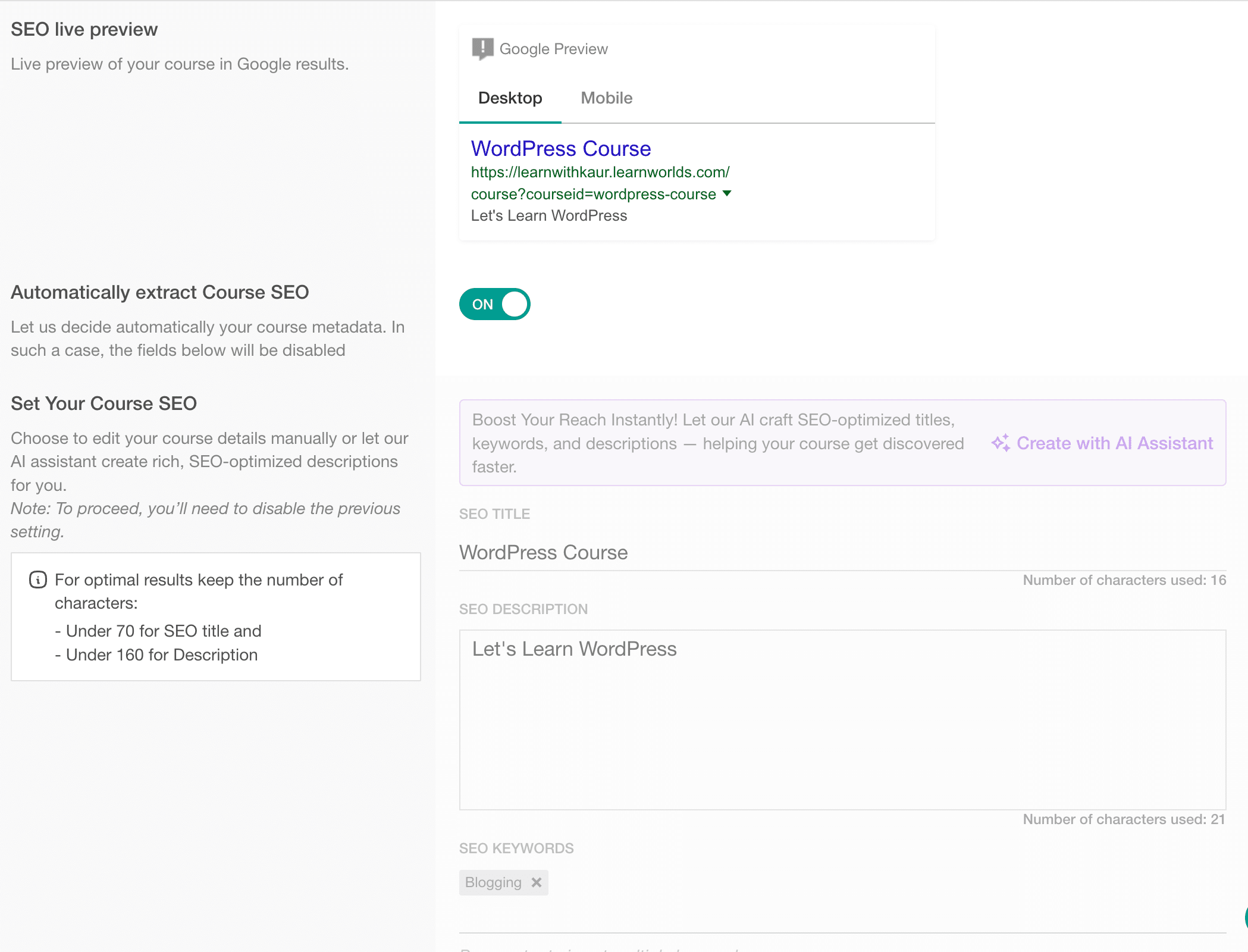
You can either choose the automatically decided SEO metadata options or manually add the SEO metadata for your courses. I prefer adding it manually to make sure it will be properly optimized for my target keywords and audience.
With LearnWorlds, you can optimize your school website as well as landing pages for SEO. You can add the SEO title, description, keywords, and image.
Additionally, you can also preview your seo meta of a page within your LearnWorlds dashboard. You can also choose whether you want to include or exclude your page from the site map.
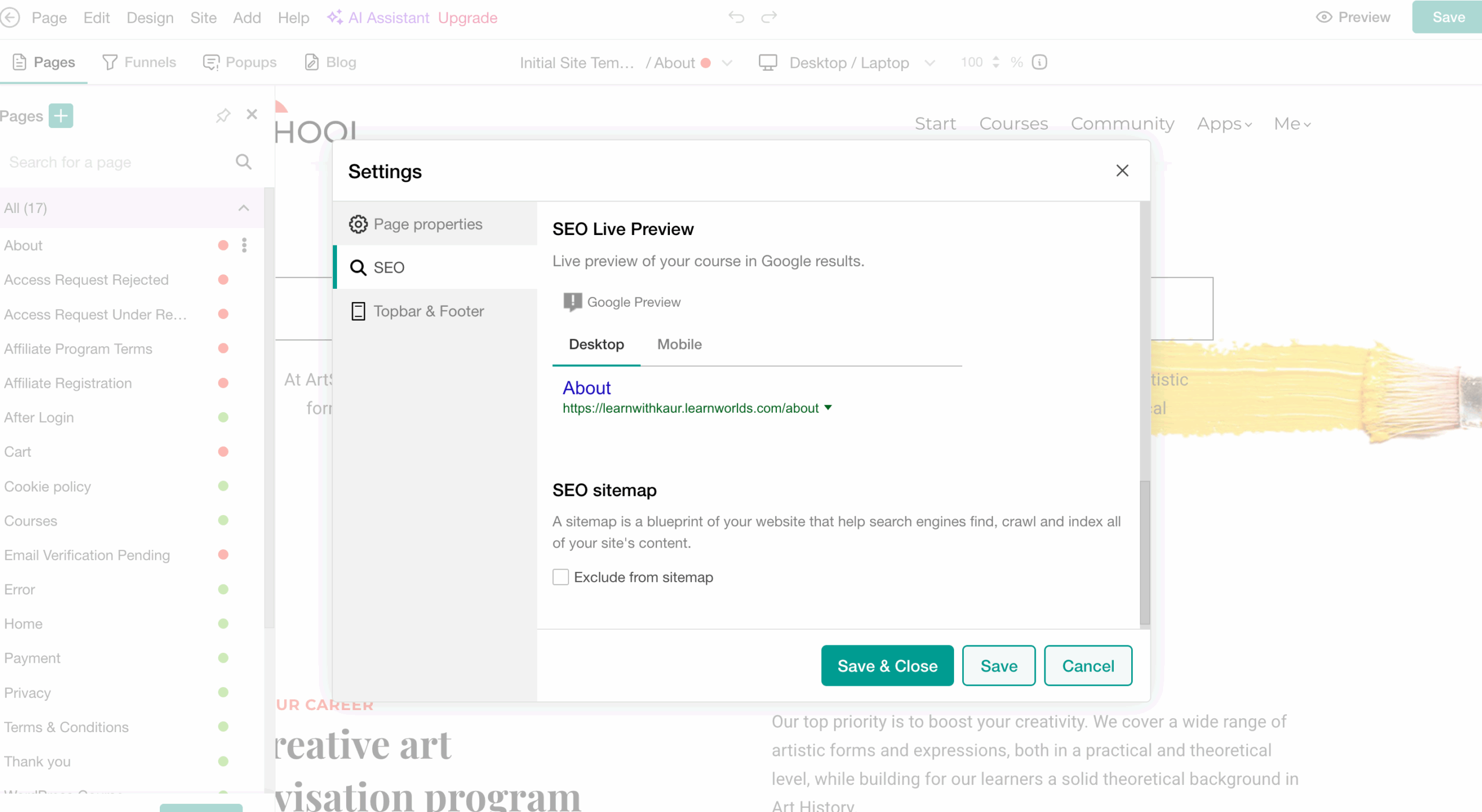
So, LearnWorlds has built-in basic On-page SEO features that most people need on a day-to-day basis for optimizing their pages.
Form Builder
With Learnworlds, you will also get a form builder, and this feature is available in all plans, but limited features are available in the starter plan.
In LearnWorlds, the forms are divided into 2 categories,
- Courses Forms: Only accessible to the enrolled users, and these are just for your courses to collect information from your students.
- Marketing Forms: These are standalone forms, and you can use them everywhere to collect lead information, demo requests, newsletter sign-ups, surveys, or for waitlists. You can share them via links or just directly embed them into your LearnWorlds website pages for collecting data.
Creating a new form in LearnWorlds is pretty easy; you can either just create it from scratch. Or choose a pre-made form template and then customize it. You can use pre-made templates for various form types such as lead capture, contact forms, course activities, marketing research, and order forms.
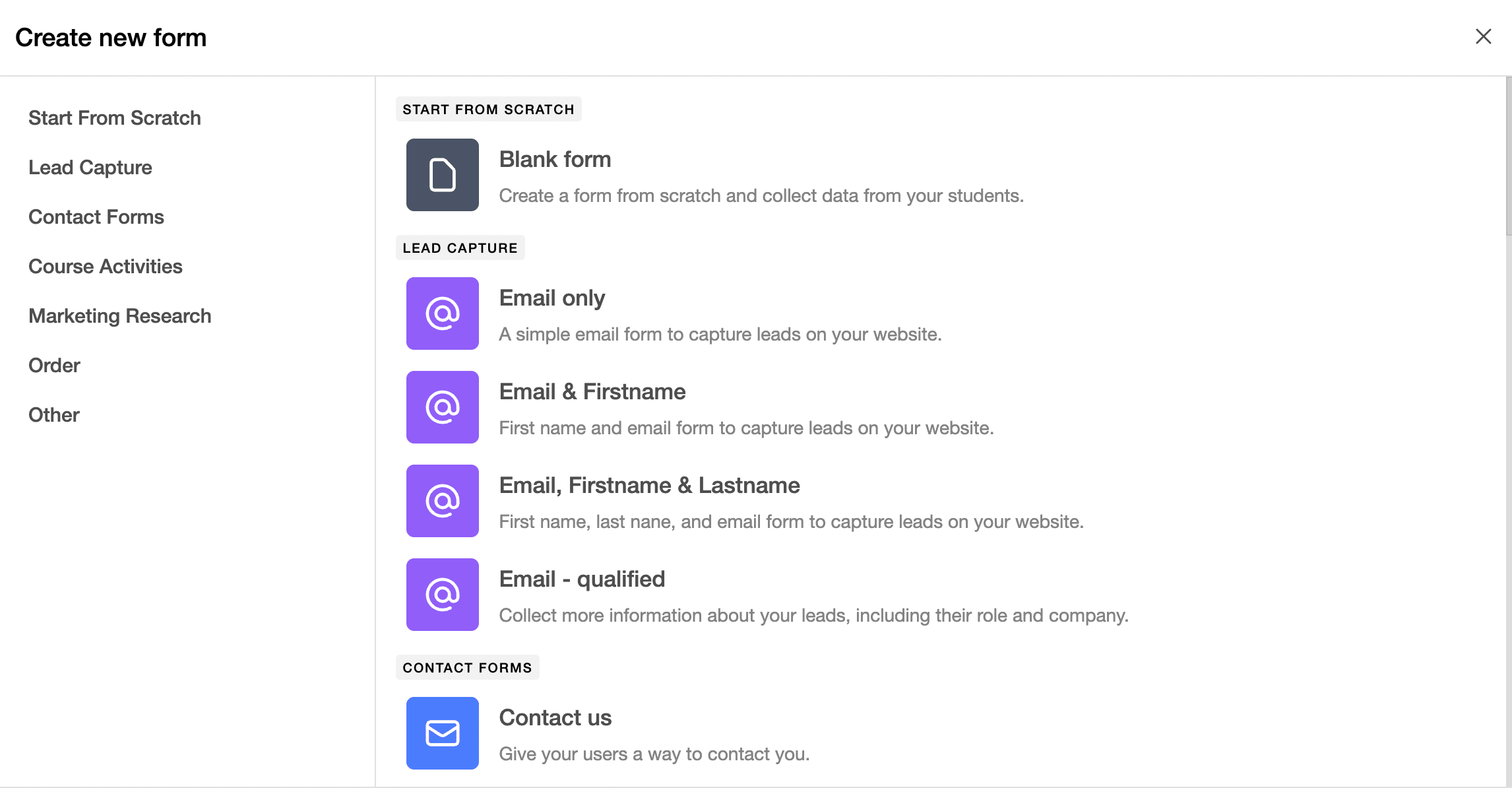
Again, there is no preview option to see the forms. You have to add it, and then you can only see it in the editor mode.
Once you’re in the form builder, you customize its design and appearance. Plus, you can also set up what users will see after they submit the form, such as an ending screen or redirect them to a LearnWorlds webpage.
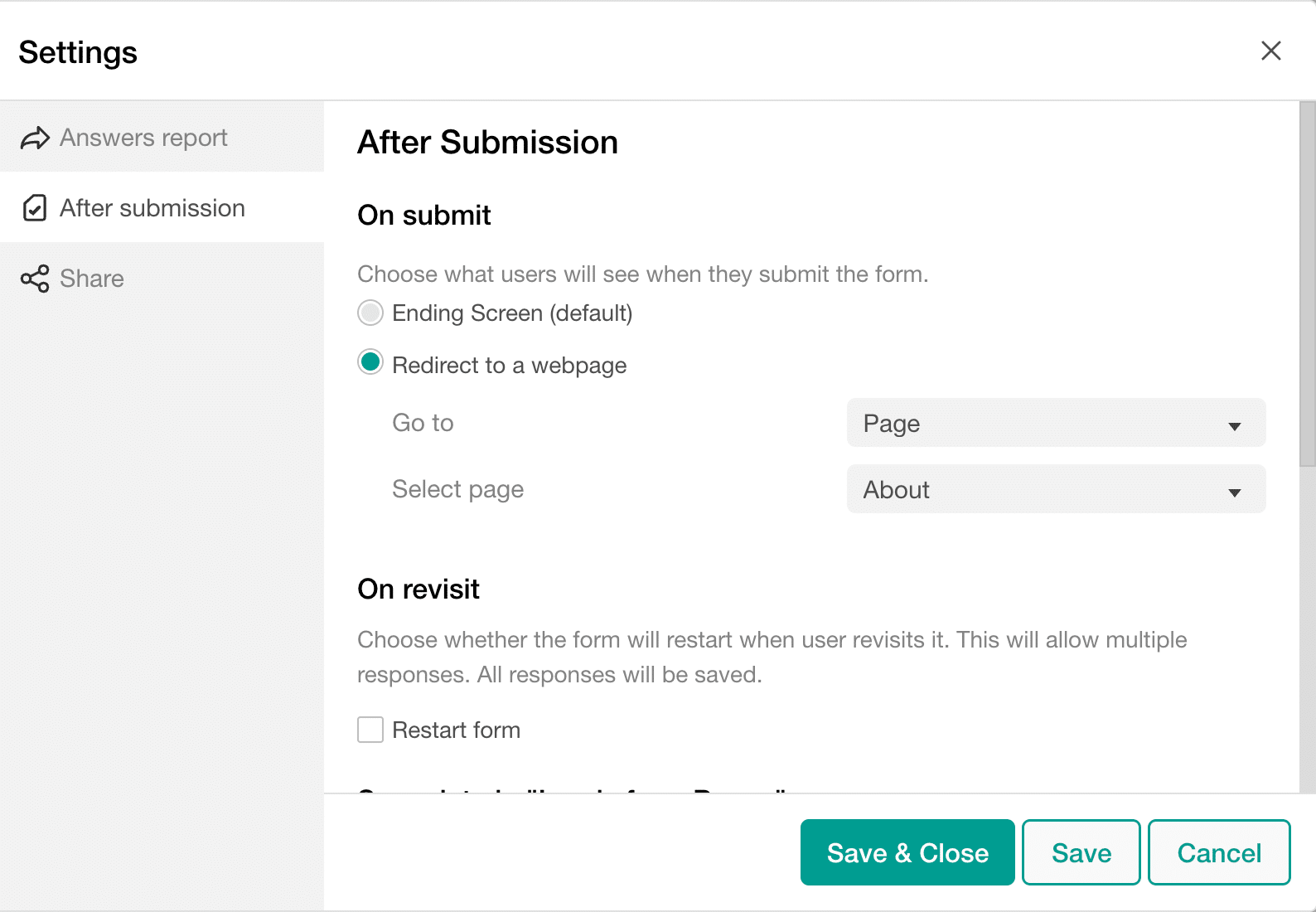
You can also make your forms shareable in LearnWorlds and customize the form url to easily get leads’ information even outside your school website.
Additionally, if you’re building a course form, you can add various types of questions to your forms and also build and share the answers report with your students.
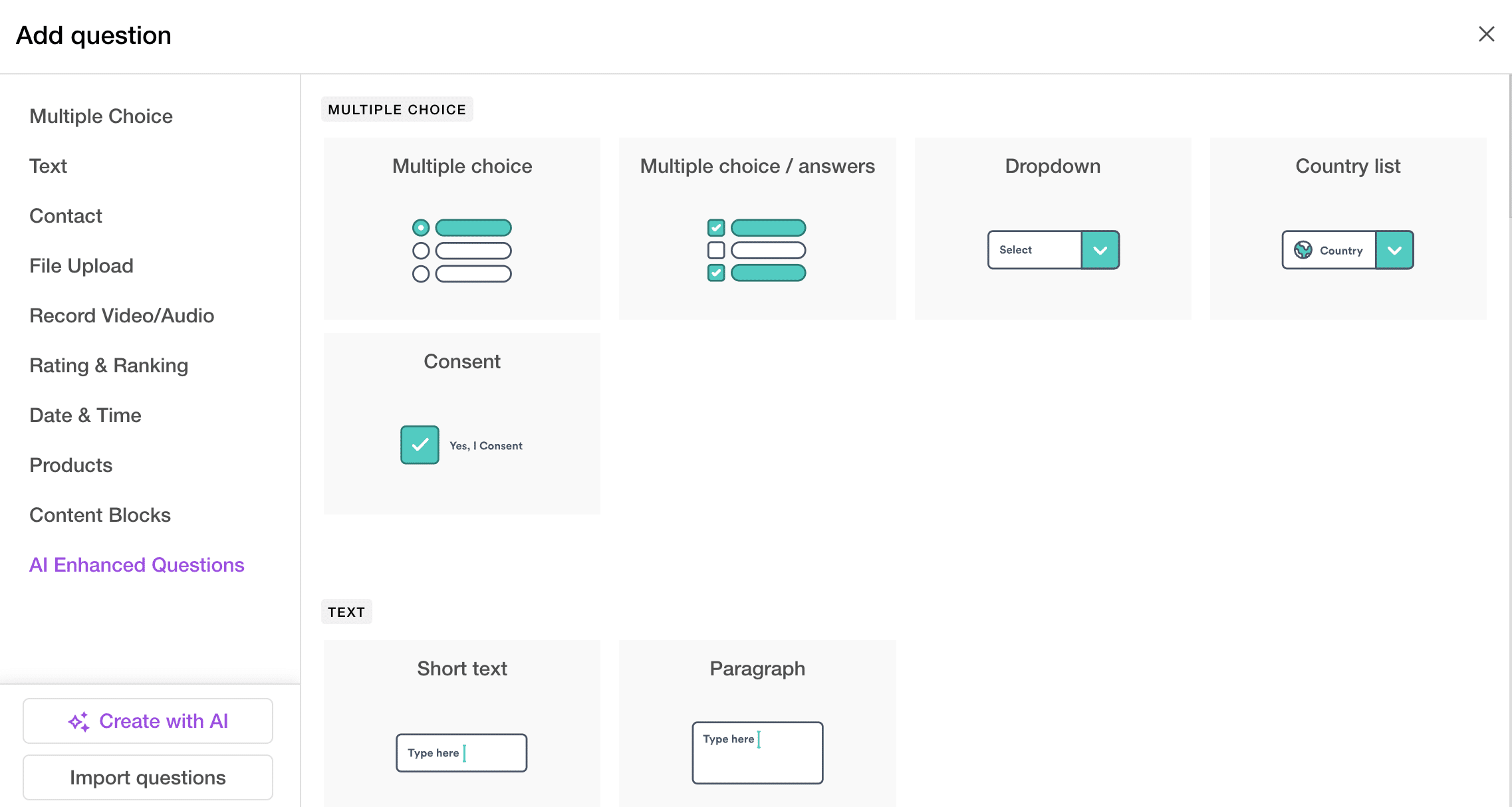
You can also review the responses to your forms within the LearnWorlds dashboard.
Pop-up Builder
Pop-ups are a marketing strategy to quickly engage with their audience. With LearnWorlds, you don’t need to use any additional pop-up builder because it’s a built-in feature available in all plans, but with a starter plan, you can only create 2 pop-ups.
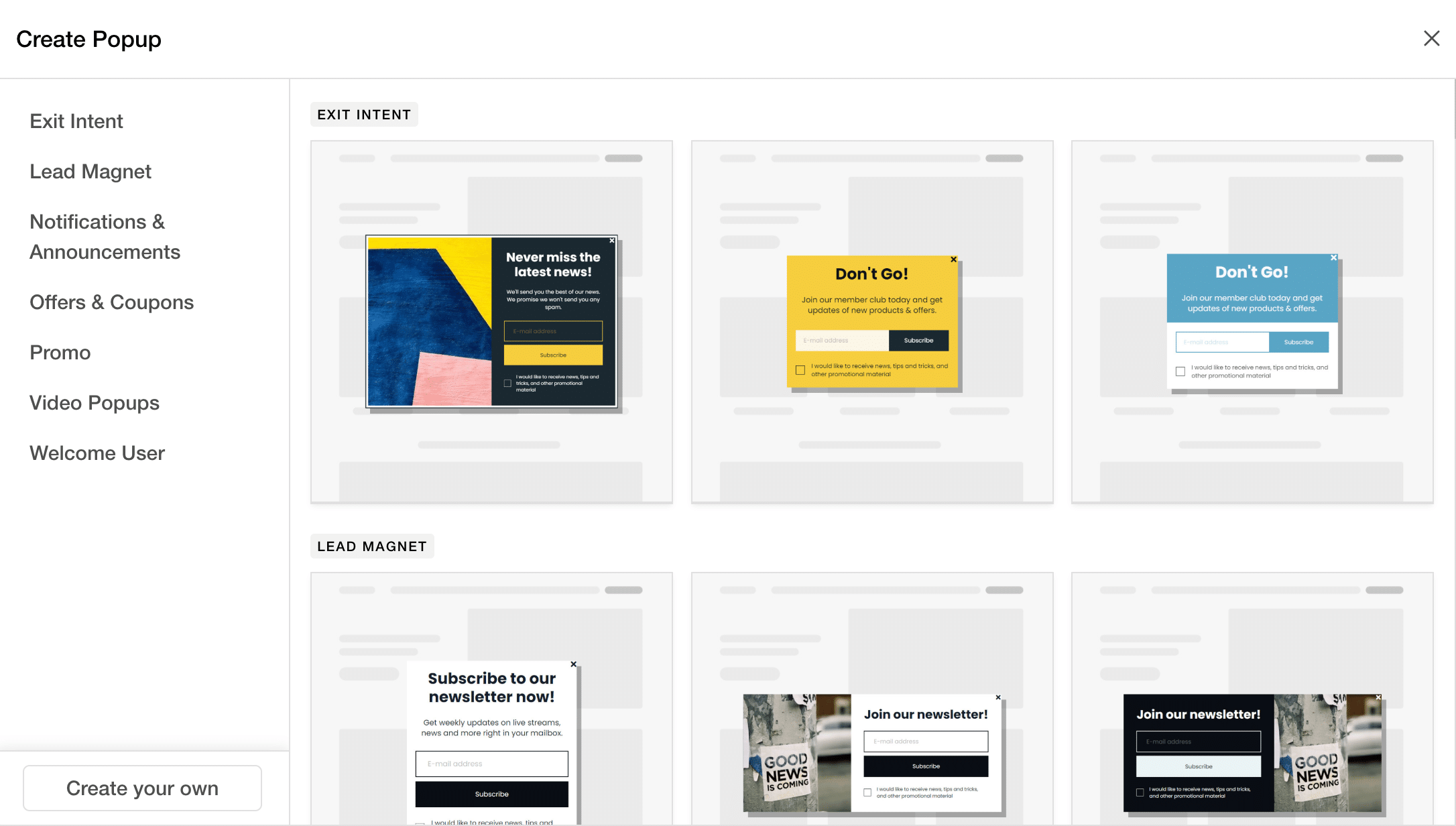
With LearnWorlds, you can create different types of pop-ups using pre-made templates. You also have the option to create it from scratch. Once you have selected a pop-up that you want to use, you can further customize its:
- Appearance
- Choose whom you want to show this pop-up to (target audience)
- Choose which devices you want to show it on.
- Where you want to show this pop-up, such as on the entire website or on some pages.
- Choose the timing for the pop-up, such as after a page is loaded or if the user is inactive.
- Add the rules to set up when your pop-up should appear.
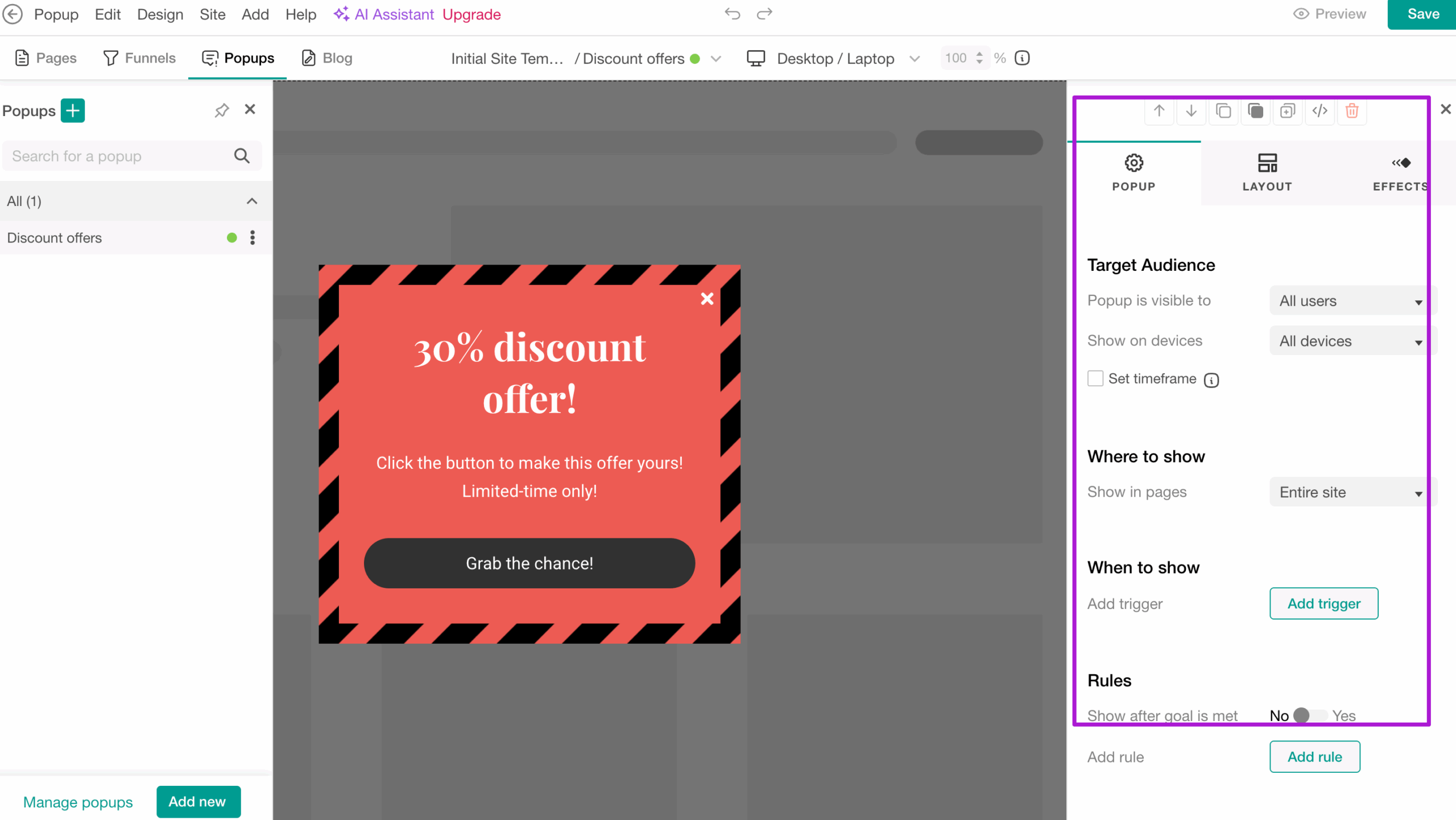
So, Learnwolds’ pop-up builder has plenty of options, using which you can tell the system when, where, and how this pop-up should be shown. Also, there are a lot of design customization options, and you can also add animations to build a solid pop-up for your website.
Funnel Builder
Within LearnWorlds, you can also create sales funnels. You might have heard about the funnels. Basically, a funnel is a set of a few steps to guide your audience to complete a particular action, such as a course sale.
With LearnWorlds, you can create sales funnels for conversions, an ebook lead magnet, and an email opt-in lead magnet with a coupon. And, you can also create sales funnels for one-click sales or for selling your course.
Just like themes, there is no preview option to preview the sales funnel in a full window. So, you have to first add it and then preview it. Once you have added the funnel, it will show you the steps, such as:
- A landing page for selling your course
- A payment
- A thank you page.
Further, you can use the editor to customize your sales funnel pages. Then you can also optimize the sections (their appearance), add some actions, change the layout, or add effects. After that, you can do SEO or edit the funnel steps.
Email Marketing
Set Course Notification Emails
To keep your learners informed and engaged, you need to send emails once they have signed up for the course. For example, sending emails for successful course purchase, login information, or when the course is completed.
With LearnWorlds, you can send automated notification emails to both learners and admins, even with the starter plan. You can either set the automation notification emails at the school level, which will apply to all of your courses.
But if you want to customize them for each course, you can set the course notification email at the course level as well.
Add Automations to Your Courses
Apart from standard email notifications, you can also use automations to automate the personal communication with your students. But this feature is not available in the first 2 plans and is only available in the learning center or custom plan.
With LearnWorlds, you will have 9 ready-to-use templates related to course enrollment, course engagement, and completion. With pre-built automation templates, you can save time and effort.
But in case you want to build it on your own, you can also do that because LearnWorlds also has the option of creating your automations from scratch. You will have over 20 triggers, 10 actions, and 15 conditions, using which you can create your automatons for your courses.
It’s a pretty simple process, and no technical skills are required. First, specify when you want to trigger this automation and what action it should take. Next, you can choose the action that you want to complete automatically. Then, you have to tell the condition that should be met to trigger this automation.
Affiliate Marketing
Affiliate marketing is the most popular way to promote your products/courses in exchange for commissions. So, if you also want to run an affiliate program for your courses, Learnworlds has a built-in affiliate program feature.
With the pro trainer plan, you will have basic features for the affiliate program, but with the learner and higher plans, you will have advanced features, as you can see in the screenshot below.
Using the built-in affiliate program feature, you can enable the feature and edit the pre-built affiliate agreement page.
You can set up a commission rate, cookie expiration period, and when the commission will be payable based on your refund policy.
You can add which products you want to include in your affiliate program, and then you can also choose what the affiliates can see in their affiliate dashboard.
You can also see the performance of your affiliates and track leads and sales generated by each affiliate.
Learnworlds also calculates the commissions, but for payouts, you have to use external options such as PayPal, Bank Transfer, and others.
Communication Features.
Build and Manage the Community
Most of the online courses and e-learning platforms build their online community where the students can engage with each other. And you can also directly communicate with students, share updates, and easily make announcements to your community. And the community feature is even available in the starter plan.
So, with LearnWorlds, you can choose whether you want to enable a community for your school or not. You can choose who can access your community: logged-in users or only paying users.
Comment Discussion
You might have seen that some courses also have a comment box, where learners can leave comments.
In LearnWorlds, you can turn ON the comments feature for your courses, which gives your students a way to leave comments or react to your videos, which is great for engagement. You can choose to allow permission for posting, polling, and commenting.
You can also choose the reactions that you want to allow on your courses, such as upvote, like, or share. You can also decide whether to allow attachments in your course comment section or not.
You can either provide a common discussion for the whole course, which is great, and usually most of the courses use a common discussion. But in case you want a different discussion for each learning activity, you can also create that in LearnWorlds.
Then, you can also choose whether the course discussion will only be available in the course player or also in the community.
Inbox
In addition to notifications, automated emails, and bulk email, with LearnWorlds, you will also get a built-in inbox feature, using which you can easily communicate with your learners. The good thing is that this feature is available in all the plans and even in the trial.
To send a message from LearnWorlds, you first need to choose a user by entering @ along with the first few letters of the user’s name. This is how you can select whom you want to send the message; their inbox does not work like a standard email inbox.
Then, you can type a message and send it to the user.
Students can see the messages in the student dashboard and also reply or send new messages. But you can control to whom your students can send messages, such as all users or only admins.
E-commerce Features
As you know, Learnworlds is not only a course creation platform, but you can also sell your courses using it. So, let’s see which e-commerce features you have in the Learnworlds dashboard.
Coupons, Discounts, and Bundle Offers
Discount coupons and bundle offers are a must-have for courses. Most of the time, we need to offer discount coupons and bundle courses to run promotions for your courses. So, with LearnWorlds, you can easily build, customize, and manage your discount or bundle offers.
For creating offers, LeanWorlds offers a very quick setup wizard where you can choose whether you want to build a product discount or bundle offer. Then, you can include your courses on which you want to apply this offer, and you can even choose multiple courses, which is great.
With LearnWorlds, you can also choose whether you want the discount to be automatically applied to your course price or if users need to first enter a coupon code. You can offer a discount or a flat discount.
For coupons, you can choose your custom codes, set a limit on redemption, or choose unlimited ones. Additionally, you can also set an expiry date to your coupons; this is great if you’re running a sale or a limited-time offer only.
Once the coupon is created, you can visually see the required details at a glance, such as how many redemptions it has, when you created it, and for which course. Additionally, in case you want to make changes, you can always come back and edit your offer details.
Apart from this, LearnWorlds also allows you to build bundle offers where you can combine two or more courses into a bundle and sell them with a discount.
Checkout and Payment Options
The good thing about LearnWorlds is that it not only allows you to build courses, but you can also sell your course using it. You can integrate it with payment gateways such as Stripe, PayPal, and Shopify.
You can also enable Apple Pay, Google Pay, or Choose Now, pay later checkout options for your courses. You can also accept local payments for various countries through Stripe.
If you’re on the starter plan, then you have to pay a transaction fee ($5 per course sale), but if you’re on higher plans, then there is no transaction fee at all.
Analytics and Reporting Review
Leanworlds also has a great built-in analytics, but it depends on your plan how many analysis and reporting features you will have.
If you’re on a starter plan, you will have limited features available. With Pro, you will get basic reporting features, and to fully leverage the analysis feature, you have to go with LearnerWorlds’s learning center or higher plan.
You can analyse the data in two ways: one is at the course level, and the second is combined data in the Reports Center of your LearnWorlds dashboard.
You can check the insights dashboard for each course, where you can see the individual course performance, such as sales, revenue, and user data.
You can also monitor, analyze, and check the performance of your students’ grades, exams, and certifications. You can also monitor reviews and course form submissions for each course.
Along with that, LeanWorlds also offers you an AI insights tool, using which you can drive insights from your data using AI to make better decisions. For example, you can ask AI how many learners dropped in the last 30 days.
Apart from checking the performance at the course level, you will also have a standard report center where you can analyze your whole school’s data to analyze all your courses’ performance in one place.
You can also check your most popular, most engaging, hardest, and most dropped courses. And this data will help you to make better decisions, such as what type of courses work best and what do not.
Apart from analyzing the data, you can also build reports in LearnWorlds. For this, you will get over 50 pre-made templates, and you can customize them using filters. But this feature is only available in the learning center or higher plans.
Additionally, you can also schedule up to 20 reports each month if you’re on the learning center plan.
Branded Mobile APP
LearnWorlds offers a branded mobile app feature to help you build and launch your own courses app for your learning platform. But this feature is not included in your paid subscription, no matter which plan you choose. Because it is an add-on feature that you can get on a pro trainer or higher plan, which will cost you additionally.
For pricing, I talked with their chat support, and they said the cost of the mobile app addon depends on multiple factors. If you choose to publish both apps, when billed monthly, the cost would be $299. However, this depends on the billing cycle and whether you will publish both apps.
Here are the key mobile app features:
- Available for both Google Play and App Store.
- Easily build, design, and customize your app with a mobile builder and no coding skills required.
- Create and manage in-app purchases. Track product status, monitor revenue, and analyze purchase performance, all without logging in to the stores separately.
- Mobile app analysts for tracking customer journey, sales, and other performance metrics.
- Customize the experiences for visitors and choose which lessons and pages they can access as guests.
- Allow mobile app users to set up learning reminders.
- Add an email verification security feature before the user logs in to the app.
- Give users multiple ways for logging in, such as Single Sign-On (SSO), email and password logins, social logins, or biometric authentication for flexibility.
- Enable a community with your app.
Integrations Review
Additionally, you can integrate LearnWorlds with other third-party tools, such as Zapier, Mailchimp, ActiveCampaign, Kit Constant, Google Analytics 4, and many more tools. Essentially, it depends on your plan for the number and type of tools you can integrate with LearnWorlds. For example, with the free plan, you can’t integrate Zapier, Google Meet, or Zoom.
LearnWorlds Pricing & Plans Review
Learnworlds offers 4 different paid plans, and you can choose one as per your needs and budget.
It does not have a free plan, but you can get a free 30-day trial, and no credit card is required.
Here is a quick overview of the three main plans, along with pricing. I have not compared the 4th plan here because that is a custom plan, and based on your needs, you can get a customized plan from LearnWorlds.
| Starter | Pro Trainer | Learning Center | |
|---|---|---|---|
| Monthly pricing | $29/month | $99/month | $299/month |
| Yearly pricing | $24/month | $79/month | $249/month |
| Transaction fee | $5 per course enrollment | No | No |
| Course Creation | Only Unlimited paid courses | Unlimited free & paid courses | Unlimited free & paid courses |
| Unlimited User Profiles | ✅ | ✅ | ✅ |
| Monthly Active Learners | 1000 | 2000 | 2000 |
| Unlimited Video Hosting | ✅ | ✅ | ✅ |
| Video Interactive tools | ❌ | ❌ | ✅ |
| Exams & Quizzes | ✅ | ✅ | ✅ |
| Assessments, Certificates & Digital Credentials | ❌ | ✅ | ✅ |
| 1:1 and Group Sessions | ✅ | ✅ | ✅ |
| Live Classes & Webinars | ❌ | ✅ | ✅ |
| Course Community | ✅ | ✅ | ✅ |
| Website Builder with pre-made templates | ✅ | ✅ | ✅ |
| Unlimited landing page Creation | ❌ | ✅ | ✅ |
| Customizable pages | Only 3 Customizable pages: Home, Course Catalogue page, & the After login page | All pages customizable | All pages customizable |
| Custom domain name and URL | ✅ | ✅ | ✅ |
Branding | ✅ | ✅ | ✅ |
SEO-Optimization | ✅ | ✅ | ✅ |
White-label | ❌ | ❌ | ✅ |
Pop-builder | Only 2 | ✅ | ✅ |
Funnels | ❌ | ✅ | ✅ |
| Form Builder | Limited capabilities | ✅ | ✅ |
Blog | ❌ | ✅ | ✅ |
Free SSL Certificate | ✅ | ✅ | ✅ |
Email Notifications | ✅ | ✅ | ✅ |
| Custom Completion Rules on Learning Activities | ❌ | ❌ | ✅ |
Course Community | ✅ | ✅ | ✅ |
| Integrate with PayPal, Stripe, and Shopify | ✅ | ✅ | ✅ |
| Apple Pay and Google Wallet, or choose ‘Buy Now, Pay Later checkout options | ✅ | ✅ | ✅ |
| Coupons | ✅ | ✅ | ✅ |
| Subscriptions & Memberships | ❌ | ✅ | ✅ |
| Installments | ❌ | ✅ | ✅ |
Affiliate Marketing | ❌ | ✅ Basic | ✅ Advanced |
| Analytics & Reporting | ❌ | ✅ Basic | ✅ Advanced |
| Admin | 1 | 5 Admins/Instructors | 25 Admins/Instructors |
| Branded App | ❌ | Add-on | Add-on |
| Integrations | Marketing and Accounting Integrations | Marketing and Accounting Integrations + Advanced Zapier | Marketing and Accounting Integrations + Advanced Zapier + API Webhooks + 3 SSO + Hubspot Advanced |
| Support | 24/5 e-mail support, Help center | 24/7 Email support, Help center & Learnworlds Academy. | 24/7 Priority Email, Help center, Learnworlds academy + Personalized onboarding. |
Apart from these, 3 plans LearnWorlds also offers a custom plan, which you can customize as per your needs, and this plan is suitable only for high volume and corporate. In this plan, you will get all the features, plus you will get extra data safety features such as backups, cloud server, and the highest level of uptime.
Additionally, with this custom plan, you will get a dedicated success manager and phone support, which is not available in other plans. And for this, you can contact their sales team and get a quotation based on your custom needs.
LearnWorlds Support Review
Learnworlds offers great support, but the type and level of support you will get will depend on your plan.
For example, if you choose their Starter plan, then you will only get email support for 24/5 (which means only on 5 weekdays). But you have free access to their help center, blog, free daily webinars, and videos.
And with the “Pro Trainer” plan, you will get access to every resource in the starter plan, plus 24/7 support(which includes weekends as well), which is great.
And if you go with a”learning center,” you will also get premium onboarding support to quickly start your journey with LearnWorlds. And, you will also have everything in the lower plans.
The thing I did not like about LearnWorlds support is that even the learning center plan costs $249/month, but still, there is no phone support apart from 2 onboarding calls.
The phone support and dedicated account manager are only available in their custom plan.
LearnWorlds Pro and Cons
Learnworlds Pros
1) A lot of Course Creation Features
For creating courses, you will have a lot of features. There are a lot of learning activities that include interactive video, quizzes, assignments, and even live webinars, which are great for creating powerful learning experiences for your students.
In LearnWorlds, you can add text, audio, or even video types of questions, which I liked about the platform. These types of quizzes are generally not available in most of the course creation platforms.
2) Advanced customization features
With Learnworlds, I think you will never face any difficulties in customizing anything. Because it gives you full control over customization, and you can customize almost every part, from course landing pages to checkout pages to the course player dashboard, and everything in between.
You can choose the course play button from the given options. I liked how LearnWorlds gives a great level of control over customizing things. You can even change the language of the most commonly used words, such as you can customize “play now” with something else that is just unique to your brand.
3) No Need to Use an External CMS to Get Your Website Live
If you’re a beginner and don’t want to spend extra money on hosting to get your website live, then LearnWorlds is a great choice initially, but using a single platform, you can build both your courses and website as well.
LearnWorlds also comes with a drag-and-drop website builder and has pre-made templates and customization features to create a professional website.
4) 30-day Free Trial and No Credit Card Required
Learnworlds offers you a 30-day free trial, which is great, because you can personally test all the features, and pay for it after the free trial, if you like it.
The good thing about LearnWorlds is that you don’t even need to enter any credit card details. You can just start a free trial with just your name and email.
Another cool thing about LearnWorlds is that it does not annoy or insist that you pay after the free trial. Also, you will not get back-and-forth promotional emails from them, which is great. Some tools have very aggressive marketing strategies and just annoy you into purchasing the paid version quickly, but that is not the case with LearnWorlds.
Cons of LearnWorlds
Now, let’s talk about the LearnWorlds cons that I felt and acknowledged while researching and testing LearnWorlds.
1) Need to be patient and spend time learning it.
With Learnworlds, you need to be a little patient and invest some time to become familiar with it. When I first interacted with the LearnWorlds course dashboard, I felt confused because some features were not very straightforward.
Once I spent some time navigating it and researching, I became familiar with it. So, I’m not saying it’s too hard, but you may need to spend some time to fully utilize its features.
2) Exclusive Features are only available in higher plans.
Many features are available only in the higher plans. For full control over customization and advanced features such as unlimited pages, video transcription, subtitles, or custom course completion rules, you have to go for higher plans.
E.g., with the base plan, you cannot create unlimited pages for your website and can only customize the 3 pages(home, course catalog, and after login page).
3) Pricing is Not Affordable for Everyone
No doubt, LearnWorlds comes with a lot of features and customization options, but to get full access to all those, you need to get the “learning center” plan, which costs $249/month. That is not affordable for new or small business owners.